Contents
- What 3D printing workflow software actually does
- The stages of a 3D printing workflow
- Software platforms worth understanding
- How the main tools differ
- Choosing software for your printing setup
- Integrations, automation, and production management
- Common mistakes when building a workflow
- A practical implementation strategy
3D printing involves much more than turning a three-dimensional model into a physical object. Between the initial design and the finished part, someone must prepare the geometry, configure the printer, generate toolpaths, manage print jobs, monitor failures, and maintain reliable records. When these activities happen in disconnected applications, small errors can lead to wasted filament, failed builds, inconsistent parts, and unnecessary manual work.
3D printing workflow software connects these activities into a more coordinated process. Depending on the setup, it may include computer-aided design (CAD), build preparation and slicing, printer control, fleet management, production scheduling, and quality tracking. Some products focus on a single stage; others connect several stages through integrations or a shared manufacturing platform.
The right choice depends on what is being printed, how many machines are involved, which technologies are used, and how much control the operator needs. A hobbyist running one desktop printer has different requirements from a service bureau processing customer orders or a manufacturer coordinating a fleet of industrial machines.
What 3D Printing Workflow Software Actually Does
The term describes a collection of software capabilities rather than one universal product category. Understanding those capabilities is the first step toward choosing a useful combination of tools.
- Design and geometry preparation: Create or modify a model, verify dimensions, and export a suitable file.
- Build preparation and slicing: Orient the part, add supports, configure material and process settings, and convert geometry into printer instructions.
- Print execution and monitoring: Send jobs to printers, observe progress, manage queues, and respond to problems.
- Fleet and production management: Coordinate multiple machines, assign jobs, organize materials, and monitor machine utilization.
- Quality and traceability: Retain job settings, material information, machine records, and inspection results where the process requires them.
Not every workflow needs all five capabilities in one application. A small workshop may use a CAD tool, a slicer, and a printer’s built-in interface. A production facility may require centralized permissions, job approvals, scheduling, and traceability across multiple machines.
The important distinction is between software that prepares a print and software that manages the broader process around it.
The Stages of a Connected 3D Printing Workflow
1. Design and model validation
A CAD application creates the geometry, while mesh inspection and repair tools help identify problems such as holes, intersecting surfaces, and invalid geometry. Exporting the right format matters: STL is widely used for mesh geometry, while 3MF can preserve additional model and manufacturing information when supported.
2. Build preparation and slicing
A slicer converts a model into layer-by-layer instructions. The operator selects the printer, material, orientation, layer height, infill, supports, and other process settings. The result must match the printer’s firmware, material requirements, and capabilities.
3. Job transfer and execution
The prepared job is transferred by removable storage, a local network, or a supported cloud service. Printer-control software can reduce manual transfers and make job status easier to access, but connectivity does not eliminate the need for appropriate machine setup and supervision.
4. Monitoring and production coordination
When several printers are operating, a centralized dashboard can help operators see which machines are available, which jobs are running, and which prints need attention. More advanced systems can coordinate queues, permissions, and production records.
5. Inspection and traceability
The finished part is checked against its dimensional, mechanical, or visual requirements. For repeatable production, retaining the approved model, process settings, material details, machine identity, and inspection results makes it easier to investigate failures and reproduce successful jobs.
Software Platforms Worth Understanding
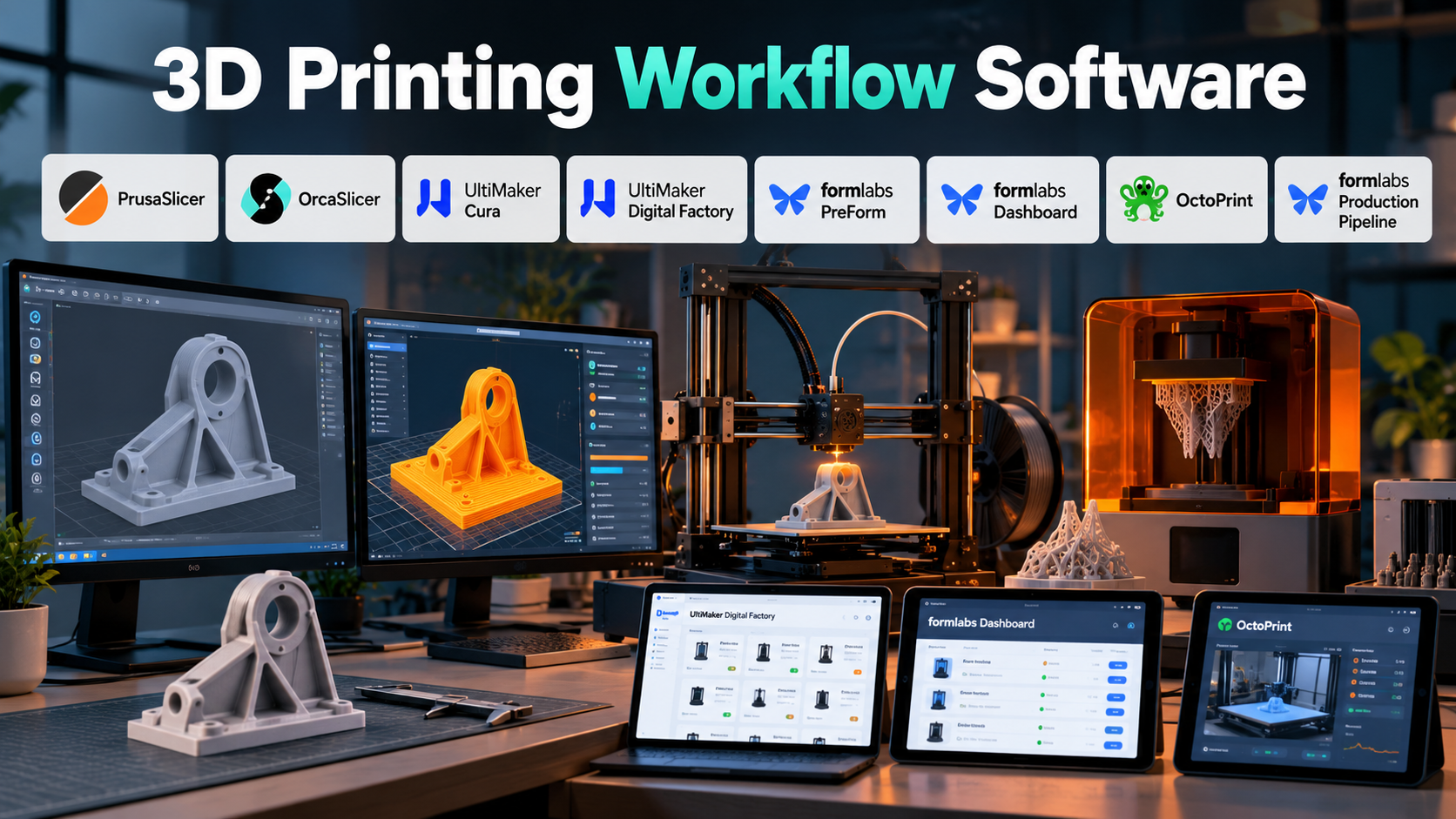
The products below cover different parts of the workflow. They should not all be treated as direct competitors: a slicing application, a printer dashboard, and a production-management platform solve different problems.
PrusaSlicer
PrusaSlicer is an open-source application for preparing 3D models for supported FDM and resin-printing workflows. It provides configurable print profiles and advanced controls for preparing models before printing.
Its offline operation is useful when local processing and keeping design files on the workstation are priorities. Network sending and remote management depend on the connected printer and supported services.
PrusaSlicer is particularly relevant when operators want control over print settings without purchasing a proprietary slicing license. Its range of settings can also require more learning than a simplified, printer-specific interface.
OrcaSlicer
OrcaSlicer focuses on FDM slicing, printer profiles, and calibration. Its calibration workflows cover parameters such as flow rate, temperature, pressure advance, and retraction.
This makes it useful for users who need to diagnose print-quality problems instead of relying entirely on default profiles. The trade-off is that calibration tools help only when their results are interpreted correctly and profiles are maintained for the actual machine and material.
Compatibility should be checked before using its profiles or printer connectivity features with a particular setup.
UltiMaker Cura
Cura offers a broad set of print settings, material profiles, and extensions. Its open-source slicing engine and customizable settings make it useful for both straightforward prints and more involved FDM preparation.
Cura is a strong candidate when a printer is supported and users want to adjust their workflow through profiles and extensions. However, Cura’s general-purpose slicing capabilities should not be confused with centralized production management. UltiMaker Digital Factory is the separate platform for connected printer management and team workflows.
UltiMaker Digital Factory
Digital Factory supports connected printer monitoring, job queues, shared project libraries, user roles, print approvals, and job reporting.
Its greatest value is coordination rather than replacing every design or slicing application. Teams can use a connected platform to make printer status more visible and organize work across compatible machines.
Printer compatibility, account requirements, network conditions, and subscription-dependent features should be checked before adopting it across a workshop.
Formlabs PreForm
PreForm prepares models for compatible Formlabs stereolithography (SLA) and selective laser sintering (SLS) printers. Its preparation capabilities include model orientation, support generation where applicable, build layout, and print preparation.
The application is particularly relevant when the hardware and material ecosystem already fits the workflow. It is not a universal replacement for an FDM slicer, and its preparation features are designed around supported Formlabs machines.
Formlabs Dashboard
Formlabs Dashboard complements the company’s print-preparation software with online printer monitoring, consumables information, notifications, and access management.
It is useful for teams that need visibility into connected Formlabs printers without relying exclusively on individual machine interfaces.
The platform should be evaluated against the actual fleet and workflow requirements. It does not automatically replace a full manufacturing execution system or provide universal management for every printer brand.
OctoPrint
OctoPrint provides a browser-based interface for controlling and monitoring compatible printers, viewing progress, accessing webcam feeds, and extending functionality through community plugins.
It can fill the gap between a desktop slicer and a printer that needs remote control. Its flexibility is valuable for locally managed setups, especially where users want to customize monitoring and control.
However, OctoPrint requires a compatible configuration and ongoing administration. Plugins, network access, software updates, and security settings deserve particular attention when the printer is accessible remotely.
Formlabs Production Pipeline
Formlabs Production Pipeline is aimed at automating repeatable print-preparation tasks and coordinating supported manufacturing workflows. Depending on the implementation, its capabilities can include build optimization, validation, job queuing, printer assignment, and traceability.
Its relevance increases when teams handle recurring part families or production batches, where manually preparing and dispatching every job becomes expensive.
It is a specialized production solution rather than a general-purpose workflow manager for arbitrary printer fleets. Compatibility and the exact capabilities available for the intended configuration should be confirmed before adoption.
How the Main Tools Differ
| Software | Primary role | Most suitable situation | Main consideration |
|---|---|---|---|
| PrusaSlicer | Slicing and preparation | Flexible desktop printing workflows | Profiles and printer compatibility matter |
| OrcaSlicer | Slicing and calibration | Fine-tuning FDM print quality | Requires informed calibration |
| UltiMaker Cura | Slicing and preparation | Customizable FDM workflows | Fleet management is a separate capability |
| UltiMaker Digital Factory | Connected print management | Teams coordinating compatible networked printers | Check printer and plan compatibility |
| Formlabs PreForm | Build preparation | Supported Formlabs resin and powder-bed workflows | Hardware-specific ecosystem |
| Formlabs Dashboard | Monitoring and fleet administration | Connected Formlabs printer environments | Does not replace a full manufacturing execution system |
| OctoPrint | Printer control and monitoring | Compatible printers needing a locally managed control layer | Requires setup, maintenance, and secure access |
| Formlabs Production Pipeline | Automated production workflow | Repeatable jobs on supported Formlabs systems | Specialized rather than cross-brand fleet management |
The distinction that matters most is whether the software solves a preparation problem, a machine-control problem, or a production-coordination problem. Buying a more advanced slicer will not necessarily solve scheduling bottlenecks, just as a fleet dashboard cannot compensate for poorly configured material profiles.
Choosing Software for Your Printing Setup
For an individual or hobbyist
Start with the slicer recommended for your printer. If you need more control, compare PrusaSlicer, OrcaSlicer, and Cura against your machine’s compatibility and the settings you actually use.
Add OctoPrint or another supported remote-control option only if transferring files manually or checking prints in person has become inconvenient.
For a design studio or engineering team
Prioritize repeatability, model version control, and clear ownership of approved print settings. CAD files, exported meshes, and sliced jobs should be identifiable so that a colleague can reproduce the intended part without guessing which file is current.
A shared library or connected management platform becomes useful when several people prepare jobs for the same printers.
For a print farm or service bureau
Focus on queue visibility, machine availability, job assignment, remote monitoring, and recovery procedures. At this scale, the time spent coordinating printers may become as important as the time spent slicing models.
Before selecting a platform, verify whether it supports all your printer models and whether it can manage mixed fleets. A dashboard that works well with one manufacturer’s ecosystem may offer limited control over machines from other brands.
For industrial or regulated production
Evaluate production traceability, access controls, approved process parameters, material records, inspection evidence, and integration with manufacturing execution systems (MES) or enterprise resource planning (ERP).
For applications where part conformity matters, a successful print is not sufficient evidence of a conforming product. Inspection procedures and process validation must be designed separately from printer monitoring.
Integrations, Automation, and Production Management
A connected workflow becomes more valuable when information can move reliably between its stages.
CAD to preparation: Importing supported native CAD files or exchanging standardized geometry reduces manual conversion steps. However, imported geometry should still be checked for units, tolerances, orientation, and missing features.
Preparation to printer: Direct transfer reduces handling and makes it easier to select the intended machine. The receiving printer must still support the generated instructions, material, and process parameters.
Printer to dashboard: Status reporting, completion notifications, and monitoring help operators respond to problems. Remote access should be configured securely, particularly when systems expose machine controls over a network.
Production system to business software: APIs and integrations can connect print jobs to order records, work orders, inventory, or manufacturing systems. Before automating dispatch, determine how the integration handles failures, duplicate jobs, permissions, and changes to approved files.
Automation should remove repetitive administration without hiding important manufacturing decisions. Automatically routing a job to an available printer is useful only when that printer is suitable for the material, quality requirement, and production deadline.
What to Measure Before Automating
Choose operational metrics that reflect the actual bottleneck:
- First-pass success rate: How often prints meet requirements without a repeat job.
- Machine utilization: How much available machine time is spent printing productively.
- Queue delay: How long approved jobs wait before printing begins.
- Material waste: How much material is lost to failed prints, supports, purging, or discarded parts.
- Operator intervention: How much hands-on attention is required per job.
- Traceability completeness: Whether the records required for investigation and reproduction are available.
No single metric tells the whole story. Increasing utilization, for example, may be undesirable if it creates longer queues for urgent jobs or increases the risk of failures going unnoticed.
Common Mistakes When Building a Workflow
Choosing software before checking printer compatibility. A feature-rich slicer is of little use if the correct printer profile, material settings, or output format is unavailable.
Confusing file compatibility with process compatibility. A model that opens successfully may still need repairs, different supports, or a different orientation to print reliably.
Assuming every printer should share identical settings. Different machines, materials, nozzles, build surfaces, and firmware configurations can require different profiles even when printing the same model.
Automating an unreliable process. If the current workflow produces inconsistent results, automation may reproduce those mistakes faster. Establish stable profiles and validation procedures first.
Ignoring access and data security. Cloud platforms, shared libraries, remote-control interfaces, and plugins introduce different access and data-handling considerations. Review who can upload, approve, start, or modify jobs.
Keeping no reliable record of successful prints. Without versioned models and known-good process settings, reproducing a previously successful part can become an unnecessary investigation.
A Practical Implementation Strategy
A gradual rollout is often more effective than replacing every application at once.
- Map the existing process. Identify where models are created, who prepares jobs, how files reach printers, and where delays or failures occur.
- Standardize the basics. Establish naming conventions for models, materials, printer profiles, and approved job files.
- Select the preparation software. Test representative parts rather than choosing solely from feature lists.
- Run a controlled pilot. Use a small number of printers and record print quality, preparation time, failures, and operator effort.
- Add management capabilities where needed. Introduce shared libraries, remote monitoring, queues, or production integrations only when they solve a demonstrated problem.
- Document and review the process. Assign responsibility for profiles, software updates, access permissions, and failed-job investigations.
A good pilot should include more than an easy demonstration part. Test a typical component, a difficult geometry, a repeat job, and any material or quality requirement that is important to production.
Making the Right Decision
The most effective 3D printing workflow is not necessarily the one with the most features or the fewest applications. It is the one that reliably moves a model from design to an acceptable physical part while keeping the process understandable and manageable.
For a single printer, a suitable slicer may be all that is needed beyond CAD. For a workshop with several machines, remote monitoring and shared job management can reduce coordination overhead. For repeatable manufacturing, automated preparation, production queues, and traceability become more important.
Start by identifying the actual constraint: model preparation, print quality, machine coordination, or production control. Then choose the smallest combination of compatible software that addresses it, validate the result with representative jobs, and expand the workflow only when the additional complexity delivers measurable value.