Table of Contents
- Introduction to Color Grading Software
- What Is Color Grading?
- Color Correction vs. Color Grading
- How Color Grading Software Works
- Essential Features of Color Grading Software
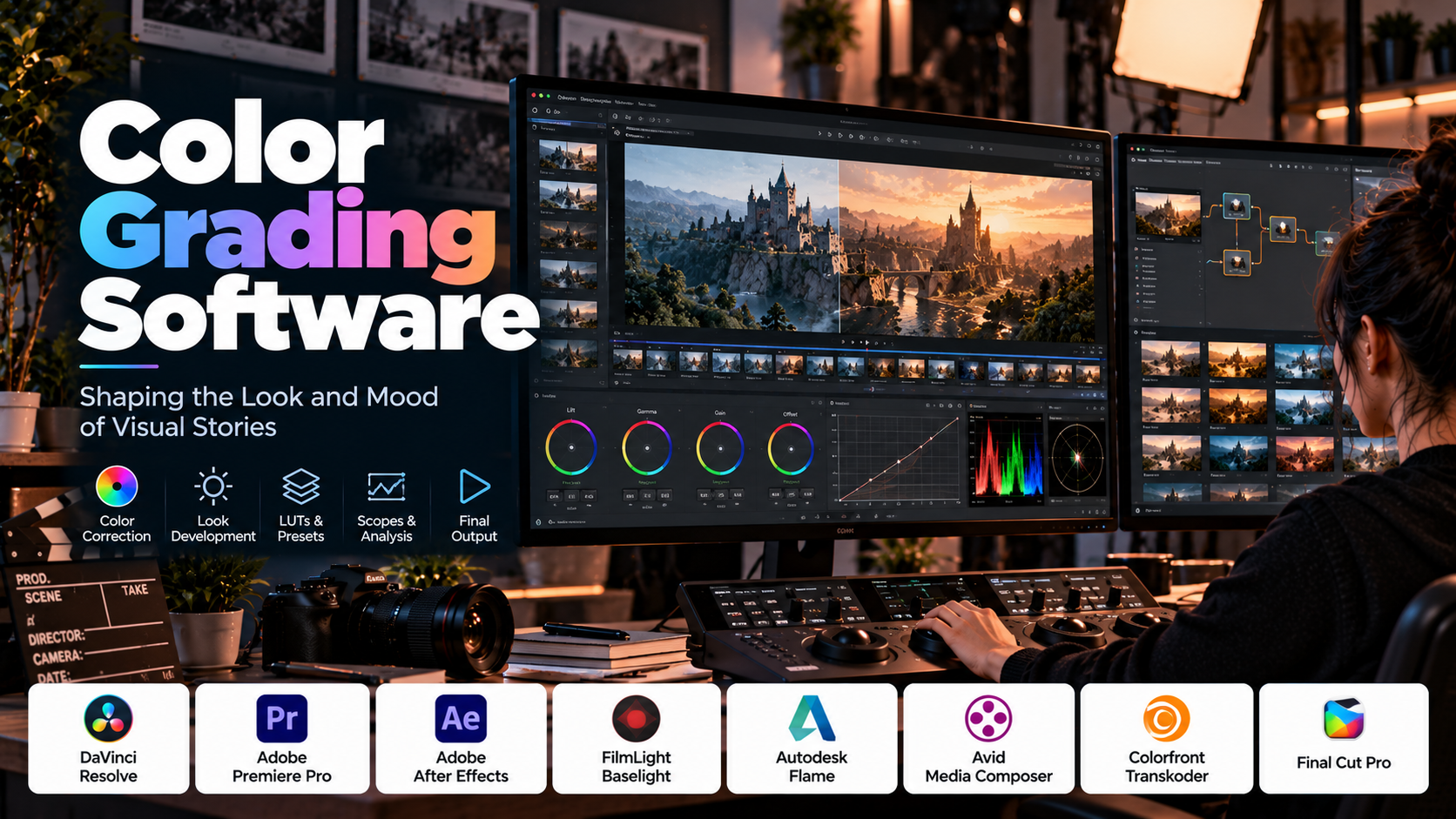
- Popular Color Grading Software
- Understanding Color Wheels, Curves, and Scopes
- LUTs, Presets, and Cinematic Looks
- Color Management and Video Formats
- Color Grading Workflow: Step by Step
- Color Grading for Different Types of Content
- Hardware and System Requirements
- How to Choose the Right Software
- Common Color Grading Mistakes and Best Practices
- AI and the Future of Color Grading
- Career Opportunities and Skills
- Frequently Asked Questions
- Conclusion
1. Introduction to Color Grading Software
Color plays a powerful role in how audiences experience visual content. A warm, golden sunset can communicate comfort and nostalgia, while a cool blue palette can create a sense of isolation, tension, or mystery. Even when two videos contain identical footage, differences in color, contrast, brightness, and saturation can make them feel completely different.
This is why color grading has become an essential part of modern video production.
Color grading software is used to control and enhance the appearance of images and video footage. It allows creators to adjust colors, balance highlights and shadows, improve consistency between shots, establish a particular mood, and develop a recognizable visual style.
These applications are used in films, television, music videos, advertisements, documentaries, social media content, wedding films, product videos, and corporate productions. Professional colorists use specialized tools to refine images with precision, while beginners and independent creators can use accessible applications to improve their videos without requiring a large post-production team.
Color grading is not simply about making footage look attractive. It involves understanding how colors interact, how cameras record light, how displays reproduce images, and how visual choices influence storytelling.
For example, a creator may record a video in a room illuminated by warm artificial lighting. The footage may appear too yellow, with dull shadows and inconsistent skin tones. Color correction can help establish a balanced starting point. The creator can then apply a creative grade that gives the footage a warm, polished appearance while preserving natural-looking skin.
The right software makes this process more controlled, repeatable, and efficient.
2. What Is Color Grading?
Color grading is the process of modifying the color, contrast, brightness, and overall visual character of footage to achieve a desired appearance.
It can involve subtle adjustments that make a video look natural and consistent, or dramatic changes that create a highly stylized visual identity.
A colorist may adjust:
- Exposure and overall brightness.
- Contrast between highlights and shadows.
- White balance and color temperature.
- Saturation and color intensity.
- Individual colors within selected tonal ranges.
- Skin tones and complexions.
- Highlight and shadow colors.
- Color consistency across multiple shots.
- The overall mood and visual style of a scene.
A practical example
Imagine a travel video containing three shots:
- A person standing beside a beach at sunrise.
- A close-up of the person’s face.
- A wide shot of the surrounding landscape.
The shots may have been recorded at different times, with slightly different exposure and white balance settings. One may appear too blue, another too yellow, and the third too dark.
A colorist first corrects the inconsistencies. Once the shots are reasonably balanced, the colorist can introduce a creative look using warm highlights, controlled shadows, and slightly enhanced colors.
The result feels like one continuous visual experience instead of three unrelated clips.
The relationship between color and storytelling
Color can influence how viewers interpret a scene.
- Warm colors can suggest comfort, nostalgia, energy, or intimacy.
- Cool colors can suggest calmness, distance, sadness, or suspense.
- Muted colors can create a restrained, realistic, or documentary-like appearance.
- High contrast can make a scene feel dramatic or intense.
- Soft contrast can produce a gentle, dreamy, or nostalgic appearance.
- Selective saturation can draw attention toward an important subject.
These associations are not universal rules. Their effect depends on context, culture, lighting, composition, and the surrounding story. Nevertheless, color is an important visual storytelling tool.
3. Color Correction vs. Color Grading
Color correction and color grading are closely related, but they serve different purposes.
Color correction
Color correction focuses on making footage technically and visually consistent. It establishes a reliable starting point before creative styling is applied.
Typical correction tasks include:
- Fixing incorrect white balance.
- Adjusting exposure.
- Recovering usable highlight and shadow detail.
- Correcting unwanted color casts.
- Matching footage recorded with different cameras.
- Making skin tones appear consistent.
- Balancing shots within a scene.
For example, if footage recorded indoors appears excessively orange because of tungsten lighting, color correction can reduce the unwanted warm cast.
The objective is not necessarily to make every shot identical. Instead, it is to make the footage suitable for the intended final appearance.
Color grading
Color grading introduces the intended creative style.
Typical grading tasks include:
- Creating a warm, golden-hour appearance.
- Developing a cool, cinematic atmosphere.
- Building a consistent palette across a film.
- Emphasizing selected colors.
- Adjusting contrast to support the mood.
- Creating stylized looks for advertisements or music videos.
- Establishing a visual identity for a creator or brand.
Comparison
| Aspect | Color correction | Color grading |
|---|---|---|
| Primary purpose | Balance and consistency | Creative expression |
| Main concern | Exposure, white balance, color accuracy | Mood, style, atmosphere |
| Typical result | Natural or neutral starting image | Distinctive visual appearance |
| Workflow position | Usually performed first | Usually follows correction |
| Example | Removing an unwanted yellow cast | Creating a warm sunset look |
In practice, the two processes overlap. A colorist may alternate between corrective and creative adjustments while refining a shot.
The important principle is to establish a controlled, consistent image before making strong stylistic changes.
4. How Color Grading Software Works
Color grading applications process image data and allow users to modify how that data is displayed.
Although interfaces differ, the underlying workflow usually involves importing footage, adjusting image properties, evaluating the results, and exporting the finished video.
Step 1: Import the footage
The creator imports video files into the application. The footage may come from a smartphone, mirrorless camera, cinema camera, drone, screen recording, or another source.
The software reads the available image data and metadata, including information relevant to frame rate, resolution, color space, and exposure interpretation when supported.
Step 2: Establish the correct color interpretation
Some footage is recorded in standard display-oriented color, while other footage uses log profiles or high-dynamic-range formats.
The application must interpret the footage correctly before meaningful adjustments can be made. Incorrect interpretation may produce images that appear excessively flat, saturated, dark, or bright.
Step 3: Correct the image
The user adjusts exposure, white balance, contrast, and other technical properties.
Scopes can help identify problems that may not be obvious from visual inspection alone.
Step 4: Apply creative adjustments
The user shapes the image using color wheels, curves, saturation controls, masks, and other grading tools.
Adjustments may apply to the entire frame or selected regions.
Step 5: Match shots
The creator compares clips to ensure that scenes maintain a coherent appearance. This is particularly important when footage has been recorded using different cameras or under changing lighting conditions.
Step 6: Review on the intended display
The image is evaluated on a suitable monitor and, where practical, on the devices or screens for which it is intended.
Brightness, display settings, ambient lighting, and color-management differences can affect how the grade appears.
Step 7: Export the final video
The finished video is rendered using the required resolution, frame rate, codec, color settings, and delivery format.
The export must be checked because compression and color-space conversion can change the final appearance.
5. Essential Features of Color Grading Software
Different applications provide different levels of control. Understanding the most important features helps users evaluate software more effectively.
Primary color correction
Primary correction tools affect the overall image. They commonly include controls for exposure, contrast, temperature, tint, saturation, and tonal balance.
These controls establish the image’s overall appearance before more selective adjustments are applied.
Color wheels
Color wheels allow users to introduce or remove color from different tonal ranges. Many applications provide controls for shadows, midtones, and highlights.
For example, an editor might introduce a subtle blue tint into shadows while keeping skin tones and highlights relatively warm. This can create visual separation between darker and brighter regions.
Curves
Curves provide detailed control over tonal and color relationships.
A luminance curve can adjust contrast by changing the relationship between input brightness and output brightness. Separate red, green, and blue curves can alter color balance across tonal ranges.
Curves are useful when simple contrast or saturation sliders do not provide enough precision.
Selective color adjustment
Selective controls allow users to target a particular color or range of colors.
For example, a creator may reduce the saturation of a distracting green background while preserving the color of skin and clothing.
Secondary grading
Secondary grading applies adjustments to a selected region, object, or color range rather than the entire image.
Selections may be created using masks, tracking, color qualifiers, or combinations of these tools.
Masks and tracking
Masks restrict grading to specific areas. Tracking helps a mask follow a moving subject across a clip.
These tools are useful when brightening a face, adjusting the sky, reducing saturation in a background, or controlling the appearance of a moving object.
LUT support
A Look-Up Table, or LUT, maps input color values to output values according to a predefined transformation.
LUTs can be used for technical conversions, creative looks, monitoring, and consistency across a workflow. Their suitability depends on the source footage and the intended transformation.
Video scopes
Scopes provide objective information about image levels and color distribution.
Common tools include the waveform monitor, RGB parade, vectorscope, and histogram. They help users assess exposure, color balance, and saturation more accurately than visual inspection alone.
Shot matching
Shot-matching tools help compare and align the appearance of multiple clips. Some applications offer automatic matching features, but manual review remains important.
Nodes and grading layers
Node-based systems organize grading operations into connected steps. Layer-based systems use stacked adjustments or effects. Both approaches allow users to build complex looks.
Presets and look management
Presets save adjustment settings so that a look can be reused. They are useful for consistency, but a preset may need modification for each lighting condition, camera, and scene.
6. Popular Color Grading Software
Several applications are widely used for color correction and grading. They differ in workflow, learning curve, integration, and cost.
DaVinci Resolve
DaVinci Resolve is a major color-grading and post-production application. Its dedicated color workspace includes color wheels, curves, scopes, qualifiers, masks, tracking, and node-based grading.
The application also provides editing, visual effects through Fusion, and audio post-production tools.
Its range of capabilities makes it suitable for beginners, independent filmmakers, content creators, and professional post-production teams. The available features depend on the edition and version.
Best suited for: Users who want detailed color control and an integrated editing and finishing workflow.
Adobe Premiere Pro
Premiere Pro provides color correction and grading tools within a video-editing environment. Its Lumetri Color workspace offers controls for white balance, exposure, contrast, curves, color wheels, creative looks, and selective adjustments.
Its integration with other Adobe applications can be useful for teams that combine editing, motion graphics, compositing, and design.
Best suited for: Editors who want to perform color work without leaving their primary editing application.
Final Cut Pro
Final Cut Pro provides color correction and grading tools within Apple’s video-editing ecosystem. Its workflow includes color wheels, curves, color adjustments, and effects for refining footage.
It can be a practical option for creators working primarily on supported Apple systems.
Best suited for: Video editors and content creators who prefer an integrated editing workflow on macOS.
Avid Media Composer
Avid Media Composer is primarily known as a professional editing platform used in established film and television workflows. It provides color adjustment capabilities, although specialized grading applications may be used for more extensive finishing.
Best suited for: Editors working in professional production environments that use Avid-based pipelines.
Baselight
Baselight is a specialized professional color-grading system used in high-end post-production. It offers advanced color manipulation and finishing capabilities designed for demanding projects.
Its workflows are particularly relevant to professional colorists who need detailed control over complex images and productions.
Best suited for: Professional grading facilities and advanced finishing workflows.
Colorfront
Colorfront provides professional tools for color management, dailies, transcoding, and related post-production workflows. Its applications serve specialized needs in production and finishing pipelines rather than simply replacing a general-purpose video editor.
Best suited for: Production teams with technical color-management and media-processing requirements.
Blender
Blender is primarily a 3D creation application, but it also provides compositing and video-sequencing capabilities. Basic color adjustments can be part of a broader content-creation workflow.
For dedicated, advanced grading work, a specialized grading application may offer more comprehensive tools.
Best suited for: Artists who want to combine 3D creation, compositing, and video work in one environment.
Which software should you start with?
For many beginners, DaVinci Resolve is an excellent starting point because it provides a dedicated grading workflow and extensive learning opportunities. Premiere Pro is practical for people who already edit in Adobe’s ecosystem, while Final Cut Pro may suit editors working on macOS.
Professional facilities may use specialized tools such as Baselight depending on their pipeline and delivery requirements.
The best choice is the one that fits your current needs and gives you room to develop your skills.
7. Understanding Color Wheels, Curves, and Scopes
To use grading software effectively, it helps to understand the tools that provide the greatest control over the image.
Color wheels
Color wheels represent color direction and intensity. Moving a control toward a particular hue introduces more of that color into the relevant tonal range.
Many applications provide separate controls for shadows, midtones, and highlights.
Example: If a scene has neutral shadows but the creator wants a cooler, cinematic appearance, a subtle blue adjustment in the shadows may create the desired effect. The adjustment should be evaluated alongside skin tones and the rest of the image.
Contrast and tonal curves
A curve maps input levels to output levels. The horizontal axis typically represents the original tonal value, while the vertical axis represents the adjusted value.
A common contrast adjustment creates a gentle S-curve. Depending on its shape, this can darken some shadows and brighten some highlights.
However, an aggressive curve can crush shadow detail or clip highlights. Subtle adjustments are often easier to control.
RGB parade
An RGB parade displays the red, green, and blue channel levels separately.
It can help identify color casts and compare color balance across the tonal range.
For example, if a neutral object appears yellow, the red and green channels may be relatively strong compared with blue. The correct adjustment depends on the footage and the intended appearance.
Waveform monitor
A waveform monitor displays image signal levels across the frame. It helps assess brightness distribution and identify areas that may be too dark or too bright.
It is particularly useful when matching shots or maintaining consistent exposure.
Vectorscope
A vectorscope displays color information according to hue and saturation. It helps evaluate color intensity and can provide a reference when checking skin tones.
It should not be treated as a rule that every scene must have a particular color distribution. The correct result depends on the image.
Histogram
A histogram shows the distribution of brightness values in an image. It can help reveal whether much of the image is concentrated in shadows, midtones, or highlights.
A histogram does not, by itself, determine whether an image is correctly exposed. A dark night scene and a bright snowy landscape should naturally have different distributions.
Why scopes matter
Human vision adapts to surrounding light and nearby colors. As a result, an image can appear balanced on one display but look different elsewhere.
Scopes provide additional information that supports more consistent decisions. The best practice is to combine scope readings with careful visual evaluation.
8. LUTs, Presets, and Cinematic Looks
LUTs and presets are commonly used to speed up color grading, but they serve different purposes.
What is a LUT?
A Look-Up Table is a transformation that maps input color values to output values.
A LUT can change contrast, saturation, hue relationships, and other color properties according to its design. Some LUTs are created for technical color-space conversion, while others are designed to produce a creative appearance.
Technical LUTs
Technical LUTs may convert footage from one defined color representation to another. For example, a workflow may use a conversion designed for a particular camera log profile and target display.
The correct transformation depends on the footage, camera settings, color space, and project pipeline.
Applying the wrong technical LUT can produce incorrect contrast, oversaturation, clipped highlights, or distorted colors.
Creative LUTs
Creative LUTs are intended to establish a particular look, such as warm highlights, cool shadows, muted colors, or a film-inspired palette.
They can provide a useful starting point, but they should not replace understanding the footage.
Presets
Presets save a collection of adjustment settings. Depending on the application, a preset may include several color controls, effects, curves, or other parameters.
A preset can be more flexible than a simple LUT when it preserves editable settings. However, the exact behavior varies by application.
A practical workflow for LUTs
- Import the footage and confirm its color interpretation.
- Correct exposure and white balance.
- Apply the appropriate technical transformation if the workflow requires one.
- Preview the creative LUT.
- Reduce its strength or modify its settings if the effect is excessive.
- Refine skin tones and important colors.
- Check highlights, shadows, and saturation using scopes.
- Compare the result with the original footage.
Why LUTs sometimes look bad
A LUT designed for one camera profile may not work correctly on footage from another profile. It may also assume a particular input exposure or color space.
Even when the technical requirements match, the look may not suit the lighting, subject, or scene.
A LUT should be treated as a starting point, not a guarantee of a professional result.
9. Color Management and Video Formats
Color management is one of the most important technical aspects of grading. It helps ensure that footage is interpreted and displayed consistently throughout the workflow.
Color spaces
A color space defines how color values correspond to actual colors within a specified system.
Different workflows may use different color spaces for camera capture, editing, grading, and delivery. Common examples include Rec. 709 for many standard dynamic-range video workflows and Rec. 2020 in certain wider-gamut or high-dynamic-range workflows.
The correct choice depends on the production and delivery requirements.
Log footage
Some cameras record footage using logarithmic encoding to preserve a wide range of tonal information.
Log footage often looks flat and desaturated when viewed without the appropriate interpretation. This appearance is intentional and does not necessarily mean the recording is poor.
The footage must be correctly transformed or managed before final display-oriented grading.
Dynamic range
Dynamic range describes the range between the darkest and brightest detail that can be represented.
Footage with greater usable dynamic range may preserve more detail in highlights and shadows, providing more flexibility during grading. However, the actual result depends on exposure, recording format, sensor performance, and processing.
Standard dynamic range and high dynamic range
Standard dynamic range (SDR) and high dynamic range (HDR) workflows use different display assumptions and delivery requirements.
HDR grading requires careful attention to brightness levels, display capabilities, transfer functions, and delivery specifications. A grade intended for an HDR display may not appear the same on an SDR screen without an appropriate conversion.
Bit depth
Bit depth influences how many tonal and color values can be represented. Higher-bit-depth footage generally provides more precision for extensive grading, especially when making substantial adjustments.
However, bit depth alone does not determine image quality. Exposure, compression, noise, chroma subsampling, and the recording pipeline also matter.
Codecs and compression
A codec determines how video is encoded and decoded. Some formats preserve more information for post-production, while heavily compressed formats may show artifacts when adjusted aggressively.
The choice should reflect the camera, available storage, editing performance, and final delivery requirements.
Why color management matters
Without consistent color interpretation, the same footage may appear different between applications or displays. Correct color management provides a more predictable foundation for creative work.
10. Color Grading Workflow: Step by Step
A structured workflow helps prevent inconsistent results and unnecessary rework.
Step 1: Organize the project
Import the footage, arrange clips into scenes or sequences, and identify the shots that require correction.
Use clear names and keep source files separate from final exports. If the project includes footage from multiple cameras, record the relevant camera profiles and recording settings.
Step 2: Set up the project color settings
Confirm the project color space, working settings, and intended delivery format.
If the footage uses a log profile or another specialized encoding, ensure it is interpreted correctly.
Step 3: Review the footage before making changes
Watch the clips and note problems such as inconsistent exposure, mixed lighting, unwanted color casts, and distracting colors.
Decide which shots need technical correction and what overall visual style would support the content.
Step 4: Correct white balance
Adjust temperature and tint to remove unwanted color casts where appropriate.
Use neutral objects and skin tones as references when available, but remember that creative lighting may intentionally introduce color.
Step 5: Adjust exposure
Balance shadows, midtones, and highlights. Preserve important detail where the source footage allows it.
Avoid brightening shadows so aggressively that noise becomes distracting, and avoid reducing highlights so much that the image loses its intended brightness.
Step 6: Establish contrast
Adjust contrast and tonal curves to create the desired separation between light and dark areas.
The aim is to give the image a coherent tonal structure without losing important information.
Step 7: Match the shots
Choose a reference shot and compare the remaining clips. Match exposure, white balance, contrast, and important colors before applying strong creative styling.
A scene can contain intentional lighting differences while still maintaining visual continuity.
Step 8: Create the creative look
Use color wheels, curves, selective adjustments, or a suitable LUT to establish the intended mood.
For example, a travel video might use gentle warm highlights and natural saturation, while a dramatic short film might use cooler shadows and stronger contrast.
Step 9: Refine skin tones and important subjects
Check that faces, products, clothing, and other key elements retain appropriate color.
If necessary, use masks, qualifiers, or secondary grading to make selective adjustments.
Step 10: Review the image on scopes
Inspect brightness, color balance, and saturation using appropriate scopes.
Pay particular attention to clipped highlights, crushed shadows, and colors that exceed the intended delivery limits.
Step 11: Review the sequence in motion
Watch the entire sequence rather than evaluating each shot independently. Look for changes in color, exposure, or saturation that become distracting across cuts.
Step 12: Export and verify
Export using the intended codec, resolution, frame rate, and color settings.
Review the exported file, not just the timeline. Confirm that the color appears as expected and that the export is technically suitable for the destination platform.
11. Color Grading for Different Types of Content
The best grading approach depends on the subject, lighting, audience, and intended platform.
Cinematic films
Film grading often emphasizes continuity, controlled contrast, skin-tone consistency, and a coherent palette.
A film may use different visual treatments for different locations or emotional moments, but those choices should support the story.
Travel videos
Travel content often benefits from clear exposure, natural skin tones, controlled skies, and colors that preserve the character of the location.
Increasing saturation excessively can make landscapes and water look artificial. A balanced approach usually creates a more polished result.
Beauty and fashion content
Beauty and fashion videos frequently require careful skin-tone management, consistent lighting, and accurate product colors.
Over-smoothing or aggressive color changes can remove natural texture or distort makeup shades. A polished appearance should still preserve important details.
Product advertisements
Product videos often prioritize color accuracy and visual consistency. A red product should not appear orange in one shot and deep crimson in another unless the lighting or creative direction intentionally calls for that change.
Weddings and events
Wedding films may benefit from consistent skin tones, gentle contrast, and a cohesive look across changing locations and lighting conditions.
Because event footage may be recorded with several cameras, matching shots can be one of the most important grading tasks.
Documentaries
Documentary grading generally supports the credibility and clarity of the footage. Creative stylization may be appropriate, but it should not undermine the intended presentation of real events.
Social media reels
Short-form videos often need to look clear and visually consistent on mobile displays. Exposure, skin tones, background colors, and readable contrast are especially important.
Creators should avoid assuming that every clip needs a dramatic cinematic LUT. A clean, natural grade can be more effective for tutorials, routines, product demonstrations, and everyday content.
12. Hardware and System Requirements
Color grading can require substantial processing power, particularly when working with high-resolution footage, complex effects, and demanding codecs.
The ideal system depends on the software and the projects being created.
Processor
A capable CPU helps with decoding, playback, effects processing, and rendering. Performance depends on the particular application and how it distributes tasks across CPU and GPU resources.
RAM
Memory requirements increase with resolution, bit depth, number of video layers, and project complexity.
Around 16 GB may be sufficient for basic learning and smaller projects. Around 32 GB provides a more comfortable starting point for many intermediate workflows, while demanding professional projects may benefit from 64 GB or more.
These are general guidelines rather than universal requirements.
GPU
A compatible GPU can accelerate supported grading operations, effects, and playback. Check the software’s hardware requirements before upgrading, because not every feature uses GPU acceleration in the same way.
Storage
Solid-state storage can improve loading, caching, and general responsiveness. High-resolution source files and cache data can occupy considerable space, so sufficient storage is important.
Monitor quality
A good monitor helps with evaluating color and tonal detail. For color-critical work, calibration and a controlled viewing environment can improve consistency.
A standard consumer display may be sufficient for learning, but its factory settings and viewing conditions can limit color accuracy.
Working efficiently on a modest computer
- Begin with short clips and manageable resolutions.
- Use proxy media when appropriate.
- Avoid stacking unnecessary effects.
- Close applications that compete for memory.
- Keep sufficient free storage for caches and exports.
- Use optimized media when supported by the workflow.
- Render a short test before exporting a long sequence.
Learning the principles of grading is more important than owning expensive hardware at the beginning.
13. How to Choose the Right Software
Choosing a grading application requires considering the type of content you produce and the workflow you want to build.
Define your requirements
Ask whether you primarily create social media videos, short films, documentaries, advertisements, or professional productions.
A creator who needs basic correction and creative looks may not need the same tools as a colorist working on feature films.
Consider your editing workflow
If you already edit in a particular application, its built-in grading tools may be sufficient. An integrated workflow can reduce the need to move files between programs.
A dedicated grading application may be worthwhile when you need more advanced color control or professional finishing tools.
Evaluate the learning curve
Some applications make common adjustments easy to find, while others expose more detailed controls and complex workflows.
A steep learning curve is not necessarily a disadvantage, but it should match your goals and available practice time.
Compare the cost
Consider whether the application offers a free version, a paid license, a subscription, or specialized hardware requirements. Also account for training resources and any additional software you may need.
Pricing and feature availability can change, so confirm current licensing information before making a purchase.
Check format support
Make sure the application can handle your footage, including its codec, resolution, frame rate, bit depth, and color profile.
Consider collaboration and delivery
If you work with a team, check compatibility with the editing, visual effects, and finishing tools used by others.
Learn through a real project
Rather than evaluating software only by watching demonstrations, try grading a short sequence. Practice correcting white balance, matching two shots, creating a simple look, using scopes, and exporting the final result.
This will reveal whether the application fits your needs.
14. Common Color Grading Mistakes and Best Practices
Mistake 1: Increasing saturation too much
Excessive saturation can make skin tones unnatural, clip colors, and exaggerate background elements.
Better approach: Increase saturation gradually and inspect individual colors. Use selective controls when only a particular color needs adjustment.
Mistake 2: Crushing the shadows
Darkening shadows too aggressively removes detail and can make the image appear harsh.
Better approach: Adjust the tonal curve carefully and preserve important shadow information where the source footage allows it.
Mistake 3: Clipping the highlights
Overexposed areas may lose detail when pushed too bright. Some clipped information cannot be recovered through grading.
Better approach: Review exposure before creative adjustments and preserve highlight detail during correction whenever possible.
Mistake 4: Applying the same LUT to every clip
Different cameras, lighting conditions, and exposure levels can produce different results under the same LUT.
Better approach: Correct the footage first and adjust the look for each shot.
Mistake 5: Ignoring skin tones
A strong creative grade may make faces look too orange, magenta, green, or blue.
Better approach: Check faces carefully and use selective adjustments where necessary. Skin tones vary naturally, so the goal is not to force every person into one identical color.
Mistake 6: Grading without scopes
An image can appear balanced on one display but contain unwanted color casts or extreme signal levels.
Better approach: Combine visual judgment with waveform, RGB parade, vectorscope, and histogram readings as appropriate.
Mistake 7: Ignoring shot continuity
A single clip may look attractive on its own but feel inconsistent when placed beside another shot.
Better approach: Compare shots within the full sequence and match their exposure, white balance, and overall palette.
Mistake 8: Using excessive contrast
Strong contrast can make an image dramatic, but it can also remove detail and make footage appear harsh.
Better approach: Shape contrast according to the subject and story rather than applying a fixed look to every project.
Mistake 9: Trusting the preview alone
The exported video may look different because of color-space conversion, compression, display settings, or platform processing.
Better approach: Review the final exported file and, when practical, test it on the intended viewing devices.
Best practices for consistent results
- Correct footage before applying a strong creative grade.
- Keep important source media unchanged.
- Use scopes to support visual decisions.
- Compare clips within the same scene.
- Save versions before making major changes.
- Avoid unnecessary saturation and contrast.
- Verify the correct color space and delivery settings.
- Check the export before delivering or publishing it.
- Develop a repeatable workflow that can be adapted to different projects.
15. AI and the Future of Color Grading
Artificial intelligence is increasingly being incorporated into post-production workflows. Its role is to assist with analysis, matching, automation, and selected image adjustments.
Automatic color matching
AI-assisted tools can analyze footage and suggest adjustments to make shots appear more consistent. These suggestions can save time when working with large numbers of clips.
However, automatic matching may not understand every creative intention. Different lighting conditions may be deliberate, and some shots should remain visually distinct.
Subject-aware grading
Some tools can identify people, faces, skies, or other objects and help apply adjustments selectively.
This can reduce the amount of manual masking required, although difficult edges and moving subjects may still need refinement.
Automatic white balance and exposure suggestions
Intelligent analysis can help identify potential exposure or color-balance problems and suggest corrective changes.
The result should still be evaluated against the footage and the intended appearance.
AI-assisted look development
Some systems can help generate or adapt visual styles. They may provide useful starting points for creative exploration, but consistency across an entire project remains important.
Limitations of AI grading
Automated systems can make incorrect assumptions about lighting, skin tones, color relationships, and creative intent. Results may also vary across different scenes.
Professional judgment remains essential for evaluating whether an adjustment supports the content and whether the final image is consistent across the sequence.
The most useful approach is to treat AI as a way to accelerate repetitive work while retaining control over the final visual result.
16. Career Opportunities and Skills
Color grading is a specialized skill within video production and post-production. It can be developed as a primary profession or combined with editing, cinematography, motion graphics, and visual effects.
Colorist
A colorist shapes the visual appearance of footage, matches shots, establishes creative looks, and prepares projects for delivery.
The role requires technical knowledge of color, strong visual judgment, and the ability to communicate with directors, cinematographers, editors, and clients.
Video editor
Editors organize footage, shape the narrative, manage pacing, and prepare sequences for finishing. Knowledge of color correction helps them deliver more consistent and polished projects.
Cinematographer or camera operator
Understanding grading helps cinematographers plan exposure, lighting, color relationships, and camera settings with the final appearance in mind.
Content creator
Creators can use grading to establish a recognizable style across reels, tutorials, travel videos, product reviews, and other content.
A consistent visual identity can make a channel feel more cohesive, although content quality and storytelling remain essential.
Post-production specialist
Post-production professionals may combine editing, color correction, media management, delivery preparation, and other finishing tasks.
Skills worth developing
- Understanding of exposure and white balance.
- Knowledge of color theory and visual storytelling.
- Familiarity with color spaces, LUTs, and video formats.
- Ability to use color wheels, curves, and scopes.
- Understanding of shot matching and scene continuity.
- Awareness of display calibration and color management.
- File organization and delivery workflow skills.
- Communication and collaboration.
- A portfolio demonstrating both technical correction and creative grading.
A practical beginner portfolio
Build a small portfolio that demonstrates different types of work:
- Correct footage with a visible white-balance problem.
- Match two shots recorded under different lighting.
- Create a subtle cinematic look.
- Grade a travel or lifestyle sequence.
- Show a before-and-after comparison with an explanation of the adjustments.
Use the same footage for before-and-after comparisons so viewers can clearly see the effect of your work. Include examples of natural correction as well as creative grading.
17. Frequently Asked Questions
What is color grading software?
Color grading software is used to adjust and refine the color, contrast, exposure, and visual style of images and videos. It helps create consistent footage and supports creative storytelling.
Which color grading software is best for beginners?
DaVinci Resolve is an excellent option for learning dedicated color grading. Premiere Pro is practical for users already editing in Adobe’s ecosystem, while Final Cut Pro suits many Apple-based editing workflows.
Is DaVinci Resolve free?
DaVinci Resolve offers a free version alongside a paid Studio edition. The features available depend on the version, and users should check the current licensing details before choosing an edition.
Can I grade videos on a laptop?
Yes. A laptop can be sufficient for learning and many smaller projects. Performance depends on its processor, memory, GPU, storage, footage format, and the complexity of the grade.
What is the difference between a LUT and a preset?
A LUT maps input color values to output values according to a defined transformation. A preset stores application-specific adjustment settings and may include multiple editable controls or effects. Their exact capabilities depend on the software.
Do I need to learn color theory?
You can begin making basic corrections without studying color theory in depth, but understanding hue, saturation, contrast, complementary colors, and color relationships will improve your decisions.
What is log footage?
Log footage uses a logarithmic encoding designed to preserve a useful range of tonal information. It often looks flat before processing and generally needs appropriate color management or transformation before final delivery.
Why do my colors look different after exporting?
Possible causes include incorrect color-space settings, mismatched export options, display differences, compression, and platform processing. Check the project settings, export settings, and the actual rendered file.
Can color grading make bad footage look professional?
Grading can improve exposure, color balance, and visual consistency when the source contains usable information. It cannot reliably restore every detail lost through severe overexposure, focus problems, heavy compression, or poor recording conditions.
Is color grading necessary for every video?
Not every video requires a dramatic grade. Many videos benefit from simple exposure and white-balance correction, while some are intentionally left with a natural appearance. The appropriate level of processing depends on the content and its purpose.
18. Conclusion
Color grading software gives creators precise control over the appearance and emotional character of video. From correcting white balance and balancing exposure to creating distinctive cinematic palettes, these tools help transform recorded footage into a polished visual experience.
The most effective workflow begins with understanding the footage, correcting technical problems, matching shots, and then introducing creative adjustments. Color wheels, curves, scopes, masks, LUTs, and color-management tools each serve a different purpose within that process.
DaVinci Resolve, Adobe Premiere Pro, Final Cut Pro, Baselight, and other applications offer different approaches to color work. The right choice depends on the creator’s goals, technical requirements, budget, and preferred editing environment.
Ultimately, excellent grading is not about making every image more saturated or dramatic. It is about using color intentionally, maintaining consistency, preserving important image detail, and supporting the story being told. With a solid understanding of the fundamentals and regular practice, creators can develop a reliable grading workflow and a distinctive visual style.