Table of Contents
- Introduction to Audio Editing Software
- What Is Audio Editing Software?
- Audio Editing vs. Audio Mixing vs. Audio Mastering
- How Audio Editing Software Works
- Essential Features of Audio Editing Software
- Types of Audio Editing Software
- Popular Audio Editing Applications
- Understanding Audio Tracks, Waveforms, and Timelines
- Essential Audio Editing Techniques
- Noise Reduction and Voice Enhancement
- Audio Mixing and Sound Design
- Audio Effects and Plugins
- Audio Formats, Sample Rates, and Bit Depth
- Audio Editing for Different Types of Content
- Hardware and System Requirements
- How to Choose the Right Software
- Common Audio Editing Mistakes and Best Practices
- AI in Audio Editing
- Career Opportunities and Skills
- Frequently Asked Questions
- Conclusion
1. Introduction to Audio Editing Software
Sound is one of the most important elements of digital communication. A clear voice-over can make a tutorial easier to understand, balanced dialogue can improve a film, and carefully selected sound effects can make an advertisement more engaging. Conversely, background noise, uneven volume, distortion, and poorly edited pauses can make even visually impressive content difficult to enjoy.
Audio editing software helps creators record, modify, arrange, enhance, and export sound. It provides tools for cutting recordings, removing unwanted sections, adjusting volume, reducing noise, applying effects, combining multiple tracks, and preparing audio for different platforms.
These applications are used by podcasters, musicians, filmmakers, voice-over artists, journalists, educators, game developers, content creators, and audio engineers. Some tools are designed for straightforward tasks, such as cleaning up a voice recording, while others support complex music production and professional post-production.
For example, imagine recording a podcast in a room where a fan is running in the background. The voice may be understandable, but the recording contains pauses, inconsistent volume, and unwanted noise. Audio editing software can help remove unnecessary sections, reduce steady background noise, balance the voice, apply equalization, and export a cleaner final recording.
However, audio editing is not simply about making sound louder or applying effects. It requires understanding how sound behaves, how different frequencies affect clarity, how tracks interact, and how the final audio will be heard.
The right software gives users greater control over these decisions and helps transform raw recordings into clear, consistent, and polished audio.
2. What Is Audio Editing Software?
Audio editing software is an application used to manipulate recorded or digitally generated sound. It allows users to modify audio files, arrange recordings, process individual tracks, and prepare finished audio for playback or distribution.
Depending on the application, users may work with speech, music, sound effects, ambient recordings, instrument tracks, or audio extracted from video.
Common tasks include:
- Cutting, trimming, and joining recordings.
- Removing unwanted pauses and mistakes.
- Adjusting volume and loudness.
- Reducing background noise.
- Improving speech clarity.
- Applying equalization and compression.
- Adding reverb, delay, and other effects.
- Combining dialogue, music, and sound effects.
- Synchronizing audio with video.
- Creating fades and crossfades.
- Recording voice-overs and musical instruments.
- Exporting audio in different formats.
A practical example
Suppose a creator records a three-minute product review using a smartphone. The recording contains a few mistakes, long pauses, a sudden increase in speaking volume, and a noticeable air-conditioner hum.
The creator can import the recording into an audio editor, remove the mistakes, reduce the unnecessary pauses, apply gentle noise reduction, balance the volume, and make small equalization adjustments to improve speech intelligibility.
The finished recording may sound much more professional without requiring expensive recording equipment.
Why audio editing matters
Clarity: Editing helps make speech and important sounds easier to understand.
Consistency: Volume adjustments help prevent sudden differences between clips or speakers.
Efficiency: Keyboard shortcuts, presets, and reusable workflows speed up repetitive tasks.
Creative control: Effects and track arrangements allow creators to develop a distinctive sound.
Professional delivery: Export settings help ensure that the audio meets the technical requirements of its destination.
Good audio editing improves not only sound quality but also the overall experience of the audience.
3. Audio Editing vs. Audio Mixing vs. Audio Mastering
These terms are related, but they describe different stages of audio production.
Audio editing
Audio editing focuses on modifying and arranging recordings.
Typical tasks include cutting mistakes, trimming silence, joining clips, removing unwanted noises, synchronizing dialogue, and arranging individual recordings.
For example, an editor working on an interview may remove repeated answers and organize the conversation into a logical sequence.
Audio mixing
Audio mixing involves balancing and processing multiple audio elements so that they work together.
A mix might contain dialogue, background music, ambience, sound effects, and several instrument tracks. The engineer adjusts their relative levels, frequency balance, stereo position, dynamics, and effects.
For example, background music may need to be lowered whenever someone speaks so that the dialogue remains clear.
Audio mastering
Mastering is the final preparation stage for a finished mix. It focuses on overall tonal balance, loudness, dynamics, consistency, and delivery requirements.
In music production, mastering may prepare a collection of tracks for release. In other workflows, final audio processing ensures that a finished program meets the intended technical specifications.
Mastering cannot reliably repair every problem in a poorly recorded or badly mixed source. It is most effective when the underlying recording and mix are already in good condition.
Comparison
| Aspect | Audio editing | Audio mixing | Audio mastering |
|---|---|---|---|
| Main purpose | Modify and arrange recordings | Balance multiple sound elements | Prepare the final mix for delivery |
| Typical work | Cutting, trimming, cleanup | Levels, EQ, compression, effects | Overall tonal and loudness refinement |
| Main focus | Individual recordings and timing | Relationship between tracks | Final output and consistency |
| Example | Remove mistakes from narration | Balance narration with music | Prepare the finished episode for release |
A single application may support all three stages, but the tasks remain conceptually different.
4. How Audio Editing Software Works
Most audio editors use a workflow based on importing or recording audio, displaying it visually, applying changes, and exporting the result.
Step 1: Import or record audio
Users can import existing recordings or capture new sound through a microphone, audio interface, or supported input device.
The quality of the source recording affects how much improvement is possible later.
Step 2: View the waveform
The software displays the audio as a waveform, showing how the signal changes over time. Larger waveform peaks generally indicate higher signal amplitude, while quieter passages appear smaller.
A waveform helps identify pauses, loud sounds, clipping, and the timing of individual events.
Step 3: Select the required section
The user selects a portion of the recording for editing. This may be a single word, a long pause, a mistake, or an entire clip.
Selections can be trimmed, deleted, copied, moved, or processed independently.
Step 4: Make edits
The editor removes unwanted sections, rearranges clips, joins recordings, and creates fades or crossfades where necessary.
Nondestructive editing workflows allow users to adjust many operations later without permanently changing the original recording.
Step 5: Apply processing
Effects such as equalization, compression, noise reduction, reverb, and limiting can be applied to improve or creatively modify the audio.
Processing should be selected according to the problem being solved rather than applied automatically to every recording.
Step 6: Combine tracks
When a project contains multiple recordings, the user balances their volume and timing. Dialogue, music, and sound effects may occupy separate tracks to provide independent control.
Step 7: Review the result
The edited audio is played from beginning to end. The user checks for clicks, abrupt cuts, unwanted noise, inconsistent levels, and unnatural processing.
Step 8: Export the finished audio
The application renders the result into a supported file format, such as WAV, MP3, or another suitable format.
The export settings depend on whether the audio is intended for editing, archival storage, music distribution, podcast publishing, or video production.
5. Essential Features of Audio Editing Software
Audio editing applications differ in complexity, but most provide a collection of fundamental tools for manipulating sound.
Waveform editing
Waveform editing allows users to view and modify audio based on its amplitude over time. Users can select specific regions, remove unwanted sections, split recordings, and adjust individual parts.
This is especially useful for voice recordings, interviews, podcasts, and sound effects.
Multitrack editing
Multitrack editing allows several audio clips to play simultaneously. Each track can be controlled independently, making it possible to combine dialogue, background music, ambience, and sound effects.
For example, a video creator can place narration on one track, background music on another, and environmental sounds on a third.
Noise reduction
Noise reduction tools help reduce unwanted background sounds, including steady hums, fans, electrical interference, and some forms of recording noise.
The effectiveness depends on the type of noise and the quality of the original recording. Strong noise reduction can introduce unnatural artifacts, so it should be applied carefully.
Equalization
Equalization, commonly called EQ, changes the relative strength of different frequency ranges.
It can help reduce muddiness, improve speech clarity, control harshness, or shape the tonal character of music.
Compression
Compression reduces the difference between louder and quieter portions of an audio signal according to adjustable settings. It can help control inconsistent volume and make speech or music sound more even.
Excessive compression can make audio sound unnatural, increase background noise, or reduce the sense of dynamics.
Reverb and delay
Reverb simulates or enhances the sense of space surrounding a sound. Delay creates repeated versions of a sound after a selected interval.
These effects can add depth and atmosphere to music, dialogue, and sound design. They are usually applied more subtly to narration when clarity is the priority.
Automation
Automation changes a parameter over time. Users can automate volume, panning, effect intensity, and other supported controls.
For example, background music can gradually become quieter when dialogue begins and rise again when the speaker finishes.
Spectral editing
Spectral editing displays audio according to frequency and time rather than only amplitude. This can help identify and remove certain unwanted sounds, such as a short click, whistle, or isolated noise.
Advanced spectral tools are particularly valuable for audio restoration.
Batch processing
Batch processing applies a selected operation or set of operations to multiple files. It can save time when preparing a collection of recordings that require similar processing.
However, files recorded under different conditions may need individual adjustments.
Plugin support
Plugins extend an application’s capabilities with additional effects, instruments, analyzers, and restoration tools. Common plugin standards include VST3, Audio Units, and AAX, although support varies by application and operating system.
6. Types of Audio Editing Software
Audio software can be grouped according to the tasks it is designed to perform.
Digital audio workstations
A digital audio workstation, or DAW, is a comprehensive environment for recording, editing, arranging, mixing, and producing audio.
DAWs commonly support multiple tracks, automation, effects, virtual instruments, MIDI, and external hardware integration.
They are widely used for music production, podcasting, sound design, and audio post-production.
Waveform editors
Waveform editors focus on editing individual audio files. They are well suited to cutting recordings, cleaning up speech, repairing audio, converting formats, and making precise changes to recorded material.
Some also provide multitrack editing, but their central workflow often revolves around individual files.
Audio restoration software
Restoration tools focus on reducing unwanted noise, removing clicks and crackles, repairing damaged recordings, and improving intelligibility.
They are useful for archival recordings, dialogue cleanup, interviews, and professional post-production.
Podcast and voice-over tools
These tools emphasize speech recording, microphone input, noise management, multitrack dialogue editing, and delivery workflows.
They may include simplified interfaces and automation designed to help creators produce spoken content efficiently.
Music production software
Music-oriented DAWs provide tools for recording instruments, arranging MIDI, using virtual instruments, programming drums, applying effects, and mixing complete compositions.
They are particularly useful for songwriters, producers, composers, and musicians.
Video-oriented audio post-production tools
These applications help editors synchronize audio with video, manage dialogue, create sound effects, balance music, and prepare a finished soundtrack.
They may integrate directly with video editing systems or operate as dedicated audio environments.
The best category depends on whether the primary task is editing a recording, producing music, cleaning up speech, or finishing audio for video.
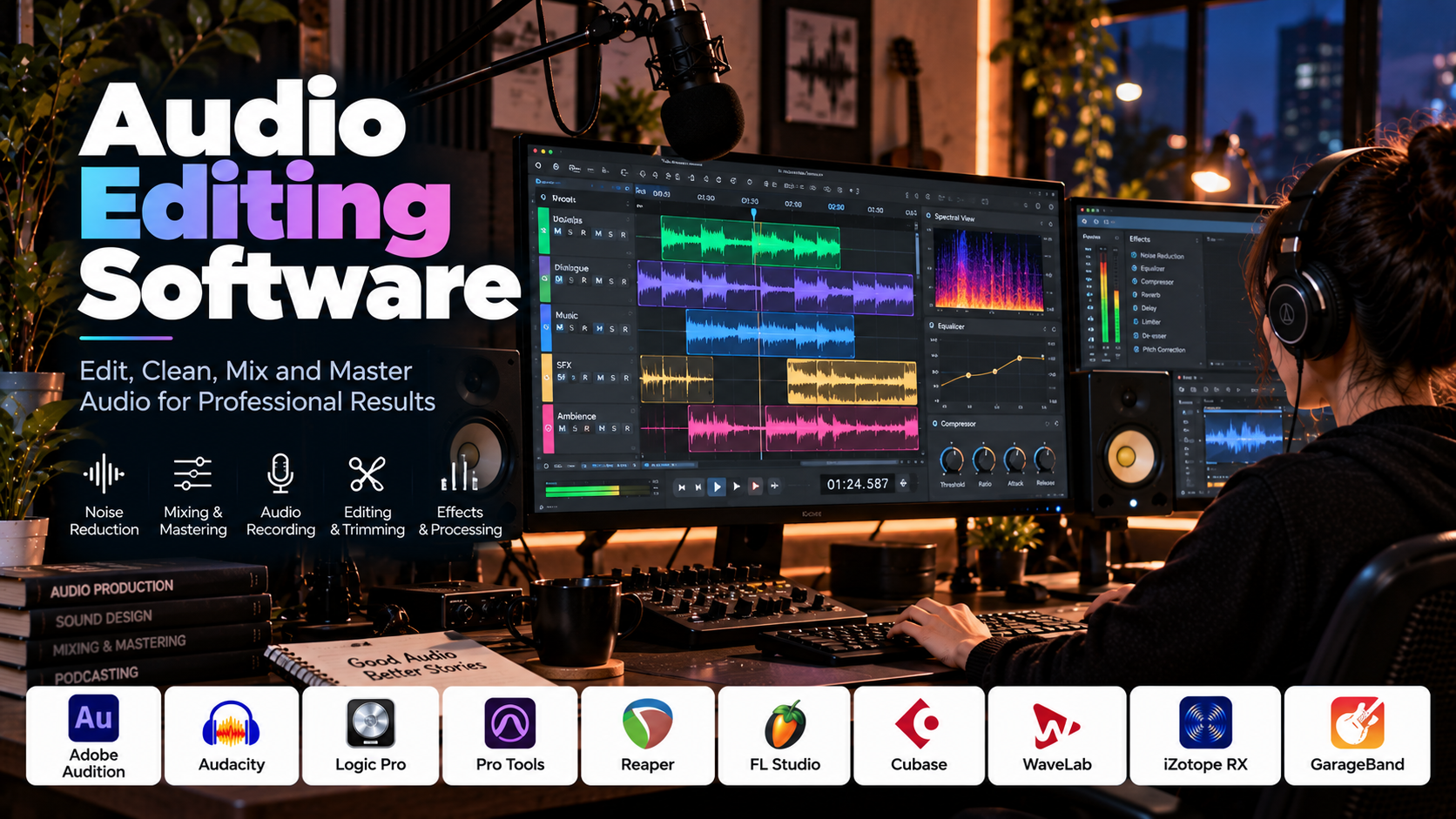
7. Popular Audio Editing Applications
Several applications are widely used across different audio workflows. Their features, licensing, and operating-system support vary, so the best choice depends on the intended task.
Audacity
Audacity is a free, open-source audio editor commonly used for recording, trimming, cleaning, and processing audio.
It supports waveform editing, multitrack work, effects, and a variety of audio formats. Its accessible workflow makes it useful for students, podcasters, educators, and beginners.
It is especially practical for editing narration, interviews, and simple audio projects without purchasing a commercial application.
Best suited for: Voice recordings, podcasts, basic audio cleanup, and learning audio editing fundamentals.
Adobe Audition
Adobe Audition is an audio editing and post-production application that supports waveform editing, multitrack sessions, noise reduction, audio repair, and sound processing.
It is useful for cleaning dialogue, editing podcasts, preparing voice-overs, and working with audio for video. Its integration with other Adobe applications can be helpful for editors who already use that ecosystem.
Best suited for: Podcast production, dialogue editing, audio restoration, and video post-production.
Avid Pro Tools
Pro Tools is a professional digital audio workstation widely associated with music recording, mixing, film sound, and television post-production.
It supports multitrack recording, editing, automation, plugins, and complex audio sessions. Its workflow is especially relevant to professional studios and collaborative production environments.
Best suited for: Studio recording, professional mixing, and large-scale audio post-production.
Apple Logic Pro
Logic Pro is a comprehensive DAW for supported Apple computers. It offers audio recording, MIDI sequencing, virtual instruments, effects, arrangement tools, and mixing capabilities.
It is popular among musicians, composers, songwriters, and producers who need an integrated music-production environment.
Best suited for: Music creation, songwriting, composition, and audio production on supported Mac systems.
REAPER
REAPER is a flexible DAW known for customizable workflows, multitrack editing, recording, automation, and plugin support.
Its interface and extensive configuration options allow users to adapt it to many different audio tasks, including music production, voice-over work, podcasting, and sound design.
Best suited for: Users who want a configurable DAW for recording, editing, and mixing.
FL Studio
FL Studio is widely used for electronic music production, beat-making, sequencing, and arranging.
It provides pattern-based workflows, virtual instruments, effects, MIDI tools, and mixing capabilities. It is particularly popular among producers creating electronic, hip-hop, and other digitally produced music.
Best suited for: Beat-making, electronic music, and MIDI-based composition.
Ableton Live
Ableton Live combines traditional timeline-based production with a Session View designed for experimenting with musical ideas and performing live.
It supports audio recording, MIDI, instruments, effects, arrangement, and performance-oriented workflows.
Best suited for: Electronic music production, live performance, improvisation, and creative composition.
Steinberg Cubase
Cubase is a DAW used for music production, recording, composition, MIDI sequencing, and mixing.
It offers detailed editing and arrangement capabilities and is used across a range of musical genres and production environments.
Best suited for: Music composition, recording, MIDI production, and mixing.
iZotope RX
iZotope RX is primarily an audio repair and restoration toolkit rather than a general-purpose DAW. It provides specialized tools for tasks such as reducing noise, removing clicks, controlling unwanted sounds, and repairing damaged recordings.
It is often used alongside other audio editing applications.
Best suited for: Dialogue cleanup, restoration, and challenging audio repair tasks.
GarageBand
GarageBand provides an accessible recording and music-production environment on supported Apple devices. It includes instruments, loops, recording tools, and basic mixing capabilities.
It is useful for learning music production and creating simple recordings without the complexity of a large professional DAW.
Best suited for: Beginners, musicians, songwriters, and basic audio projects.
How to choose among them
For basic recording cleanup, Audacity is a practical starting point. Adobe Audition is well suited to dialogue and post-production work. Pro Tools is relevant to professional studio workflows, while Logic Pro, FL Studio, Ableton Live, Cubase, and REAPER offer different approaches to music production.
iZotope RX is particularly useful when the main challenge is repairing problematic audio rather than assembling a complete project.
8. Understanding Audio Tracks, Waveforms, and Timelines
The audio editing interface becomes easier to understand once you know how its main visual components work.
Waveforms
A waveform shows changes in audio amplitude over time. It can help identify pauses, peaks, abrupt noises, and the approximate location of speech.
However, waveform size does not directly tell you whether a recording sounds good. A large waveform can contain distortion, while a small waveform may contain clean but quiet audio.
Audio tracks
A track holds one or more audio clips in a project. Separate tracks allow independent control of dialogue, music, effects, and ambience.
For example, a video project may use:
- Track 1 for narration.
- Track 2 for background music.
- Track 3 for sound effects.
- Track 4 for environmental ambience.
This separation makes it easier to adjust levels and apply effects without unnecessarily affecting other sounds.
Timeline
The timeline represents audio over time. Clips can be moved, shortened, split, and arranged to match the visual sequence or intended story.
Editors can zoom in for precise cuts or zoom out to view the structure of a complete recording.
Track controls
Depending on the application, track controls may include volume, pan, mute, solo, record enable, and effects.
- Mute: Temporarily silences a track.
- Solo: Plays the selected track or tracks while other tracks are suppressed.
- Volume: Controls the track’s output level.
- Pan: Positions sound within the stereo field.
- Record enable: Prepares a track for recording.
Nonlinear and nondestructive editing
Nondestructive editing preserves the original audio while storing changes as editable instructions or project settings.
This is useful because users can revise edits, change effect parameters, and return to earlier versions without permanently damaging the source file.
Always retain a backup of important source recordings, even when using nondestructive software.
9. Essential Audio Editing Techniques
Learning a few fundamental techniques can improve the quality of many recordings.
Trimming and cutting
Trimming removes unwanted material from the beginning or end of a clip. Cutting divides a recording into separate sections.
These operations are useful for removing mistakes, repeated words, and irrelevant material.
Removing pauses
Long, unnecessary pauses can be shortened to improve pacing. However, removing every pause can make speech sound unnatural or rushed.
The goal is to preserve the speaker’s intended rhythm while eliminating distractions.
Fades and crossfades
A fade gradually increases or decreases audio volume. A crossfade overlaps the ending of one clip with the beginning of another so that the transition sounds smoother.
These techniques help prevent abrupt changes and clicks at edit boundaries.
Normalization
Normalization adjusts audio according to a selected peak or loudness target, depending on the method used.
Peak normalization changes the signal so that its highest peak reaches a specified level. Loudness normalization targets a perceived loudness measurement.
Normalization does not automatically fix inconsistent dynamics or make poor recordings sound professional.
Gain adjustment
Gain changes the signal level. It can be applied before or during processing, depending on the software and signal chain.
Gain adjustment is useful for preparing a recording for further processing, but it cannot recover detail that was never captured.
Silence and noise management
An editor can remove unwanted silent sections or reduce background noise. These are different operations: silence removal changes timing, while noise reduction attempts to lower unwanted sound within the recording.
Room tone and natural pauses may need to be retained so that the audio does not sound unnaturally interrupted.
Synchronization
Audio recorded separately from video may need to be synchronized with the corresponding footage.
Synchronization can be performed using a visual cue, a clap, a timecode reference, or waveform matching where supported.
Clip gain and automation
Clip gain changes the level of a particular audio segment. Automation allows the level to change dynamically over time.
These techniques are particularly useful when a speaker becomes quieter in one section or when music needs to dip beneath narration.
10. Noise Reduction and Voice Enhancement
Voice recordings frequently contain unwanted sounds that make speech harder to understand. Audio editing software can help, but the method should match the type of problem.
Common sources of recording noise
- Fans and air conditioners.
- Computer and electrical hum.
- Traffic and outdoor ambience.
- Microphone handling noise.
- Wind hitting the microphone.
- Room echo and reverberation.
- Electrical interference.
- Mouth clicks and other small recording artifacts.
Not every problem can be solved effectively with the same tool.
Noise reduction
Noise reduction is useful for certain types of steady background noise. Some tools analyze a sample of unwanted noise and use it to estimate what should be reduced elsewhere in the recording.
If too much reduction is applied, speech can develop watery, metallic, or muffled artifacts.
Use the smallest amount of processing that produces an acceptable improvement.
Equalization for speech
Equalization can help improve the tonal balance of a voice.
A recording may sound muddy, boomy, thin, or harsh. Adjusting selected frequency ranges can help reduce these characteristics, but the correct settings depend on the speaker, microphone, room, and recording.
Avoid copying a fixed EQ preset without listening to the result.
Compression for consistent volume
Compression can reduce the difference between louder and quieter speech. It is often useful when a speaker moves away from the microphone or changes speaking volume.
However, excessive compression can increase background noise and make the recording sound unnatural.
De-essing
A de-esser reduces excessive sibilance, such as sharp sounds associated with certain pronunciations of letters like “s” and “sh.”
It can improve listening comfort when used carefully.
De-clicking and de-plosive processing
De-clicking tools can help remove short clicks, while de-plosive tools can reduce bursts of low-frequency energy caused by certain consonants reaching the microphone.
These operations should target the problem rather than indiscriminately processing the entire recording.
Room echo
Reverberation caused by a reflective room can be difficult to remove completely. Specialized tools may reduce some of it, but strong processing can create artifacts.
The best approach is prevention: record in a quiet room, move closer to the microphone, and use soft furnishings or acoustic treatment where practical.
A practical voice-cleanup workflow
- Keep an untouched copy of the original recording.
- Listen to the entire recording and identify the main problems.
- Remove obvious mistakes and unwanted sections.
- Reduce steady background noise if necessary.
- Apply gentle EQ to improve tonal balance.
- Use compression only if the volume needs better consistency.
- Control distracting clicks or sibilance where necessary.
- Balance the final loudness.
- Listen again using headphones and speakers.
The aim is intelligible, natural speech—not a voice that sounds heavily processed.
11. Audio Mixing and Sound Design
Audio mixing brings multiple sound elements together into a coherent listening experience.
Balancing levels
Each track should have an appropriate level relative to the others. Dialogue may need to remain the most prominent element in a tutorial, while music may take the lead in a music-focused production.
There is no single volume setting that works for every project. The relationship between sounds matters more than making each track as loud as possible.
Panning and stereo placement
Panning positions a sound within the left-right stereo field.
It can help separate musical instruments or create a sense of space. For dialogue-heavy content, speech is often kept near the center so it remains clear and stable.
Equalization
EQ shapes the frequency balance of a track. It can help separate overlapping sounds, improve clarity, and reduce unwanted resonance.
For example, reducing a competing frequency range in background music may help narration stand out without making the music excessively quiet.
Compression and dynamics
Compression controls the relationship between louder and quieter parts of a signal. It can help manage inconsistent speech or create a more controlled musical mix.
Different sources require different treatment. A voice-over, drum track, and ambient recording should not automatically receive the same compression settings.
Reverb and ambience
Reverb adds a sense of space. Sound design may use it to suggest a small room, a large hall, or a stylized environment.
Too much reverb can make dialogue difficult to understand, so the effect should suit the scene and the intended distance of the sound source.
Sound effects
Sound effects can make actions feel more convincing, communicate a location, or emphasize a transition.
For example, a short mechanical sound can support a product demonstration, while environmental ambience can make a travel video feel more immersive.
Ducking
Audio ducking automatically lowers one signal when another becomes prominent. It is commonly used to reduce background music when speech begins.
Ducking can improve clarity, but the volume change should be smooth enough that the audience does not become distracted by it.
Final mix review
Listen to the mix at a comfortable volume, check for clipping, and make sure important sounds remain intelligible. If possible, test the result on headphones, ordinary speakers, and a mobile device.
A mix that sounds balanced on only one playback system may need further refinement.
12. Audio Effects and Plugins
Plugins extend the capabilities of an audio application by providing specialized processing tools.
Equalizers
Equalizers modify the balance of frequency ranges. They may offer simple tone controls or detailed filters for precise adjustments.
Compressors
Compressors reduce dynamic range according to selected parameters such as threshold, ratio, attack, and release.
These controls determine when compression begins and how it responds to changes in signal level.
Limiters
A limiter restricts signal peaks according to a specified ceiling. It can help control excessive peaks, but it does not replace proper gain staging or good mixing.
Reverb plugins
Reverb plugins simulate or create the impression of acoustic spaces. They can add depth to music, voice, and sound effects.
Delay plugins
Delay plugins create repeated versions of a sound. They are often used in music production, creative sound design, and certain voice effects.
Pitch and time tools
Pitch tools change the perceived pitch of audio, while time-stretching tools change duration without necessarily changing pitch.
Quality varies depending on the algorithm and how extreme the adjustment is.
Spectral restoration tools
Specialized restoration plugins can help identify and reduce certain noises, clicks, hums, and other unwanted artifacts.
Virtual instruments
Virtual instruments generate sound through software. They may include synthesizers, sampled instruments, drum machines, and orchestral libraries.
These tools are particularly relevant to DAWs used for music production.
Plugin compatibility
Before installing a plugin, check that it supports your operating system, application, processor architecture, and required plugin format.
Using too many plugins can also increase CPU load and complicate troubleshooting. Start with the tools required to solve the problem at hand.
13. Audio Formats, Sample Rates, and Bit Depth
Understanding audio formats helps users preserve quality and choose appropriate files for editing, storage, and distribution.
WAV
WAV is a container commonly used for uncompressed PCM audio. It is widely supported in recording and post-production workflows and is useful when preserving audio quality is important.
WAV files can be large, especially for long, high-resolution recordings.
MP3
MP3 is a lossy compressed audio format. It reduces file size by discarding some audio information according to its encoding method.
It is useful for sharing and many everyday listening applications, but repeated lossy encoding can further reduce quality.
FLAC
FLAC is a lossless compression format. It reduces file size without discarding the encoded audio information, making it useful for music libraries and archival workflows.
AAC
AAC is a lossy compressed format widely used in digital media and video workflows. Its suitability depends on the intended playback environment and encoding settings.
Sample rate
Sample rate describes how many times per second an audio signal is sampled during digital recording.
Common sample rates include 44.1 kHz and 48 kHz. A rate of 44.1 kHz is commonly associated with music distribution, while 48 kHz is widely used in video and film workflows.
The correct choice depends on the production requirements. Higher sample rates are not automatically better for every project.
Bit depth
Bit depth affects the precision with which sample amplitudes are represented. Higher bit depth provides greater available dynamic range and more headroom for recording and processing.
For many recording workflows, 24-bit audio is a practical choice because it allows useful headroom without requiring the signal to be recorded extremely close to clipping.
Bitrate
Bitrate describes how much data is used per second of encoded audio. It is particularly relevant to lossy compressed formats such as MP3 and AAC.
Higher bitrate can preserve more detail, but the improvement depends on the source, encoder, listening conditions, and chosen settings.
Mono and stereo
Mono audio uses one channel, while stereo audio uses two channels to represent left and right.
Voice-over and many speech recordings can work well in mono, while music and environmental recordings may benefit from stereo when spatial information is important.
Choosing the right format
For ongoing editing and high-quality storage, uncompressed or losslessly compressed formats are often appropriate. For convenient distribution, a compatible compressed format may be more practical.
Always check the requirements of the destination platform or production pipeline.
14. Audio Editing for Different Types of Content
Different projects have different priorities, so audio editing should be adapted to the intended audience and format.
Podcasts
Podcasts require clear dialogue, consistent levels, logical pacing, and comfortable listening. Editors may remove mistakes, reduce distracting noise, balance speakers, and add introductory or closing music.
Aggressive processing should be avoided if it makes the speakers sound unnatural.
YouTube videos
YouTube audio often combines dialogue, background music, environmental sound, and sound effects.
The narration should remain intelligible, while music and effects should support the visuals rather than compete with the message.
Voice-overs
Voice-over production prioritizes clear speech, controlled recording levels, and low background noise.
A quiet recording environment and appropriate microphone placement often make a greater difference than applying many effects afterward.
Music production
Music editing involves recording and arranging instruments, correcting timing where appropriate, editing performances, processing tracks, and preparing mixes.
The workflow depends on the genre, arrangement, performers, and production style.
Film and television
Film audio may include dialogue, ambience, Foley, sound effects, music, and other elements. Editing and mixing help create continuity and support the emotional tone of each scene.
Complex productions often involve dedicated dialogue editors, sound designers, mixers, and mastering or delivery specialists.
Audiobooks
Audiobook editing prioritizes consistent narration, removal of recording mistakes, appropriate pauses, low distracting noise, and compliance with the publisher’s technical requirements.
The narrator’s natural rhythm should be preserved while unnecessary interruptions are removed.
Gaming and interactive media
Game audio may include dialogue, environmental ambience, character sounds, music, and interactive effects.
Sound designers need to consider how sounds behave during gameplay, including variation, repetition, spatial placement, and response to player actions.
Educational content
Educational audio should be clear, paced appropriately, and free of distracting background sounds. Narration should be easy to follow, particularly when listeners are learning unfamiliar material.
Social media content
Short-form videos often rely on concise narration, music, and sound effects. Editors should prioritize intelligibility and ensure that audio remains suitable for playback through phone speakers and headphones.
15. Hardware and System Requirements
Audio editing can run on a wide range of devices, but demanding sessions with many tracks, virtual instruments, and plugins may require more powerful hardware.
Processor
The CPU handles many audio processing operations. A capable processor helps when running several effects, virtual instruments, and tracks simultaneously.
RAM
Memory supports project data, samples, plugins, and other active processes.
Around 8 GB may be sufficient for basic editing and simple recordings, while 16 GB or more can provide a more comfortable experience for larger projects. Music production sessions with extensive sample libraries may need substantially more memory.
Requirements vary by application and workload.
Storage
An SSD can improve project loading and responsiveness. High-quality recordings, multitrack sessions, and sample libraries can consume considerable storage.
Keep backups of important recordings and project files.
Headphones and speakers
Reliable headphones help identify clicks, background noise, distortion, and other subtle problems. Speakers can provide a different perspective on balance and tonal quality.
Neither listening method is perfect on its own. When possible, review important projects on more than one playback system.
Microphones and audio interfaces
A suitable microphone and audio interface can improve recording quality and provide more reliable control over input levels.
For spoken content, microphone placement and room conditions are often more important than purchasing the most expensive equipment.
Quiet recording environment
Background noise and room reflections can limit recording quality. A quieter space, careful microphone positioning, and soft furnishings can help reduce these problems.
Working efficiently on a modest computer
- Close unnecessary applications during demanding sessions.
- Use fewer active plugins when CPU load becomes excessive.
- Freeze or render tracks where the application supports it.
- Keep project files and source recordings organized.
- Use suitable buffer settings for the task.
- Save work regularly and maintain backups.
For recording, low-latency settings can be important. For mixing, larger audio buffers may be acceptable and can improve stability.
16. How to Choose the Right Software
The best audio editing software depends on the main task, the user’s experience, and the desired workflow.
Define your main goal
If you want to clean up voice recordings, a waveform editor or audio restoration tool may be enough.
If you plan to produce music, a DAW with MIDI, virtual instruments, automation, and multitrack mixing will be more suitable.
For video post-production, choose software that can synchronize dialogue and other audio with the video workflow.
Consider your experience level
Beginners may prefer a straightforward interface with accessible recording, trimming, and noise-reduction tools.
Advanced users may need detailed routing, automation, plugin support, surround workflows, or collaborative production features.
Compare cost and licensing
Some applications are free or open source, while others use subscriptions, paid licenses, or tiered editions.
Consider the long-term cost, including plugins, sample libraries, hardware, and training.
Check compatibility
Confirm that the application supports your operating system, audio interface, file formats, and required plugin standards.
If you collaborate with others, compatibility with their software and project formats may be important.
Evaluate recording and editing needs
Some projects require multitrack recording, while others need precise waveform editing or advanced restoration.
Choose software based on the tasks you will perform most often rather than selecting an application solely because it has the largest feature list.
Test with a real recording
Import a sample recording and practice trimming, applying EQ, reducing noise, balancing volume, and exporting the result.
A short practical test can reveal whether the interface and workflow suit your needs.
17. Common Audio Editing Mistakes and Best Practices
Mistake 1: Recording too loudly
When an input signal exceeds the available digital range, it clips and produces distortion. Severe clipping cannot always be repaired.
Better approach: Set recording levels conservatively and leave headroom for unexpected peaks.
Mistake 2: Using excessive noise reduction
Heavy noise reduction can make speech sound metallic, watery, or muffled.
Better approach: Reduce only as much noise as necessary and compare the processed audio with the original.
Mistake 3: Making the audio too loud
Increasing volume without controlling peaks can cause clipping and distortion.
Better approach: Use appropriate gain staging, monitor peak levels, and apply limiting only when it serves a clear purpose.
Mistake 4: Overusing compression
Excessive compression can flatten natural dynamics and make background noise more noticeable.
Better approach: Use compression to address a specific problem and adjust it while listening to the complete recording.
Mistake 5: Removing every pause
Eliminating all pauses can make speech feel rushed and unnatural.
Better approach: Preserve meaningful pauses and remove only the gaps that interfere with pacing.
Mistake 6: Applying too many effects
Multiple effects can make audio sound artificial and difficult to understand.
Better approach: Start with the original recording and add processing only when it improves clarity, consistency, or creative intent.
Mistake 7: Ignoring the recording environment
Software cannot fully compensate for every acoustic problem.
Better approach: Record in a quiet space, position the microphone appropriately, and monitor the recording before beginning.
Mistake 8: Mixing on only one device
Audio that sounds balanced through headphones may sound different on speakers or mobile devices.
Better approach: Check important projects on several playback systems when possible.
Mistake 9: Exporting in the wrong format
A file may be unsuitable for its destination if it uses the wrong format, sample rate, channel configuration, or encoding settings.
Better approach: Confirm the delivery requirements before exporting and verify the finished file.
Mistake 10: Failing to preserve the original
Permanent edits can make it difficult to recover material that was removed or processed too aggressively.
Better approach: Keep an untouched original and save important project versions.
A practical quality-control checklist
Before publishing or delivering audio, check that:
- Speech and important sounds are easy to understand.
- There is no avoidable clipping or distortion.
- Background noise is controlled without excessive artifacts.
- Music and sound effects are balanced appropriately.
- Edits do not contain distracting clicks or abrupt cuts.
- The ending is clean and intentional.
- Export settings match the destination requirements.
- The final file has been reviewed from beginning to end.
- Source recordings and project files are backed up.
18. AI in Audio Editing
Artificial intelligence is increasingly being used to accelerate audio cleanup, transcription, dialogue processing, and sound creation.
Automatic transcription
Speech recognition can convert spoken audio into text. This can support captions, transcripts, searchable recordings, and text-based editing.
Automated transcripts should be checked for names, terminology, punctuation, and context.
Speech enhancement
AI-assisted tools can reduce some background noise and improve speech intelligibility. They may be useful for remote interviews, recordings made in imperfect environments, and dialogue cleanup.
Results depend on the quality of the source. Strong processing can remove parts of the voice or introduce unnatural artifacts.
Speaker separation
Some tools attempt to separate speakers or distinguish speech from background sound. This can help in certain recordings, although overlapping voices and complex environments remain challenging.
Automatic silence detection
AI-assisted workflows can identify pauses and suggest sections to remove. This may speed up podcast and interview editing.
However, meaningful pauses should be preserved when they support natural conversation or emotional emphasis.
Automatic loudness adjustment
Some systems can analyze recordings and suggest or apply loudness adjustments. These features can improve consistency, but the final output still needs to be checked against the intended delivery requirements.
Generative audio
Generative systems can create music, ambience, sound effects, and other audio material. These tools may support rapid experimentation, but users should review licensing, permitted use, attribution requirements, and the consistency of the generated material.
AI-assisted restoration
Machine learning can help identify and reduce certain kinds of unwanted sounds, including clicks, hum, and selected forms of noise.
Restoration is not guaranteed to recover information that was never captured, and aggressive processing can create new artifacts.
Why human judgment remains important
AI can accelerate repetitive work, but it may misinterpret speech, remove meaningful sounds, or alter the character of a recording.
The most reliable workflow combines automated assistance with careful listening, technical checks, and human decisions about clarity and creative intent.
19. Career Opportunities and Skills
Audio editing supports careers across music, film, broadcasting, online content, advertising, education, and game development.
Audio editor
Audio editors organize recordings, remove unwanted sections, synchronize material, clean up dialogue, and prepare audio for mixing or delivery.
Podcast editor
Podcast editors refine spoken content, remove mistakes, balance speakers, add music and effects, and prepare episodes for publication.
Sound designer
Sound designers create or select sounds that communicate a scene, action, environment, or emotional effect. Their work may involve recording, editing, layering, and processing sound.
Music producer
Music producers help develop musical arrangements and recordings. They may work with musicians, virtual instruments, effects, and mixing tools to create finished compositions.
Mixing engineer
Mixing engineers balance and process multiple tracks to produce a coherent musical or audio mix.
Audio restoration specialist
Restoration specialists focus on repairing damaged or noisy recordings. Their work may involve specialized spectral tools, noise analysis, and careful listening.
Film and game audio professional
These professionals create, edit, synchronize, and mix dialogue, sound effects, ambience, and music for visual media and interactive experiences.
Voice-over editor
Voice-over editors prepare narration for advertisements, courses, presentations, audiobooks, and other spoken-content projects.
Skills worth developing
- Basic audio signal concepts.
- Waveform editing and multitrack workflows.
- Microphone technique and recording practices.
- EQ, compression, and loudness management.
- Noise reduction and restoration.
- Audio formats, sample rates, and bit depth.
- Sound design and creative effects.
- File organization and backup practices.
- Communication and collaboration.
- Listening critically on different playback systems.
Building a beginner portfolio
Create several short projects that demonstrate different skills:
- A cleaned-up voice recording with a before-and-after comparison.
- A short podcast segment with balanced dialogue and music.
- A sound-design sequence using ambience and effects.
- A voice-over recording prepared for a presentation or tutorial.
- A multitrack music or audio mix.
Explain what problems you solved and which editing techniques you used. Keep the original recordings available so that your improvements can be evaluated fairly.
20. Frequently Asked Questions
What is audio editing software used for?
It is used to record, trim, arrange, clean, process, mix, and export audio. Typical applications include podcasting, music production, voice-over recording, audio restoration, and video post-production.
Which audio editing software is best for beginners?
Audacity is a practical starting point for basic recording and editing. GarageBand is useful for many beginners working on supported Apple devices, while REAPER and other DAWs can provide a path toward more advanced production workflows.
Is Audacity free?
Audacity is free and open source. It supports a broad range of common audio editing tasks, although specialized restoration and professional production workflows may require additional tools.
What is the difference between an audio editor and a DAW?
An audio editor often focuses on manipulating recorded files, while a DAW provides a broader environment for recording, arranging, processing, and mixing multiple tracks. Many modern applications combine both types of functionality.
Can audio editing software remove background noise?
Yes, some applications can reduce steady noise and certain unwanted sounds. The result depends on the source recording, the type of noise, and the processing method. Severe noise or room echo may not be removable without affecting the voice.
Do I need an expensive microphone?
Not necessarily. A suitable microphone, good placement, and a quiet recording environment can produce useful results without expensive equipment. The best choice depends on the speaker, room, and intended recording.
What is the difference between WAV and MP3?
WAV commonly stores uncompressed PCM audio, while MP3 uses lossy compression to reduce file size. WAV is often useful for editing and preservation, whereas MP3 is convenient for sharing and everyday playback.
What sample rate should I use?
Common choices include 44.1 kHz for many music workflows and 48 kHz for many video workflows. The appropriate rate depends on the production and delivery requirements.
Can I edit audio on a phone?
Yes. Mobile applications can support recording, trimming, basic effects, voice enhancement, and multitrack editing. Their capabilities vary by application and device.
Can AI replace audio editors?
AI can automate tasks such as transcription, selected noise reduction, and silence detection. Human editors remain important for listening critically, maintaining natural speech, controlling sound quality, and making creative decisions.
How long does it take to learn audio editing?
Basic editing can be learned through focused practice over several weeks. Developing strong mixing, restoration, and production skills usually takes longer and benefits from repeated practice with different recordings.
21. Conclusion
Audio editing software is an essential tool for producing clear, consistent, and engaging sound. It helps creators remove mistakes, improve speech intelligibility, balance tracks, shape sound creatively, and prepare recordings for different uses.
Understanding the difference between editing, mixing, and mastering provides a useful foundation. From there, skills in waveform editing, EQ, compression, noise reduction, multitrack arrangement, and export settings help users produce better results.
Applications such as Audacity, Adobe Audition, Pro Tools, REAPER, Logic Pro, FL Studio, Ableton Live, and iZotope RX serve different needs, from basic voice cleanup to advanced music production and audio restoration.
The best application is not necessarily the one with the most features. It is the one that fits the task, supports a reliable workflow, and helps the user achieve the intended result.
Ultimately, good audio production begins with careful recording and thoughtful editing. By learning the fundamentals, listening critically, and practicing with real projects, beginners can develop the skills needed to create professional-sounding audio for podcasts, music, films, online videos, and many other forms of digital content.