Table of Contents
- Introduction to Vector Illustration Tools
- What Is Vector Illustration?
- Vector Graphics vs. Raster Graphics
- How Vector Illustration Software Works
- Essential Features of Vector Illustration Tools
- Best Vector Illustration Tools
- Choosing the Right Vector Illustration Software
- Step-by-Step Guide to Creating a Vector Illustration
- Advanced Vector Illustration Techniques
- Vector Illustration Tools for Different Industries
- File Formats Every Vector Artist Should Know
- Common Vector Illustration Mistakes to Avoid
- Free vs. Paid Vector Illustration Software
- AI in Vector Illustration
- Best Practices for Professional Vector Artwork
- Frequently Asked Questions
- Conclusion
1. Introduction to Vector Illustration Tools
Vector illustration tools are software applications used to create digital artwork from mathematically defined shapes, paths, curves, lines, and colors. Unlike conventional pixel-based images, vector artwork can generally be enlarged or reduced without losing its sharp edges. This makes vector illustration particularly useful for logos, icons, typography, infographics, character designs, packaging, diagrams, illustrations, and digital assets that must work across multiple sizes.
Today, vector illustration is used by graphic designers, illustrators, marketing teams, UI designers, advertising agencies, publishers, educators, product designers, and content creators. A logo might need to appear on a tiny social media profile image, a business card, a website header, and a large outdoor sign. Vector artwork makes it easier to maintain consistent shapes and clean edges across these different applications.
The software available for vector illustration ranges from professional design suites to free, open-source editors and browser-based applications. Some tools focus on precision and complex path editing, while others emphasize collaboration, accessibility, or quick creation of marketing graphics.
Choosing the right application depends on your goals, preferred operating system, budget, design experience, and intended output. A beginner creating simple icons has different needs from a professional illustrator producing detailed character artwork or a print designer preparing packaging files.
This guide explains how vector illustration works, compares popular tools, introduces important features and file formats, and provides a practical workflow for creating high-quality vector artwork.
2. What Is Vector Illustration?
Vector illustration is a method of creating images using geometric objects and mathematical descriptions rather than storing every visible point as a separate pixel.
A vector drawing may contain straight lines, curved paths, circles, rectangles, polygons, text objects, gradients, and complex shapes. Each object can be edited independently, allowing artists to change its color, outline, position, size, or shape without necessarily affecting the rest of the artwork.
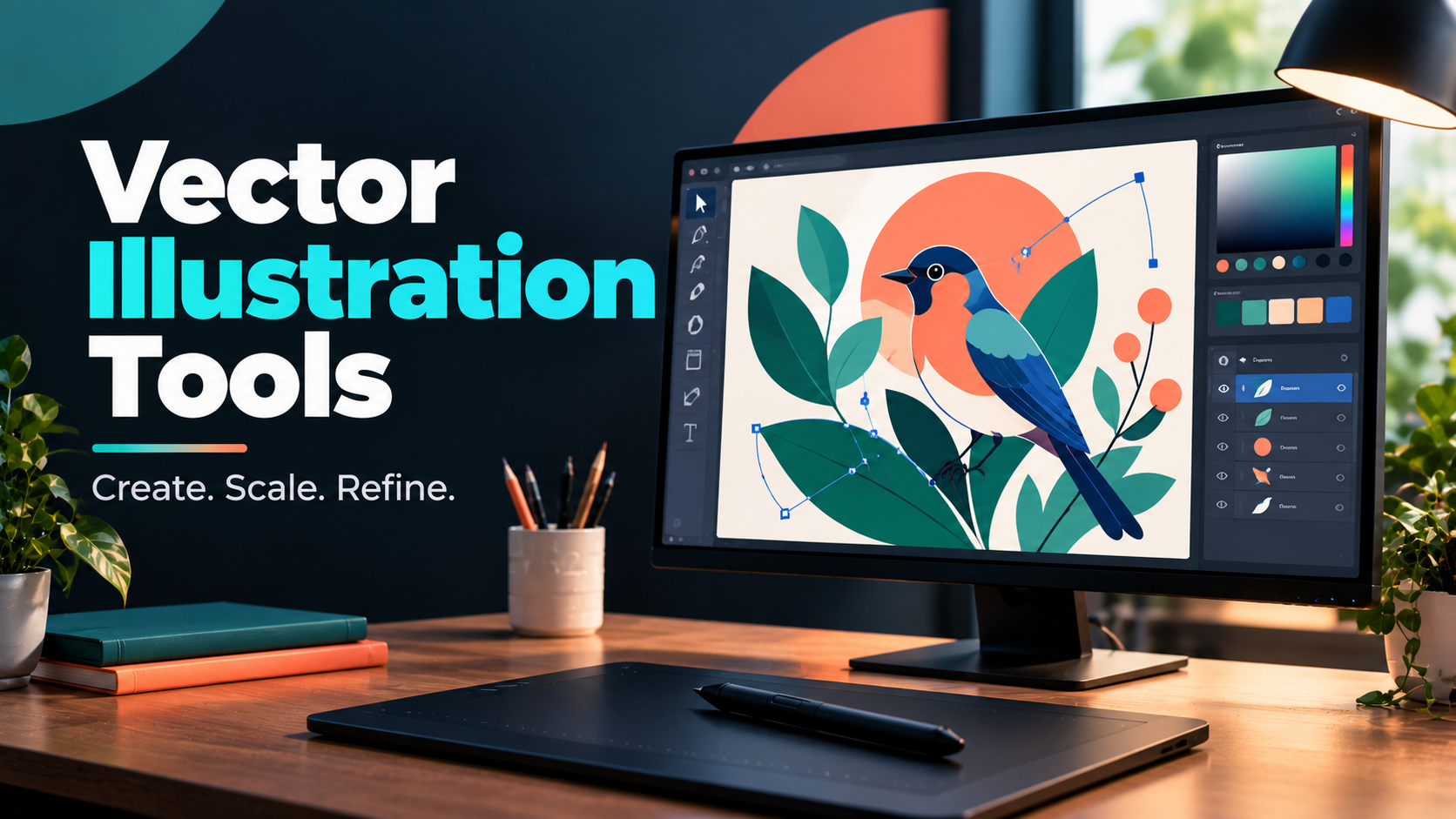
For example, imagine creating a simple illustration of a bird. You might use a curved path for the body, several shapes for the wings, a triangle for the beak, circles for the eyes, and additional paths for the feathers. These objects can be arranged into layers and adjusted individually until the illustration looks complete.
The result can be exported for use on a website, in a presentation, on printed merchandise, or in a larger design project.
Key characteristics of vector illustration
Scalability: Vector artwork can be resized to different dimensions without the typical pixelation associated with enlarging raster images.
Editability: Individual shapes, paths, fills, and strokes can be modified independently.
Precision: Mathematical paths allow accurate geometry, smooth curves, consistent spacing, and carefully aligned objects.
Compact files for many designs: Simple vector illustrations often require relatively little storage because they describe shapes instead of storing a large grid of pixels. Complex illustrations can still produce substantial files.
Flexible colors: Designers can change fills, outlines, gradients, and other appearance properties without redrawing every object.
Reusable components: Shapes, symbols, and grouped objects can be duplicated and reused throughout a project.
Where vector illustration is used
- Brand logos and identity systems
- Icons and user interface elements
- Character design and cartoon illustrations
- Editorial illustrations for magazines and articles
- Infographics, charts, and diagrams
- Posters, brochures, and promotional graphics
- Product labels and packaging
- Maps and technical diagrams
- Typography and lettering
- Educational resources and digital stickers
- Merchandise graphics and cutting-machine designs
Vector illustration is especially valuable whenever an image needs to remain crisp, editable, and reusable across different output sizes.
3. Vector Graphics vs. Raster Graphics
Vector and raster graphics represent images in different ways. Understanding the distinction helps you choose the right tool for each project.
Raster graphics consist of pixels arranged in a grid. Digital photographs, scanned images, and many painted digital artworks are raster-based. Vector graphics consist of objects such as paths, shapes, and curves that are rendered into pixels when displayed or printed.
| Feature | Vector graphics | Raster graphics |
|---|---|---|
| Image structure | Mathematical paths and shapes | Grid of pixels |
| Scaling | Generally remains sharp at any size | Can become pixelated when enlarged |
| Best suited to | Logos, icons, diagrams, clean illustrations | Photos, textures, pixel-level painting |
| Editing approach | Modify individual objects and paths | Modify pixels, selections, and layers |
| Typical formats | SVG, AI, EPS, vector PDF | JPEG, PNG, TIFF, PSD |
| File size | Often small for simple artwork | Depends heavily on dimensions and image content |
| Photographic realism | Possible, but often labor-intensive | Naturally suited to photographs |
| Print applications | Excellent for scalable artwork | Excellent for photographic images at sufficient resolution |
Consider a company logo. If it is created as a vector, the same design can be used on a website, a business card, a T-shirt, and a billboard without recreating it for every size.
Now consider a photograph of a person. A raster editor is generally more appropriate for adjusting skin texture, color, fine photographic details, and complex pixel-level retouching.
Can vector and raster graphics work together?
Yes. Many design applications combine vector and raster capabilities. A vector illustration can include a photographic background, a textured brush effect, or a raster image embedded within a vector document.
However, including a raster image inside a vector file does not automatically turn the photograph into vector artwork. The embedded image still has its original pixel dimensions and resolution limits.
A practical design workflow often combines both types: vector graphics for logos, typography, and shapes, and raster graphics for photographs, textures, and painterly details.
4. How Vector Illustration Software Works
Vector illustration software provides a workspace in which artists create and manipulate geometric objects. Several core concepts underpin most applications.
4.1 Paths and anchor points
A path is a line or curve defined by points and mathematical instructions.
Anchor points determine where a path begins, ends, or changes direction. Curved segments often use direction handles that control the shape and smoothness of the curve.
For example, to draw a curved leaf, you can place anchor points near the tip and base, then adjust the handles to form smooth edges. Once the outline is complete, you can close the path and apply a fill color.
Learning how to create and edit paths is one of the most important skills in vector illustration.
4.2 Bézier curves
Bézier curves are widely used to create smooth, controlled shapes. They allow artists to define curved segments using anchor points and control handles.
With practice, Bézier curves can be used to draw lettering, facial features, organic shapes, icons, logos, and detailed illustrations.
A useful principle is to use as few anchor points as reasonably possible. Too many points can make a curve difficult to manage and can introduce unnecessary bumps.
4.3 Fills and strokes
A fill determines the interior color or appearance of a shape. A stroke determines the outline.
For example, a circular icon might use a blue fill and a dark outline. The stroke can have its own width, color, cap style, join style, and dash pattern.
Many illustrations use a limited color palette and consistent stroke widths to create visual unity.
4.4 Layers and groups
Layers help organize objects according to their position or purpose. An illustration might have separate layers for the background, main character, foreground objects, and decorative details.
Groups allow several objects to be handled as a unit. Grouping the individual shapes that form a character makes it easier to move or scale the character without selecting every component separately.
4.5 Boolean operations
Boolean operations combine or subtract shapes to create new forms.
Common operations include union, difference, intersection, and exclusion. For example, subtracting a smaller circle from a larger circle can create a ring-like shape.
These operations are useful for logo construction, geometric illustration, icons, and complex silhouettes.
4.6 Rendering and exporting
The software interprets the vector instructions and renders the artwork for display or output. When exporting to a raster format, it converts the vector objects into pixels at the selected dimensions or resolution.
This means a vector document can remain editable while its exported PNG is created at a specific size for a website or application.
5. Essential Features of Vector Illustration Tools
Not every application offers the same level of control. The following features are especially important when choosing software.
Pen and path tools
The pen tool creates straight segments and Bézier curves. A good path-editing system should make it easy to add, remove, move, and refine anchor points.
If you intend to create logos, custom icons, or detailed illustrations, evaluate these tools carefully.
Shape-building tools
Rectangles, circles, polygons, stars, freehand paths, and shape-combination tools help you build artwork efficiently.
For geometric illustration, the ability to align, distribute, combine, and subtract shapes is particularly valuable.
Node editing
Node editing allows you to refine the geometry of a path. Useful controls include smooth and corner nodes, handle adjustments, path joining, and point conversion.
These features help transform rough sketches into clean, professional artwork.
Layers and object organization
Layer management becomes increasingly important as illustrations become more complex. Look for clear object naming, grouping, locking, visibility controls, and flexible stacking order.
Well-organized documents are easier to edit, share, and hand over to another designer.
Gradients and transparency
Gradients can create smooth transitions between colors, while transparency helps combine objects and build depth.
Depending on the project, useful options may include linear gradients, radial gradients, gradient meshes, opacity controls, and blending modes.
Typography tools
Vector applications often provide text objects that can be styled, aligned, spaced, and converted to outlines.
Typography features are important for logos, posters, packaging, labels, and editorial illustration. Converting text to outlines can preserve its appearance when a font is unavailable on another system, but the text becomes less convenient to edit.
Alignment and precision
Alignment, distribution, snapping, grids, guides, and coordinate controls help create consistent layouts.
These features are especially useful for icon sets, diagrams, technical graphics, interface elements, and brand systems.
Raster tracing
Some applications can convert raster images into vector paths through tracing tools. This can be useful for converting simple sketches, high-contrast artwork, and silhouettes into editable vector objects.
Tracing results vary according to image quality, contrast, complexity, and settings. Detailed photographs often generate large numbers of paths and may require substantial cleanup.
Export flexibility
Check whether the software supports the formats your workflow requires, such as SVG, PDF, EPS, PNG, or other application-specific formats.
For professional work, export quality and compatibility can matter as much as the drawing tools themselves.
Collaboration and cloud features
Browser-based tools and connected design platforms may offer shared files, comments, team libraries, and real-time collaboration.
These features can be valuable for design teams, agencies, and product developers who need feedback and shared assets.
6. Best Vector Illustration Tools
The following tools serve different audiences, from beginners and hobbyists to professional illustrators and design teams. Their features, pricing, supported devices, and licensing terms may change over time, so check the current offering before committing to a particular application.
6.1 Adobe Illustrator
Adobe Illustrator is a widely used professional vector graphics application. It provides detailed path editing, shape-building tools, typography features, gradients, symbols, pattern creation, image tracing, and extensive export options.
Illustrator is frequently used for branding, editorial illustration, packaging, advertising, icons, and commercial design. Its broad feature set makes it suitable for projects that require precise control over complex artwork.
Best for: Professional designers, illustrators, branding specialists, and agencies.
Key strengths:
- Advanced pen and anchor-point editing.
- Comprehensive typography and shape tools.
- Detailed color and gradient controls.
- Tools for patterns, symbols, and complex illustrations.
- Integration with other creative applications.
- Broad use in professional design workflows.
Limitations: It has a learning curve, and its subscription cost may not suit occasional users. Some workflows also depend on familiarity with the wider Adobe ecosystem.
6.2 Affinity Designer
Affinity Designer is a vector design application that combines vector editing with pixel-based capabilities in supported workflows. It is used for illustrations, icons, branding, interface graphics, and other visual design projects.
Its interface emphasizes direct editing and a flexible combination of vector and raster work. This can be convenient for designers who want to add texture or pixel-based finishing to vector artwork without switching applications frequently.
Best for: Freelancers, illustrators, and designers seeking professional tools outside a traditional subscription-only workflow.
Key strengths:
- Detailed vector drawing and node editing.
- Combination of vector and pixel-oriented workflows.
- Strong support for illustration and layout assets.
- Useful export options.
- Suitable for a wide range of commercial design tasks.
Limitations: Its interface and workflow differ from Illustrator, and compatibility should be tested when exchanging complex documents with other designers. Pricing and product availability depend on the current offering.
6.3 Inkscape
Inkscape is a free, open-source vector graphics editor that supports a wide range of illustration tasks. It is especially useful for SVG-based design and offers path editing, shape tools, text, gradients, object operations, and tracing capabilities.
It is a practical starting point for people who want to learn vector illustration without purchasing commercial software.
Best for: Beginners, students, hobbyists, and budget-conscious designers.
Key strengths:
- Free and open-source.
- Strong SVG editing capabilities.
- Useful path and node tools.
- Supports geometric illustration and icon design.
- Available for major desktop operating systems.
- Helpful for learning vector fundamentals.
Limitations: The interface may feel less streamlined than some commercial alternatives, and complex projects can require careful performance management. Compatibility with application-specific files should be checked before professional handoff.
6.4 CorelDRAW
CorelDRAW is a vector graphics and design application used in illustration, signage, printing, packaging, and production-oriented graphics workflows.
Its toolset supports object manipulation, curves, text, page layout, color management, and output preparation. It is particularly relevant to designers whose work moves from screen-based artwork into print production.
Best for: Print designers, signage businesses, production artists, and commercial graphics teams.
Key strengths:
- Comprehensive vector drawing tools.
- Text and layout capabilities.
- Useful production and print workflows.
- Detailed object and curve editing.
- Suitable for business graphics and packaging.
Limitations: The available plans and licensing options can vary, and the application may be more than a casual illustrator needs. Confirm compatibility with the printing or production service receiving your files.
6.5 Linearity Curve
Linearity Curve is a vector design application associated with streamlined illustration and graphic design workflows, particularly on Apple devices.
It can be useful for creating icons, logos, illustrations, marketing assets, and other vector-based graphics. Its accessible interface makes it attractive to people who want a more approachable entry into vector drawing.
Best for: Designers and creators working within supported Apple-device workflows.
Key strengths:
- Vector drawing and shape editing.
- Interface designed for accessible creative work.
- Useful for icons, illustrations, and marketing assets.
- Workflows that can suit touch and stylus input on supported devices.
Limitations: Platform availability and feature access should be checked before choosing it as a primary production tool. Some advanced workflows may be better served by a broader desktop design suite.
6.6 Figma
Figma is primarily known for collaborative interface design, prototyping, and design systems, but it also provides vector drawing capabilities that are useful for icons, interface illustrations, diagrams, and simple visual assets.
Its major advantage is collaboration. Multiple team members can work in shared design files and provide feedback without relying entirely on separate local files.
Best for: UI designers, product teams, web designers, and collaborative design workflows.
Key strengths:
- Browser-based access and supported desktop workflows.
- Real-time collaboration.
- Vector paths and shape tools.
- Components and reusable design assets.
- Useful integration with interface design systems.
Limitations: It is not a complete replacement for a specialist vector illustration application in every complex drawing workflow. Advanced illustration, print production, and specialized path operations may require another tool.
6.7 Sketch
Sketch is a design application focused on interface and product design, with vector-based tools for icons, components, and interface assets.
It is useful when illustration is part of a broader interface design workflow rather than a standalone illustration practice.
Best for: Designers creating interface assets and digital products in supported Apple-oriented workflows.
Key strengths:
- Vector-based interface elements.
- Reusable components and symbols.
- Support for interface design systems.
- Useful collaboration and handoff workflows.
Limitations: It is more specialized toward interface design than complex general-purpose illustration. Platform and licensing requirements should be considered before choosing it.
6.8 Penpot
Penpot is an open-source design platform built around collaborative design workflows. It is particularly relevant to interface design, prototyping, and vector-based visual work.
Its browser-oriented approach can simplify collaboration across teams that use different operating systems.
Best for: Collaborative design teams, product designers, and users interested in open-source design tools.
Key strengths:
- Browser-based workflow.
- Collaborative editing and shared files.
- Vector drawing capabilities.
- Useful for interface assets and diagrams.
- Open-source approach.
Limitations: It may not offer the same depth of specialist illustration tools as applications built primarily for professional vector artwork. Evaluate its path-editing and export capabilities against the requirements of your project.
6.9 Boxy SVG
Boxy SVG focuses on editing SVG graphics and is useful for people who work with web graphics, icons, and scalable assets.
SVG is a standard vector format used extensively on the web, making an SVG-focused editor useful for creating and adjusting illustrations intended for websites and digital interfaces.
Best for: Web designers, developers, and users who frequently edit SVG files.
Key strengths:
- Focus on SVG workflows.
- Useful for editing web graphics.
- Supports common vector-object operations.
- Practical for lightweight illustration tasks.
Limitations: It may be less suitable than a comprehensive desktop illustration suite for very complex artwork or production workflows requiring extensive specialist features.
6.10 Vectr
Vectr is a vector design tool aimed at accessible graphics creation. Depending on the current product offering, its features may suit simple logos, icons, shapes, and promotional visuals.
Its straightforward approach can help newcomers understand the basics of vector design without immediately learning a large professional application.
Best for: Beginners and users creating relatively simple vector graphics.
Key strengths:
- Accessible starting point for vector design.
- Useful for basic shapes and simple illustrations.
- Suitable for lightweight graphics tasks.
- Lower barrier to entry than complex professional suites.
Limitations: Advanced path manipulation, specialized production features, and export options may be more limited than in professional vector editors. Check current plan restrictions before using it for client work.
Quick comparison of popular vector tools
| Tool | Main strength | Best suited to |
|---|---|---|
| Adobe Illustrator | Advanced professional illustration | Commercial designers and illustrators |
| Affinity Designer | Flexible vector and pixel workflows | Freelancers and independent designers |
| Inkscape | Free, open-source vector editing | Beginners and budget-conscious users |
| CorelDRAW | Print and production graphics | Print designers and graphics businesses |
| Linearity Curve | Accessible vector creation | Creators on supported Apple devices |
| Figma | Collaboration and interface assets | Product and UI design teams |
| Sketch | Interface and component design | Digital product designers |
| Penpot | Open-source collaborative design | Teams and interface designers |
| Boxy SVG | SVG editing | Web graphics and SVG workflows |
| Vectr | Simple vector graphics | Beginners and lightweight projects |
7. Choosing the Right Vector Illustration Software
A tool that works well for one designer may be inefficient for another. Before choosing, consider the type of artwork you plan to produce and the way you will deliver it.
Identify your main design goal
If you want to create logos and branding assets, prioritize accurate path editing, typography, color control, and professional export options.
If you want to draw detailed characters, look for flexible curves, layers, gradients, shape editing, and an interface that supports complex illustrations.
If you primarily design icons for websites and applications, SVG export, alignment, reusable components, and consistent dimensions are particularly important.
For print design, prioritize color management, document setup, bleed requirements where relevant, typography, and compatibility with the printer’s preferred file formats.
Consider your operating system
Some applications are available across Windows, macOS, and Linux, while others focus on specific platforms or browser-based workflows.
Check compatibility with your computer or tablet, including any requirements for memory, graphics hardware, and operating-system versions.
Set a realistic budget
Free tools can be sufficient for many illustration tasks. Inkscape is particularly useful for learning vector design, while other free or browser-based options may suit collaborative or lightweight workflows.
Paid software can be worthwhile if it provides specialized capabilities, improves productivity, or integrates with the applications used by your clients or employer.
Evaluate the learning curve
A professional application may provide hundreds of features, but you do not need to learn everything immediately.
Start with shape creation, path editing, fills, strokes, layers, alignment, and export. Once these fundamentals become comfortable, learn gradients, masks, Boolean operations, advanced typography, and specialized production features.
Check file compatibility
Before selecting a tool, identify the formats required by your clients, employer, printer, or publishing platform.
SVG is widely useful for scalable web graphics, while PDF is common for sharing and print workflows. Native application files may be necessary when another designer needs to continue editing the project.
Always test important exports in the software or service that will receive them.
8. Step-by-Step Guide to Creating a Vector Illustration
The following workflow demonstrates how to create a simple vector illustration, such as a colorful bird, flower, character, or decorative icon.
Step 1: Define the concept
Decide what the illustration should communicate and where it will be used.
For example, a bird illustration for a website may need a simple silhouette and a small number of colors. A detailed editorial illustration may require more shapes, textures, and visual complexity.
Identify the intended dimensions, audience, style, and final file formats before beginning.
Step 2: Collect references
Gather visual references for shape, proportions, color, and composition. References can help you understand how an object is structured and identify details that are important to the final design.
Use reference material responsibly, especially when creating commercial artwork. Avoid copying another artist’s distinctive work or using protected assets without the appropriate permission.
Step 3: Create a new document
Set up the artboard or canvas according to the intended use. For a website icon, you might start with a square artboard. For a poster illustration, you may choose a portrait or landscape layout.
Use guides, grids, and snapping where useful to maintain consistent spacing.
Step 4: Build the main silhouette
Begin with the largest shapes. For a bird, create the body, head, wings, and tail before adding the eye, beak, and smaller decorative details.
Starting with large forms makes it easier to evaluate the composition and proportions.
Use simple geometric shapes where possible. Combining a few well-designed shapes is often more efficient than tracing every contour with a complex path.
Step 5: Refine the paths
Use the pen or node-editing tools to smooth curves and correct awkward corners.
Reduce unnecessary anchor points, adjust handles, and inspect the silhouette at different zoom levels. Curves should transition smoothly unless a sharp edge is intentional.
Step 6: Apply a limited color palette
Choose a small set of colors that work together. A palette might include a primary color, a secondary color, an accent, a dark outline, and a background color.
Check contrast between adjacent shapes. If the illustration will be used at small sizes, ensure that important features remain distinguishable.
Step 7: Add strokes and details
Apply consistent outline widths where appropriate. Add smaller details such as eyes, feathers, highlights, decorative lines, or internal divisions.
Avoid introducing details that disappear at the final display size. Small icons often benefit from simpler geometry than large illustrations.
Step 8: Organize objects and layers
Group related components and give important layers meaningful names. Separate the background, main subject, and decorative elements where this improves editing.
Lock completed background objects if you frequently select foreground shapes. Good organization makes future changes easier.
Step 9: Check alignment and proportions
Review the illustration for awkward spacing, uneven curves, inconsistent line weights, and unintended overlaps.
Use alignment tools when the design contains geometric elements. For organic illustrations, prioritize visual balance rather than forcing every object into strict mathematical symmetry.
Step 10: Test different sizes
Zoom out or export a small preview to see how the illustration performs at its intended size.
Check whether the silhouette remains clear, small details are visible, and colors remain distinguishable. A design that looks excellent at a large zoom level may become cluttered when reduced.
Step 11: Export the artwork
Save the editable source document in the application’s native format. Then export the formats needed for delivery.
For web graphics, SVG may be appropriate. PNG is useful when a raster image with transparency is required. PDF may be suitable for sharing or print workflows.
Confirm the final dimensions, transparency, color appearance, and output quality before delivering the file.
9. Advanced Vector Illustration Techniques
Once you understand the basics, advanced techniques can help you create more sophisticated artwork while keeping it editable.
Boolean shape construction
Boolean operations allow you to combine or subtract basic shapes to build more complex forms.
For example, you can create a crescent by subtracting one circle from another. You can construct a geometric leaf by combining curved shapes, or create a simple monogram by cutting shapes from letters.
These techniques are especially useful for logos and icon systems.
Gradient-based shading
Gradients create smooth color transitions that add depth without relying on raster painting.
Linear gradients work well for directional color changes, while radial gradients can emphasize a central area. Some applications offer additional gradient types for more complex shading.
Keep gradients consistent across related illustrations. Excessive use can make a clean vector design look visually inconsistent.
Clipping and masking
Clipping confines artwork to a defined shape. A photograph or pattern can be clipped inside a circle, text object, or custom silhouette.
Masks provide another way to control visibility and appearance. Their exact behavior depends on the software, but they are useful for combining objects and controlling transitions.
Pattern creation
Patterns repeat shapes, lines, or motifs across an area. They can be used for textile graphics, backgrounds, packaging, decorative borders, and illustrations.
Create a small, well-structured pattern tile and test how it repeats. Watch for visible seams and unintended gaps.
Variable line weights
Changing line weight can add hierarchy and depth. Thick strokes may define the outer silhouette, while thinner strokes describe internal details.
A deliberate line-weight system can make illustrations look more polished and improve readability at small sizes.
Perspective and geometric construction
Geometric construction helps create consistent shapes for technical diagrams, buildings, objects, and stylized scenes.
Use grids, guides, duplication, and alignment tools to maintain consistent relationships between objects. For more complex perspective work, you may need specialized drawing aids or a combination of vector and raster tools.
Raster-to-vector tracing
Tracing tools can turn a raster image into editable vector paths. This is useful for simple line drawings, high-contrast silhouettes, and certain scanned illustrations.
To improve tracing results, use a clean source image with clear edges and limited background noise. Review the resulting paths and simplify them where necessary.
Automatic tracing is rarely a substitute for careful manual cleanup when precision matters.
Reusable symbols and components
Reusable objects reduce repetitive work. If an illustration contains multiple leaves, stars, icons, or repeated decorative shapes, create one carefully designed element and duplicate it.
When the software supports linked symbols or components, changes to the source object may update other instances. This can significantly improve consistency across a large design system.
10. Vector Illustration Tools for Different Industries
Vector illustration is used in many professional fields, but the most useful features vary according to the final product.
Branding and logo design
Brand designers need precise geometry, reliable typography, flexible color control, and scalable output.
Vector tools allow logos to be adapted to multiple sizes and formats. Designers should also maintain clear source files, establish brand colors, and test logos against light and dark backgrounds.
Digital marketing and social media
Marketing teams use vector graphics for promotional illustrations, icons, infographics, banners, and visual templates.
Reusable components and templates can speed up production. Export presets are particularly useful when assets must be delivered at several dimensions.
UI and UX design
Interface designers use vector artwork for icons, diagrams, illustrations, and interface elements. Collaboration, reusable components, consistent spacing, and SVG export are important in this field.
Figma, Sketch, Penpot, and dedicated vector editors can all contribute to different parts of a digital product workflow.
Publishing and editorial illustration
Editorial illustrators may create artwork for articles, magazines, reports, books, and educational material.
The ability to manage layers, build detailed shapes, control colors, and export print-ready files is valuable. Some projects combine vector illustrations with raster textures or hand-drawn elements.
Packaging and print production
Packaging artwork often requires precise measurements, typography, consistent colors, and compatibility with production workflows.
Vector editors can create labels, decorative patterns, diagrams, and logos, but final files must follow the printer’s specifications. Requirements may include bleed, embedded or outlined fonts, color profiles, and specific PDF settings.
Education and technical communication
Teachers, trainers, and technical teams use vector graphics for diagrams, flow illustrations, maps, learning materials, and explanatory visuals.
Simple shapes and clear visual hierarchy are especially important because the artwork must communicate information quickly.
Animation and motion graphics
Vector artwork can be used as a source for animation, particularly when characters and objects are built from organized shapes.
The most suitable workflow depends on the animation software and whether the artwork needs separate body parts, clean silhouettes, or specific layer structures.
Plan the illustration around how it will move rather than treating animation preparation as an afterthought.
11. File Formats Every Vector Artist Should Know
Understanding file formats is essential when saving, sharing, or delivering artwork.
SVG
SVG, or Scalable Vector Graphics, is an XML-based vector format widely used on websites and in digital design.
It can preserve vector paths, shapes, text, gradients, and other supported elements. SVG is especially useful for icons, logos, diagrams, and scalable web illustrations.
However, complex effects and application-specific features may not transfer perfectly between programs. Test the exported file in its intended environment.
AI
AI is Adobe Illustrator’s native document format. It is designed to preserve editable Illustrator artwork and can be useful when collaborating with people who use Illustrator.
Other applications may import some AI files, but complex effects, fonts, and specialized features can be interpreted differently.
EPS
EPS is an older graphics format that has been used extensively in print and publishing workflows. It can contain vector artwork and certain embedded raster elements.
Some modern applications and services have limited or changing support for EPS, so confirm that the receiving workflow accepts it before relying on it.
PDF is widely used for sharing documents and delivering print artwork. It can preserve vector paths, text, and other graphical elements, depending on how the file is created and exported.
A PDF may also contain raster images, so the presence of a PDF extension does not guarantee that every element is vector-based.
PNG
PNG is a raster format that supports transparency. It is useful for website graphics, icons, illustrations, and images that require a transparent background.
Because PNG stores pixels, export it at sufficient dimensions for its intended use. The original vector file should be retained when future resizing or editing is expected.
JPEG
JPEG is a raster format commonly used for photographs and web images. It uses lossy compression and does not support transparency in the usual workflow.
It can be appropriate for preview images and certain digital deliveries, but it is not a replacement for an editable vector source file.
Native application formats
Most professional applications provide their own editable project formats. These may preserve layers, effects, linked assets, and other features that are not fully supported by general-purpose formats.
Keep the native source file whenever continued editing may be required.
12. Common Vector Illustration Mistakes to Avoid
Using too many anchor points
Adding excessive anchor points can make curves uneven and difficult to edit. Start with fewer points and add more only when necessary.
Inconsistent stroke widths
Inconsistent outlines can make an illustration feel unbalanced. Establish a small set of line weights and use them intentionally.
Poor layer organization
Keeping every object in one unstructured group can make editing difficult. Name important layers and group related shapes as the project grows.
Using too many colors
An uncontrolled palette can reduce visual cohesion. Begin with a limited selection and introduce additional colors only when they serve a clear purpose.
Ignoring negative space
The empty areas around and within shapes are part of the design. Poorly balanced spacing can make an illustration feel crowded or visually unstable.
Overcomplicating simple graphics
A small icon rarely needs the same level of detail as a large editorial illustration. Simplify shapes and remove details that do not improve recognition or communication.
Forgetting small-size testing
Always test artwork at the size where it will actually be used. Tiny gaps, thin strokes, and fine details may disappear when the design is reduced.
Exporting without checking the result
An exported file can look different from the editable document because of transparency settings, unsupported effects, font substitutions, or rasterization.
Open the exported file and inspect it before delivery.
Converting text to outlines too early
Outlined text preserves letter shapes but removes ordinary text editability. Keep a version with live text and save a separate outlined copy when the delivery workflow requires it.
Assuming every vector format is interchangeable
Different applications interpret effects, masks, gradients, and text differently. Test important files in the receiving application rather than assuming that every feature will transfer perfectly.
13. Free vs. Paid Vector Illustration Software
Both free and paid applications can produce high-quality vector artwork. The main differences often involve workflow, advanced features, compatibility, support, and convenience.
When free software is sufficient
Free applications are often enough for learning, personal projects, simple logos, icons, educational diagrams, and many freelance tasks.
Inkscape is a particularly useful option because it provides a broad range of vector editing tools without a software purchase. Other browser-based or open-source tools may be suitable for collaboration and lighter tasks.
Starting with free software also gives you an opportunity to learn core design principles before investing in a professional suite.
When paid software is worthwhile
Commercial tools may be useful when you need specialized path operations, extensive typography tools, professional print workflows, integrated creative applications, or a workflow that matches your clients’ requirements.
If you use a particular application every day, its productivity advantages may justify the expense.
Evaluate the complete workflow
Do not compare applications only by their feature lists. Test the time required to create an illustration, correct errors, export different formats, and share editable files.
Consider the cost of the software alongside the time spent learning it, the compatibility of the output, and the requirements of the people who will use the final artwork.
14. AI in Vector Illustration
Artificial intelligence is becoming part of the vector design workflow. Depending on the application, AI features can assist with generating concepts, editing existing artwork, or automating repetitive tasks.
Text-to-vector generation
Some tools can generate editable vector-style graphics from written descriptions. These features may be useful for exploring ideas, producing rough concepts, or creating a starting point for manual refinement.
The results may contain unnecessary shapes, inconsistent details, or geometry that requires cleanup before professional use.
Raster-to-vector conversion
AI-assisted vectorization can convert raster images into paths. This can help create initial vector versions of simple illustrations, logos, or stylized images.
Always inspect the resulting geometry. A visually convincing preview may still contain excessive anchor points, poorly joined paths, or awkward curves.
Color palette suggestions
AI-supported features may suggest color combinations or adapt an illustration to a particular palette. These suggestions can speed up exploration, but color choices should still be checked for contrast, accessibility, and brand consistency.
Automated editing
Some tools can simplify workflows involving background removal, object selection, or repetitive adjustments. The exact capabilities vary by application and version.
Automation is most useful when it reduces tedious work without compromising control over the final artwork.
AI as a creative assistant
AI can be useful for brainstorming themes, generating rough composition ideas, and exploring alternative styles. It should not replace careful review of geometry, typography, file compatibility, and visual quality.
For commercial work, also consider the applicable licensing terms, asset provenance, and client requirements before using AI-generated material.
15. Best Practices for Professional Vector Artwork
Professional vector illustration is not only about drawing attractive shapes. It also involves creating files that remain manageable, editable, and reliable throughout their intended use.
- Start with a clear concept. Define the subject, audience, style, and final application before drawing.
- Use simple geometry where possible. A well-constructed shape is easier to edit than an unnecessarily complicated path.
- Maintain a consistent visual system. Use deliberate choices for colors, stroke widths, spacing, and corner styles.
- Organize layers and groups. Keep the document understandable for future editing and collaboration.
- Use grids and guides strategically. They are useful for geometric work, icons, and layouts, but should not override visual judgment in organic illustrations.
- Test multiple sizes. Make sure the artwork remains readable at its smallest intended size and looks balanced when enlarged.
- Preserve editable source files. Keep the native project file alongside the final exports.
- Choose formats according to the destination. Use SVG where appropriate for scalable web graphics, PNG for raster images with transparency, and PDF for many sharing and print workflows.
- Inspect exported files. Verify fonts, transparency, color appearance, dimensions, and unsupported effects.
- Respect intellectual property. Use licensed assets and fonts, and avoid copying another artist’s distinctive work without permission.
- Keep a reusable asset library. Store approved colors, icons, symbols, and common components to improve consistency.
- Practice path editing. Strong control of anchor points and Bézier curves is one of the most transferable vector illustration skills.
16. Frequently Asked Questions
1. What are vector illustration tools?
Vector illustration tools are software applications used to create and edit artwork made from paths, shapes, curves, text, and other geometric objects. They are commonly used for logos, icons, diagrams, branding, packaging, and scalable digital illustrations.
2. Which vector illustration tool is best for beginners?
Inkscape is a strong starting point for beginners who want free desktop software with extensive vector editing capabilities. Other approachable tools may suit users who prefer a browser-based workflow or need only simple graphics. The best choice depends on your device and project.
3. What is the best professional vector illustration software?
Adobe Illustrator is a widely used professional option with extensive illustration, typography, and path-editing capabilities. Affinity Designer and CorelDRAW are also worth considering, depending on your preferred workflow, budget, and output requirements.
4. Is Inkscape completely free?
Inkscape is free and open-source software. It provides a broad set of vector illustration tools without requiring a commercial subscription.
5. Can I create a logo using free vector software?
Yes. Free vector software such as Inkscape can be used to create professional-quality logos. The quality of the result depends on design skill, typography, geometry, color choices, and proper export settings rather than the price of the application alone.
6. What is the difference between SVG and PNG?
SVG is a vector format that describes shapes and paths, allowing the artwork to scale cleanly. PNG is a raster format that stores pixels and supports transparency. SVG is often useful for scalable web graphics, while PNG is suitable when a fixed-size raster image is required.
7. Can vector illustration software edit photographs?
Some vector applications can import, crop, position, or combine photographs with vector artwork. However, detailed photographic retouching is usually better handled by a raster image editor.
8. Is Adobe Illustrator better than Inkscape?
Illustrator offers a broad professional workflow and extensive integration with other creative applications. Inkscape provides capable vector editing at no software cost. The better choice depends on your budget, required features, familiarity, and file-exchange needs.
9. Can vector artwork be printed?
Yes. Vector artwork is widely used for printing because it can scale to different sizes while retaining sharp edges. The final document must still meet the printer’s requirements for dimensions, color, bleed, fonts, and file format.
10. What is the pen tool used for?
The pen tool creates straight lines and curved paths by placing anchor points and adjusting curve handles. It is one of the most important tools for drawing custom shapes, logos, icons, lettering, and detailed illustrations.
11. Can I convert a JPG or PNG into a vector image?
Yes. Some applications provide image-tracing features that convert raster images into vector paths. The quality depends on the original image and the tracing settings. Complex photographs generally require substantial cleanup and may not convert into efficient, editable vector artwork.
12. Do vector files always have smaller file sizes?
No. Simple vector drawings are often compact, but highly detailed illustrations with many paths, gradients, effects, and embedded images can produce large files. File size depends on the complexity of the artwork and the way it is stored.
13. What file format should I use for a website illustration?
SVG is often a good choice for scalable illustrations, icons, and logos on websites. PNG may be preferable when a raster image is required or when the artwork depends on effects that do not render consistently in the target environment. Test the exported file before publishing it.
14. Can vector illustrations be animated?
Yes. Vector artwork can be used in animation workflows. The appropriate approach depends on the animation software and whether the design needs separate objects, character parts, or specific layer structures.
15. Do I need a drawing tablet for vector illustration?
No. A mouse or trackpad is sufficient for many vector tasks, especially geometric design, icons, and logos. A drawing tablet or stylus can be useful for freehand paths, expressive shapes, and illustration styles that benefit from pressure-sensitive input.
17. Conclusion
Vector illustration tools provide a flexible way to create clean, scalable, and editable artwork for digital and print applications. They are essential for many workflows involving logos, icons, branding, diagrams, character illustrations, packaging, and web graphics.
Adobe Illustrator remains a prominent choice for professional illustration and commercial design. Affinity Designer offers a flexible vector and pixel-oriented workflow, while CorelDRAW is particularly relevant to print and production graphics. Inkscape provides a capable free alternative, and tools such as Figma and Penpot are useful when illustration overlaps with collaborative interface design.
The right choice depends on the work you want to produce, the devices you use, your budget, and the file formats your projects require. You do not need to purchase the most expensive software to learn vector illustration or create strong artwork.
Begin by mastering shapes, paths, anchor points, Bézier curves, fills, strokes, layers, and alignment. Then progress to gradients, masks, reusable components, and advanced path construction. Combine these technical skills with a clear visual concept, thoughtful color choices, and careful quality checks.
Ultimately, effective vector illustration is about more than software features. It is about creating artwork that communicates clearly, remains adaptable, and works reliably wherever it needs to appear.