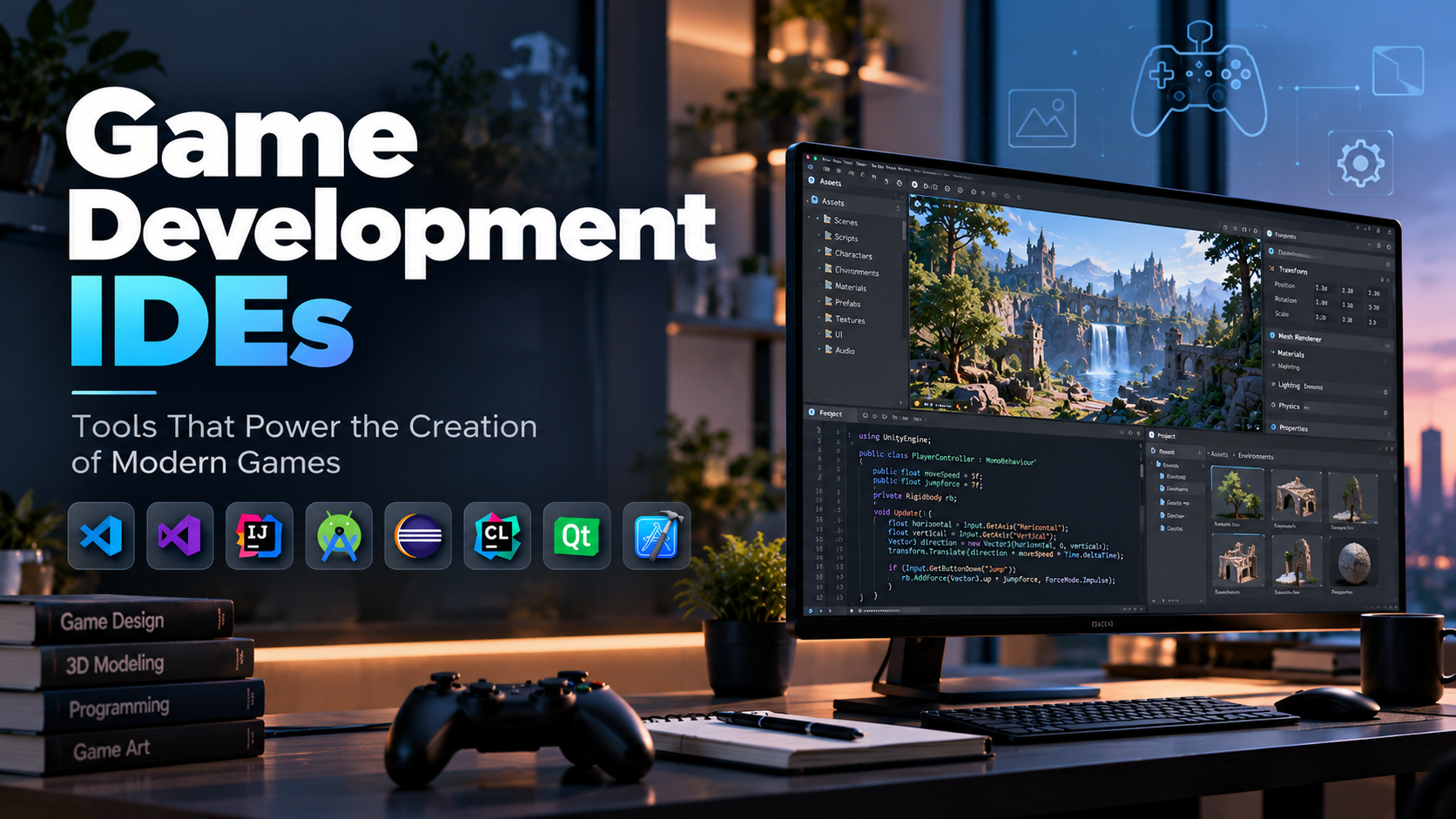
Creating a video game involves much more than writing code. Developers must build gameplay systems, manage assets, debug errors, test mechanics, collaborate with artists, and prepare projects for deployment across different platforms. Game development Integrated Development Environments (IDEs) help organize these tasks by providing a structured workspace for writing, testing, and maintaining the code that powers a game.
From a small 2D platformer to a large 3D role-playing game, the right development environment can improve productivity, simplify debugging, and make complex projects easier to maintain. However, choosing a suitable IDE requires understanding how it fits into the broader game development workflow.
An IDE is not the same as a game engine. A game engine provides systems for rendering graphics, handling physics, managing scenes, and running gameplay. An IDE primarily supports programming through code editing, debugging, code navigation, and project management. In practice, developers often use both together.
This guide explores the most useful game development IDEs, their strengths, the workflows they support, and how to select the right environment for your project.
Table of Contents
- What Is a Game Development IDE?
- IDE vs. Game Engine vs. Code Editor
- Essential Features of a Game Development IDE
- Popular Game Development IDEs
- Choosing an IDE for Different Game Engines
- How to Set Up a Game Development Workflow
- Benefits and Limitations of Game Development IDEs
- Common Mistakes to Avoid
- How to Choose the Right IDE
- Frequently Asked Questions
1. What Is a Game Development IDE?
An Integrated Development Environment is a software application that combines several programming tools into one workspace. Instead of switching between separate applications for editing code, locating errors, running tests, and inspecting program behavior, developers can perform many of these tasks within the same environment.
In game development, IDEs are commonly used to write scripts that control character movement, combat mechanics, enemy behavior, inventory systems, user interfaces, save files, and interactions with the game world.
For example, consider a developer building a platform game. The developer might write a script that allows a character to run, jump, and collide with obstacles. An IDE can provide code completion, highlight syntax errors, navigate between related classes, and help debug the character’s behavior when the game does not respond as expected.
Game development IDEs are particularly useful when projects contain many interconnected scripts. As a game grows, maintaining consistent code, finding dependencies, tracking errors, and understanding unfamiliar sections of a project become increasingly important.
Some IDEs are general-purpose programming environments, while others are designed for particular languages or development ecosystems. The best choice depends on the game engine, programming language, operating system, and complexity of the project.
2. IDE vs. Game Engine vs. Code Editor
These three tools are closely related, but they perform different roles.
| Tool | Primary purpose | Typical examples |
|---|---|---|
| Game engine | Creates and runs the game world, including graphics, physics, scenes, and gameplay systems | Unity, Unreal Engine, Godot |
| IDE | Provides an integrated workspace for writing, navigating, debugging, and maintaining code | Visual Studio, JetBrains Rider, IntelliJ IDEA |
| Code editor | Focuses on editing source code and may offer extensions for debugging and development | Visual Studio Code, Sublime Text |
A game engine may include its own scripting editor, but developers often connect an external IDE for more advanced code navigation, refactoring, and debugging.
For example, a Unity developer may create levels and configure game objects in the Unity Editor while writing C# scripts in Visual Studio or JetBrains Rider. The IDE helps manage the code, while Unity provides the systems that execute it.
Similarly, a Godot developer can use the engine’s built-in script editor or an external editor, depending on the language and workflow.
Understanding this distinction prevents a common beginner mistake: searching for an IDE when what is actually needed is a game engine, or expecting an IDE to provide complete game creation tools by itself.
3. Essential Features of a Game Development IDE
Not every project needs an advanced development environment. However, several features can make game programming significantly easier.
Code Completion and Syntax Highlighting
Code completion suggests variables, functions, classes, methods, and available APIs as developers type. Syntax highlighting visually distinguishes programming elements, making code easier to read.
These features are especially useful when working with large engine APIs or unfamiliar libraries. More advanced language support may also identify type errors and potential problems before the code is executed.
Debugging Tools
Debugging is one of the most valuable capabilities of an IDE. A debugger can pause program execution, inspect variable values, follow function calls, and examine the sequence of operations that led to an error.
Suppose a character’s health decreases unexpectedly during gameplay. A developer can set a breakpoint in the damage-handling function and inspect which object triggered the operation and what values were passed to it.
This is often faster and more reliable than inserting print statements throughout the code and repeatedly restarting the game.
Code Navigation and Refactoring
Game projects may contain hundreds or thousands of scripts. Navigation tools help developers locate definitions, find references, move between related files, and understand class relationships.
Refactoring tools help reorganize code without manually changing every occurrence. Common operations include renaming variables, extracting functions, moving methods, and restructuring classes.
These capabilities become increasingly valuable as the project grows and multiple developers contribute to the same codebase.
Version Control Integration
Version control systems such as Git record changes to source code and allow developers to collaborate without relying on manually copied project folders.
IDE integrations can help developers inspect changes, review differences between files, resolve certain conflicts, and commit updates.
Game projects also contain large binary assets, such as textures, models, and audio files, so source-code version control may need to be combined with suitable asset-management practices.
Testing and Build Integration
Testing tools help developers run automated tests, validate gameplay logic, and detect regressions after code changes. Build integrations can simplify the process of compiling code or invoking the game engine’s build system.
For example, a developer can test whether an inventory system correctly adds, removes, and saves items before integrating it into a complete game.
Automated testing is particularly useful for projects with complicated mechanics, frequent updates, or multiple developers.
Language and Engine Compatibility
Language support is fundamental when selecting an IDE. C# developers may prioritize .NET tooling, while C++ developers may need compiler integration, native debugging, and build-system support.
Developers should also verify compatibility with the game engine’s scripting workflow, debugging interfaces, project structure, and required SDKs.
4. Popular Game Development IDEs
Different IDEs suit different programming languages and development styles. The following options are commonly considered for game development, but their usefulness depends on the specific project.
Visual Studio
Visual Studio is a full-featured development environment from Microsoft, with strong support for C# and C++ development.
It is widely used in game development workflows involving Unity and Unreal Engine. Depending on the installed components and project configuration, it provides debugging, code navigation, IntelliSense, testing tools, and build integration.
For Unity developers, Visual Studio can support C# scripting and debugging. For Unreal Engine developers working with C++, it can provide tools for navigating native code and diagnosing runtime problems.
Best suited for: Developers working with C#, C++, Unity, Unreal Engine, and Windows-oriented development workflows.
Potential limitation: Its installation and resource requirements may be greater than those of lightweight editors, particularly when many optional components are installed.
Visual Studio Code
Visual Studio Code is a lightweight, extensible source-code editor. With suitable extensions, it supports many programming languages and development workflows.
For game developers, it can be used for editing C#, C++, GDScript, JavaScript, Python, configuration files, and related project resources, depending on the extensions and tools installed.
Its flexibility is useful for developers who want one editor for several languages. However, advanced debugging and language features may require additional configuration, and support varies by language, engine, and extension.
Best suited for: Beginners, indie developers, programmers working across several languages, and developers who prefer a customizable editor.
Potential limitation: It may require more setup than a dedicated IDE to provide a complete debugging and build workflow for a particular engine.
JetBrains Rider
JetBrains Rider is a cross-platform IDE built around .NET and C# development. It offers code analysis, refactoring, navigation, debugging, and support for game development workflows, including Unity and Unreal Engine integrations where applicable.
For C# game development, Rider can help developers understand complex projects, detect potential code issues, and maintain a consistent codebase. Its Unity-oriented capabilities are particularly relevant to projects with many scripts and dependencies.
Best suited for: Unity developers and C# programmers who value advanced code analysis, navigation, and refactoring tools.
Potential limitation: It is a commercial product, so developers should review current licensing options and requirements before choosing it.
IntelliJ IDEA
IntelliJ IDEA is primarily associated with Java and Kotlin development. It can be relevant to game development projects built with Java-based technologies, custom game frameworks, and supporting tools written in Java or Kotlin.
For example, developers working with Java-based game libraries may benefit from its code completion, refactoring, debugging, and project-management capabilities.
It is not automatically the best choice for every game project. A developer using Unity with C# or Unreal Engine with C++ will generally want an environment designed around those languages and workflows.
Best suited for: Java and Kotlin game development, Java-based frameworks, and supporting tools.
Potential limitation: Its primary strengths are not centered on the most common C# and C++ workflows used by many commercial game engines.
Eclipse
Eclipse is an extensible development environment commonly associated with Java development. Its plugin-based architecture allows developers to adapt the environment to different programming needs.
It can be useful for Java-based games, educational projects, and custom development tools. Developers can use its coding and debugging facilities to work with supported Java projects.
Best suited for: Java developers, academic projects, and teams using Eclipse-based development workflows.
Potential limitation: Developers working with modern game-engine-specific integrations may need additional tools or a different IDE.
CLion
CLion is a C and C++ IDE from JetBrains. It provides code analysis, navigation, refactoring, debugging, and support for common C++ project workflows.
It can be considered for native game development, custom engines, engine extensions, and projects that involve substantial C++ code. Its usefulness depends on the project’s compiler, build system, debugger, and engine integration.
Best suited for: C++ game developers, engine programmers, and developers maintaining native codebases.
Potential limitation: It is not a substitute for the game engine’s editor, and its commercial licensing should be considered.
Xcode
Xcode is Apple’s development environment for building software across supported Apple platforms. It includes source editing, debugging, build tools, and access to Apple’s development SDKs.
In game development, it is useful when preparing or debugging applications for Apple platforms, working with Swift or Objective-C, or managing platform-specific native code. Some cross-platform game engines generate Xcode projects as part of their Apple deployment workflows.
Best suited for: Developers targeting Apple devices and projects that require Apple’s native development tools.
Potential limitation: It is tied to Apple’s development ecosystem and is not a general replacement for a game engine or a cross-platform game-development workflow.
Qt Creator
Qt Creator is an IDE associated with the Qt application development framework and supports C++ and other Qt-related workflows.
It can be useful when building game-related tools, launchers, editors, configuration utilities, or applications with graphical interfaces. It may also be relevant to custom engines that use Qt.
Best suited for: C++ developers creating game tools, editor applications, or projects that use Qt.
Potential limitation: It is not primarily designed as a complete game development environment, so graphics, physics, and gameplay systems must come from other technologies.
5. Choosing an IDE for Different Game Engines
The game engine often provides the clearest starting point for selecting an IDE.
Unity
Unity primarily uses C# for gameplay scripting. Suitable external development environments include Visual Studio, JetBrains Rider, and Visual Studio Code with appropriate language and debugging support.
A practical workflow is to use the Unity Editor to manage scenes, assets, components, and game objects while using the IDE for script editing, debugging, and code organization.
Before starting, confirm that the selected editor is correctly configured in Unity and that the required debugging integration is installed.
Unreal Engine
Unreal Engine uses C++ extensively and also provides Blueprints, a visual scripting system.
Visual Studio and JetBrains Rider are options for C++ development, depending on the operating system, project setup, and supported integrations. Visual Studio Code can also be used for certain workflows, but configuration and debugging support need to be assessed carefully.
Developers should distinguish between editing C++ source files and configuring gameplay through Blueprints. Many Unreal projects use both approaches.
Godot
Godot includes a built-in script editor and supports GDScript, with C# available for compatible configurations. Developers can use the built-in editor or an external IDE depending on their preferred workflow.
If using an external editor, verify the relevant language support and debugging setup. A separate IDE is not mandatory for every Godot project.
Custom C++ Engines
Developers building their own engine or using a framework that exposes native C++ APIs may benefit from Visual Studio, CLion, or another C++ environment that supports the project’s compiler and build system.
These projects often require additional attention to compilation, linking, graphics APIs, memory management, and debugging because the developer may be responsible for more of the underlying technology.
Java-Based Game Frameworks
Java-oriented environments such as IntelliJ IDEA or Eclipse can support projects built with Java game frameworks. The appropriate choice depends on the framework’s build system, libraries, and debugging requirements.
The key principle is to select the IDE that fits the project’s language and architecture rather than assuming that every game development IDE supports every engine equally well.
6. How to Set Up a Game Development Workflow
A well-organized workflow is just as important as the choice of IDE. The following steps provide a practical starting point.
Step 1: Choose a game engine. Decide whether your project is primarily 2D or 3D, which platforms it will target, and which engine best matches its needs.
Step 2: Identify the programming language. Determine whether you will use C#, C++, GDScript, Java, or another supported language.
Step 3: Install the IDE and required components. Install the editor, language tooling, compiler or SDK where necessary, and the engine-specific integration required for your project.
Step 4: Create a small test project. Before building the complete game, create a simple scene with one interactive object. Confirm that code completion, debugging, and running the project work correctly.
Step 5: Configure version control. Use Git or another suitable system to track source-code changes. Establish sensible ignore rules and consider how large assets will be managed.
Step 6: Establish a code structure. Separate major systems into manageable components, such as player controls, enemy behavior, inventory, audio, and user-interface logic.
Step 7: Test and debug frequently. Run the game after meaningful changes, use breakpoints when behavior is unexpected, and automate repeatable tests where practical.
Step 8: Profile the game separately from the code. An IDE can help diagnose programming issues, but performance problems may also involve rendering, physics, memory, asset loading, or engine configuration. Use the engine’s profiling tools alongside the IDE.
Step 9: Prepare for deployment. Check the target platform’s SDK requirements, build settings, dependencies, and distribution rules. Test the actual packaged application rather than relying only on the editor’s preview.
Following this workflow early can prevent configuration problems and reduce the amount of rework needed as the game becomes more complex.
7. Benefits and Limitations of Game Development IDEs
A well-matched IDE can make game development more efficient in several ways.
Faster coding: Code completion, templates, and navigation reduce repetitive work.
Better debugging: Breakpoints, variable inspection, and call stacks help developers investigate unexpected behavior.
Maintainable code: Refactoring and analysis tools help keep scripts organized as the project expands.
Improved collaboration: Version control integration and consistent project configurations help teams coordinate changes.
Earlier error detection: Language analysis and testing tools can identify certain issues before they reach a playable build.
However, IDEs also have limitations. They do not automatically make a game’s architecture good, guarantee bug-free code, or replace testing on actual target hardware. Some tools require considerable setup, while advanced features may depend on licensing, extensions, or engine-specific configuration.
It is also possible to spend too much time customizing an IDE instead of developing the game. Beginners should prioritize a reliable setup that supports the required language, debugging, and project workflow before adding optional extensions.
8. Common Mistakes to Avoid
Choosing an IDE Before Choosing the Engine
The IDE should support the programming language and workflow used by the selected engine. Starting with the engine and language usually narrows the choices considerably.
Assuming an IDE Includes All Game Development Tools
An IDE may manage code effectively but still require a separate engine for scene editing, animation, physics, rendering, and asset management.
Ignoring Debugging Setup
A project may compile successfully but still behave incorrectly at runtime. Confirm that breakpoints, variable inspection, and the engine’s debugging integration work before the project becomes large.
Installing Too Many Extensions
Extensions can improve productivity, but incompatible or unnecessary extensions may create conflicts or slow down the editor. Install only what the project needs.
Neglecting Version Control
Keeping every change in one untracked project folder makes it difficult to recover from mistakes or collaborate safely. Introduce version control early, even for a small game.
Using the Wrong Tool to Diagnose Performance
Code-level debugging does not always reveal rendering bottlenecks, excessive asset loading, or expensive physics calculations. Use the game engine’s profiler and platform-specific tools when investigating performance.
9. How to Choose the Right IDE
Use the following decision guide to narrow your options.
| Your project | IDEs worth considering |
|---|---|
| Unity with C# | Visual Studio, JetBrains Rider, Visual Studio Code |
| Unreal Engine with C++ | Visual Studio, JetBrains Rider, suitably configured Visual Studio Code |
| Godot with GDScript | Godot’s built-in script editor or a compatible external editor |
| Native C++ game or custom engine | Visual Studio, CLion |
| Java-based game framework | IntelliJ IDEA, Eclipse |
| Apple-platform native development | Xcode |
| Game tools built with Qt | Qt Creator |
Treat these as starting points rather than strict rules. Operating-system compatibility, project configuration, language support, budget, and personal workflow can affect the final choice.
For beginners, the most practical option is often the IDE recommended by the engine’s official documentation. Once the basic workflow is working, compare alternatives based on debugging quality, code navigation, performance, and ease of maintenance.
10. Frequently Asked Questions
What is the best IDE for game development?
There is no single best IDE for every game. Visual Studio and JetBrains Rider are common options for C# and C++ workflows, Visual Studio Code offers a flexible editing environment, and IntelliJ IDEA or Eclipse may suit Java-based projects. The best option depends on your engine, programming language, and development requirements.
Can I develop games using Visual Studio Code alone?
You can write and maintain game code in Visual Studio Code when the necessary language tools and integrations are available. However, you will usually still need a game engine or framework to handle the game world, rendering, physics, and other runtime systems.
Is Visual Studio Code the same as Visual Studio?
No. Visual Studio Code is a lightweight, extensible code editor, while Visual Studio is a full IDE with integrated development and debugging tools. Their capabilities overlap, but their setup and workflows differ.
Do I need a powerful computer to use a game development IDE?
Not necessarily. Many IDEs can run on ordinary development computers. The hardware requirements depend more heavily on the game engine, project size, graphics workload, and build process. A demanding 3D project may require substantially more resources than a simple 2D game.
Can I use one IDE for multiple game engines?
Yes, if the IDE supports the relevant languages and workflows. For example, an editor configured for C# may support projects involving multiple engines. However, individual engines may require different extensions, debugging configurations, and build tools.
Are game development IDEs free?
Some are free or open source, while others offer paid editions or commercial licensing. Visual Studio Code, Godot’s built-in editor, and Eclipse are examples of tools available without a standard paid IDE license. Licensing terms and optional features vary, so verify the current conditions before using a tool commercially.
Should beginners learn programming before using a game engine?
You can begin experimenting with a game engine while learning programming. Starting with simple projects helps connect concepts such as variables, conditions, functions, classes, and events to visible results. As projects grow, understanding the programming language becomes increasingly important.
Conclusion
Game development IDEs provide the programming foundation for building reliable, maintainable games. Through code completion, debugging, navigation, refactoring, and testing support, they help developers manage the logic behind characters, game mechanics, interfaces, and interactive systems.
The most effective setup combines a suitable game engine with an IDE that supports the project’s programming language and development workflow. Visual Studio, Visual Studio Code, JetBrains Rider, IntelliJ IDEA, Eclipse, CLion, Xcode, and Qt Creator each serve different needs, so the right choice depends on the technology being used.
For beginners, start with a small project, follow the engine’s recommended setup, and learn the debugging tools early. A simple, well-configured development environment is far more valuable than a complicated setup that slows down the process of actually making a game.