Table of Contents
- Introduction to Digital Audio Workstations
- What Is a Digital Audio Workstation?
- How a DAW Works
- Essential Features of DAW Software
- Understanding the DAW Interface
- Audio Tracks, MIDI Tracks, and Instrument Tracks
- Popular Digital Audio Workstations
- DAW Comparison: Which One Should You Choose?
- The Complete Music Production Workflow
- MIDI and Virtual Instruments
- Recording Audio in a DAW
- Audio Editing and Arrangement
- Mixing and Audio Processing
- Effects, Plugins, and Signal Routing
- Mastering and Exporting
- Hardware and System Requirements
- Choosing the Right DAW
- Common DAW Mistakes and Best Practices
- AI and the Future of Digital Audio Workstations
- Career Opportunities and Skills
- Frequently Asked Questions
- Conclusion
1. Introduction to Digital Audio Workstations
Music production has changed dramatically with the development of digital technology. In the past, producing a song often required access to recording studios, mixing consoles, tape machines, and other specialized equipment. Today, many of the same fundamental production tasks can be performed on a computer using a digital audio workstation.
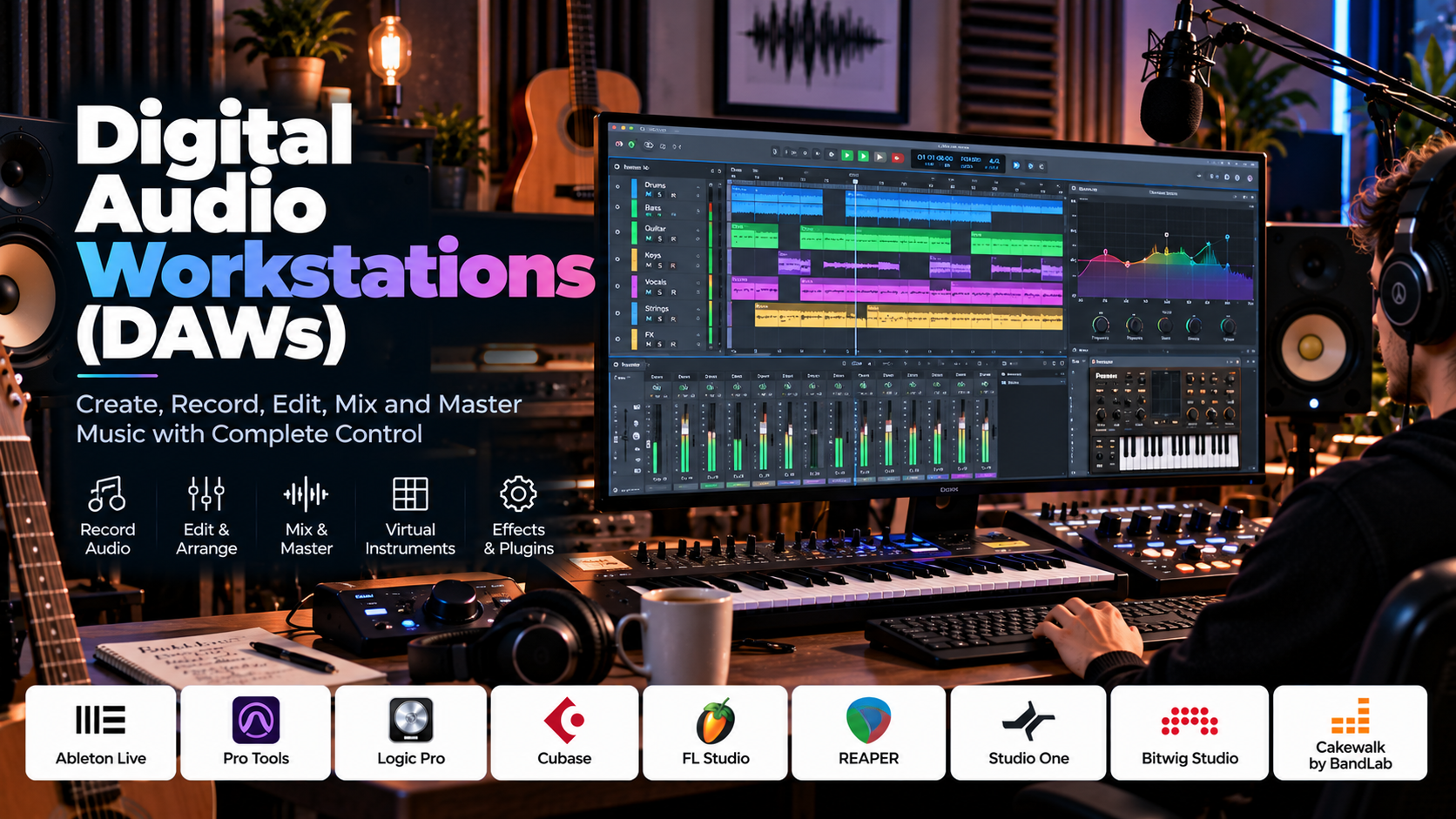
A Digital Audio Workstation (DAW) is a software environment used to record, edit, arrange, process, mix, and produce audio. It can bring together microphones, musical instruments, MIDI controllers, virtual instruments, effects, and recorded sounds in one project.
DAWs are used by musicians, singers, composers, sound designers, podcasters, filmmakers, game developers, audio engineers, and independent content creators. Some focus on electronic music and beat-making, while others are designed for professional recording studios, film sound, orchestral composition, or live performance.
For example, a music producer can create a complete song using a DAW by programming drums, recording vocals, adding a bass line, arranging virtual instruments, mixing the tracks, and exporting the finished composition. The entire project can be stored digitally and reopened later for revisions.
DAWs are not limited to music. They are also used to edit podcast episodes, synchronize dialogue with video, create sound effects, record voice-overs, and prepare audio for films and other media.
Understanding how a DAW works is therefore a valuable skill for anyone interested in modern music production or digital audio creation.
2. What Is a Digital Audio Workstation?
A Digital Audio Workstation is an application that combines tools for audio recording, digital editing, sequencing, sound processing, and mixing.
It acts as the central workspace in a digital audio production setup. Rather than requiring separate physical devices for every task, a DAW allows many operations to be completed through a unified interface.
A typical DAW project may contain:
- Recorded vocals and instruments.
- Drum patterns and rhythmic sequences.
- MIDI notes controlling virtual instruments.
- Audio samples and loops.
- Synthesizers and sound libraries.
- Equalizers, compressors, reverbs, and delays.
- Automation for volume, panning, and effects.
- Multiple tracks arranged on a timeline.
- A master channel for the combined output.
- Export settings for the final audio file.
A practical example
Imagine producing a three-minute pop song. You begin by creating a drum pattern, then add a bass line and keyboard chords. You record a vocalist, edit the performance, and arrange the song into an introduction, verses, choruses, and an ending.
Next, you adjust the volume of each track, use equalization to shape the sound, apply compression where necessary, and add reverb to create a sense of space. Finally, you export the mix as an audio file for listening or distribution.
A DAW allows you to manage this entire process within a single project.
Why DAWs are important
All-in-one production: Recording, editing, sequencing, mixing, and many mastering tasks can be completed in one environment.
Creative flexibility: Tracks can be moved, copied, rearranged, and modified without repeating the entire recording process.
Nondestructive workflow: Many DAWs preserve original recordings while storing edits and processing settings separately.
Virtual instruments: Users can create sounds with software instruments even without owning physical instruments.
Automation: Parameters can change automatically over time, allowing detailed control of a mix.
Project recall: Saved sessions preserve arrangements, track settings, effects, and other project information, subject to the availability of required files and plugins.
The result is a flexible production environment suitable for both beginners and experienced professionals.
3. How a DAW Works
A DAW processes digital audio and organizes it into a project that can be edited and played back.
Step 1: Create a project
The user opens the DAW and creates a new project. Depending on the application, project settings may include sample rate, audio device, tempo, time signature, and other production parameters.
Step 2: Add tracks
Tracks are created for recorded audio, MIDI, instruments, or other supported media.
For example, a song may use separate tracks for drums, bass, keyboards, guitar, vocals, and backing vocals.
Step 3: Record or import material
The user records audio through a microphone or instrument input, imports existing recordings, or creates musical patterns using MIDI.
Audio files and MIDI data are handled differently, even though both may appear on the same timeline.
Step 4: Arrange the material
Clips, patterns, and recordings are placed on the timeline to form a musical or audio sequence.
The user can create sections, repeat patterns, move clips, and adjust the timing of events.
Step 5: Edit and process
Individual recordings can be trimmed, split, faded, corrected, or processed with effects. MIDI notes can be edited to change pitch, timing, velocity, and duration.
Step 6: Mix the tracks
Track levels, panning, equalization, compression, effects, and routing are adjusted so the different elements work together.
Step 7: Automate parameters
Automation controls how selected parameters change over time. A vocal track might gradually increase in volume, while a filter on a synthesizer opens during a transition.
Step 8: Export the project
The DAW renders the final mix into a file format appropriate for the intended use.
The export may be a stereo audio file, a collection of separate tracks, or another supported deliverable.
4. Essential Features of DAW Software
Although DAWs differ in interface and workflow, many share a common set of features.
Multitrack recording
Multitrack recording allows several audio sources to be recorded and managed independently.
A singer, guitarist, and drummer can be recorded onto separate tracks, making it possible to edit or process each performance individually.
Timeline arrangement
The arrangement timeline displays clips and musical events in chronological order. It is used to build the structure of a song, podcast, soundtrack, or other audio project.
MIDI sequencing
MIDI sequencing allows users to create and edit note data that controls compatible instruments.
Instead of recording the sound of a piano directly, for example, a user can enter notes that trigger a virtual piano instrument.
Virtual instruments
Virtual instruments generate sound inside the DAW. They may emulate acoustic instruments, synthesize electronic sounds, or provide sampled orchestral instruments and drum kits.
Audio editing
Editing tools allow users to cut, trim, move, copy, split, stretch, and fade audio clips.
Some DAWs also support advanced features such as pitch correction, time stretching, transient detection, and comping multiple takes.
Mixer
The mixer provides controls for track volume, panning, inserts, sends, routing, and the final output.
It helps users balance the individual elements of a production.
Effects and plugins
DAWs support effects such as equalizers, compressors, reverbs, delays, limiters, modulation effects, and distortion.
Compatible plugins can extend the DAW with additional processing tools and instruments.
Automation
Automation allows parameters to change according to a programmed timeline.
For example, background music can fade in gradually, a filter can change during a chorus, or a reverb send can increase at the end of a vocal phrase.
Tempo and time signature
Tempo determines the speed of a musical piece, usually expressed in beats per minute (BPM).
Time signature describes how beats are organized into measures. These settings help coordinate MIDI patterns, musical arrangements, and tempo-synchronized effects.
Export and rendering
Rendering converts the project into a finished file. Export settings commonly include sample rate, bit depth, format, channel configuration, and other options.
A DAW may also support exporting individual tracks or groups of tracks for collaboration and further production.
5. Understanding the DAW Interface
Learning the main areas of a DAW makes it easier to work efficiently across different applications.
Arrangement window
The arrangement window displays the overall structure of the project. It shows when clips, patterns, and other elements begin and end.
This is where the user organizes the introduction, verses, choruses, transitions, and ending of a song.
Track list
The track list identifies the different audio, MIDI, instrument, and auxiliary tracks in the project.
Tracks can often be renamed, grouped, color-coded, muted, soloed, or reordered.
Piano roll
The piano roll is a common MIDI editing interface. It displays musical notes on a grid, with vertical position representing pitch and horizontal position representing time.
Users can draw notes, change their duration, adjust velocity, and correct timing.
Mixer window
The mixer resembles a digital mixing console. Each channel typically has controls for volume, panning, effects, sends, and routing.
The master channel combines the routed signals into the final output.
Browser or media library
This area provides access to audio files, samples, loops, presets, virtual instruments, and other assets.
An organized library makes it easier to find the sounds needed for a project.
Transport controls
Transport controls operate playback and recording. Common functions include play, stop, record, pause, and return to the beginning.
Many DAWs also provide looping, metronome, and tempo controls.
Inspector or properties panel
The inspector displays settings for a selected track, clip, instrument, or effect. The available controls depend on the DAW and the selected object.
Why the interface matters
A DAW can appear complicated because it combines several production tasks. Learning the purpose of each workspace is more effective than trying to memorize every button immediately.
Begin by understanding tracks, the timeline, playback, recording, and the mixer. Add advanced functions as your projects become more complex.
8. DAW Comparison: Which One Should You Choose?
Choosing a DAW is easier when you compare its workflow, strengths, learning curve, and intended use rather than relying on popularity alone.
Ableton Live
Ableton Live is designed for music production, experimentation, arrangement, and live performance. Its Session View allows users to trigger clips and musical ideas in a flexible way, while Arrangement View provides a conventional timeline for constructing complete tracks.
It is particularly popular in electronic music, DJ-oriented production, live looping, and performance-based workflows.
Best for: Electronic music, live performance, beat-making, and rapid experimentation.
FL Studio
FL Studio emphasizes pattern-based composition, sequencing, and beat production. Its workflow makes it convenient to create drum patterns, program melodies, arrange loops, and experiment with virtual instruments.
It is commonly used in electronic music, hip-hop, pop, and other styles involving programmed elements.
Best for: Beat-making, electronic music, and loop-based production.
Logic Pro
Logic Pro offers audio recording, MIDI composition, virtual instruments, effects, arrangement, and mixing in an integrated production environment for supported Apple computers.
It is suitable for songwriters, composers, musicians, and producers who want a comprehensive DAW with a large collection of built-in creative tools.
Best for: Songwriting, recording, composition, and music production on Mac.
Pro Tools
Pro Tools is strongly associated with professional recording studios, audio editing, music mixing, and film or television post-production.
Its editing tools and session-based workflow are useful for managing complex audio recordings and collaborating with other professionals.
Best for: Studio recording, detailed audio editing, and professional post-production.
REAPER
REAPER provides customizable recording, editing, routing, automation, and mixing workflows. It supports a wide range of project types and can be configured to suit different production styles.
Its flexibility appeals to users who want control over their workspace and production setup.
Best for: Flexible recording, podcast production, sound design, and multitrack editing.
Cubase
Cubase offers extensive MIDI composition, audio recording, arrangement, and mixing capabilities. It is useful for music producers and composers who work with both recorded audio and software instruments.
Best for: Music composition, MIDI sequencing, and detailed arrangement.
Studio One
Studio One has developed a workflow centered on recording, arranging, producing, and mixing music. Its integrated approach is useful for users who prefer to manage much of their production process in one environment.
Best for: Songwriting, recording, arrangement, and mixing.
Bitwig Studio
Bitwig Studio emphasizes modular sound design, modulation, electronic music creation, and flexible sequencing. Its tools are particularly attractive to users who enjoy experimenting with synthesizers and building complex sound-processing systems.
Best for: Experimental electronic music, sound design, and modular workflows.
GarageBand
GarageBand provides a simplified recording and music-production environment for supported Apple devices. Its instruments, loops, and recording features make it approachable for beginners.
Best for: Learning music production and creating simple songs or demos.
Audacity
Audacity is primarily known as a free, open-source audio editor rather than a full-featured music-production DAW. It is useful for recording, trimming, cleaning, and processing audio, but it is not the first choice for workflows centered on complex MIDI arrangements and virtual instruments.
Best for: Basic audio editing, narration, interviews, and simple recording projects.
Cakewalk by BandLab and related products
Cakewalk’s product lineup and licensing have evolved over time. Users interested in this family of tools should verify the current product names, editions, compatibility, and licensing before choosing one.
Best for: Users seeking a desktop recording and production workflow, depending on the specific current product.
9. The Complete Music Production Workflow
Although every producer develops a personal approach, most DAW projects follow a series of recognizable stages.
Stage 1: Define the musical idea
Start with a concept. It may be a melody, chord progression, rhythm, lyric, instrumental atmosphere, or reference track.
Decide the intended mood, approximate length, genre, and main musical elements before creating a complex arrangement.
Stage 2: Configure the project
Choose an appropriate sample rate, audio device, tempo, and time signature.
For example, a song might use a tempo of 100 BPM in 4/4 time. The DAW’s grid can then help align MIDI notes, drum patterns, and rhythmic edits.
These settings should reflect the project requirements rather than being selected arbitrarily.
Stage 3: Create a basic rhythm
Build the rhythmic foundation using recorded drums, samples, loops, or a virtual drum instrument.
A simple pattern can establish the groove before additional instruments are introduced.
Stage 4: Add harmony and melody
Create chord progressions, bass lines, and melodic parts using MIDI instruments or recorded performances.
At this stage, focus on musical structure instead of applying large numbers of effects.
Stage 5: Arrange the song
Organize the musical material into sections such as an introduction, verse, chorus, bridge, breakdown, and ending.
Not every song requires all these sections. The arrangement should suit the intended style and length.
Stage 6: Record performances
Record vocals or instruments through a suitable microphone, instrument input, or audio interface.
Capture multiple takes when needed, keeping the performances organized and leaving sufficient headroom to avoid clipping.
Stage 7: Edit and refine
Remove mistakes, align performances where appropriate, adjust MIDI notes, trim clips, and create smooth transitions.
Use editing to improve the performance without removing the expression or timing that makes it feel natural.
Stage 8: Build the mix
Balance the tracks, adjust panning, use EQ to manage frequency conflicts, and apply compression or other effects when necessary.
The goal is to make each important element contribute to the overall sound.
Stage 9: Add automation and creative effects
Automate volume, filter movement, reverb, delay, and other parameters to create movement and transitions.
Automation can help the arrangement feel dynamic instead of remaining identical from beginning to end.
Stage 10: Review the complete project
Listen to the full track and check for unwanted noises, clipping, abrupt edits, distracting effects, and sections that feel too repetitive.
Take breaks between review sessions when possible. Fresh listening can reveal problems that are difficult to notice after working on a project for a long time.
Stage 11: Export the mix
Render the finished project using the format and settings required for its intended use.
Listen to the exported file rather than assuming that a successful render automatically means the final result is correct.
10. MIDI and Virtual Instruments
MIDI and virtual instruments are among the most important features of modern DAWs.
What is MIDI?
MIDI stands for Musical Instrument Digital Interface. It is a communication standard that allows musical devices and software to exchange performance information.
MIDI data can describe which note is played, when it begins, how long it lasts, how strongly it is played, and other supported performance controls.
MIDI is not the same as recorded audio. A MIDI note typically instructs an instrument to produce a sound; the actual sound depends on the instrument receiving that instruction.
What is a virtual instrument?
A virtual instrument is software that generates sound inside a DAW. It may imitate a piano, guitar, drum kit, orchestra, synthesizer, or entirely fictional sound source.
Some instruments use recordings of real instruments, while others generate sound using synthesis techniques.
The piano roll
The piano roll is a visual editor for MIDI notes. Notes are displayed as horizontal blocks on a grid.
Users can modify:
- Pitch, which determines the musical note.
- Position, which determines when the note plays.
- Duration, which determines how long the note lasts.
- Velocity, which often influences how strongly an instrument responds.
- Timing and quantization.
- Selected note-expression parameters supported by the instrument.
Quantization
Quantization moves selected MIDI events toward a timing grid. It can help align notes with a beat or rhythmic subdivision.
However, perfectly quantizing every note can make some performances sound mechanical. A degree of timing variation may be desirable, depending on the musical style.
Velocity
MIDI velocity commonly represents how strongly a note is triggered. The instrument may translate velocity into volume, timbre, sample selection, or other changes.
Velocity is therefore not always equivalent to ordinary audio volume.
Synthesizers and samplers
A synthesizer generates sound using electronic or mathematical sound-generation methods. A sampler plays recorded audio samples in response to musical input.
Both can be used to create basses, leads, pads, percussion, textures, and other musical parts.
Why MIDI is useful
MIDI makes it possible to revise musical performances after recording. A producer can change the melody, transpose a part, replace a virtual instrument, or adjust timing without needing to record the entire performance again.
This flexibility is particularly valuable for electronic music, composition, film scoring, and arranging.
11. Recording Audio in a DAW
Recording audio involves capturing sound and storing it as digital data that can be edited and processed.
Equipment needed
A basic recording setup may include:
- A computer capable of running the DAW.
- A compatible microphone or instrument.
- Headphones.
- An audio interface when required by the recording setup.
- Suitable cables and stands.
- A reasonably quiet recording environment.
The exact equipment depends on whether you are recording vocals, acoustic instruments, electric instruments, or line-level audio sources.
Microphone placement
Microphone placement has a major influence on the sound of a recording. Distance, direction, room reflections, and the position of the sound source all affect the captured audio.
For spoken recordings, a consistent microphone distance and a quiet environment often provide a better starting point than relying on extensive processing later.
Setting input levels
Before recording, monitor the input signal and set the gain so that the loudest expected sounds remain safely below digital clipping.
Recording too quietly may increase the audibility of background noise when the signal is amplified later. Recording too loudly can cause irreversible distortion.
A sensible level with adequate headroom is generally preferable to trying to make the input signal as loud as possible.
Monitoring
Monitoring allows the performer to hear the signal during recording. Depending on the setup, monitoring may occur directly through an audio interface or through the DAW.
Low-latency monitoring is important when performers need to hear themselves in real time. Excessive delay between singing or playing and hearing the result can make performance difficult.
Recording multiple takes
Many DAWs support recording multiple takes over the same section. These can later be compared or combined into a preferred performance.
The process of selecting and combining the best sections from several takes is commonly called comping.
Saving and backing up recordings
Save the project regularly and ensure that the source audio is stored in a reliable location.
A DAW project may reference external audio files, samples, and plugins. Moving or deleting these assets can cause a project to open with missing media.
12. Audio Editing and Arrangement
Audio editing and arrangement determine how recordings and musical ideas fit together.
Clip editing
A clip is a section of audio or MIDI material placed in a project. It can be moved, shortened, copied, split, or duplicated.
For example, a four-bar drum pattern can be repeated to form a longer rhythmic section.
Slip editing and trimming
Depending on the DAW, slip editing changes the content visible within a clip while preserving its position, whereas trimming changes the boundaries or duration of the clip.
These tools help adjust timing and content without rebuilding an entire arrangement.
Time stretching
Time stretching changes the duration of audio without necessarily changing its pitch. It is useful for aligning recordings with a tempo or adjusting the length of a sound.
Extreme time stretching may introduce artifacts, especially when applied to complex audio.
Pitch shifting
Pitch shifting changes the pitch of audio. It can be used for creative effects or to adjust selected recordings, although large changes may affect the sound quality.
Quantization and timing correction
Timing correction can align notes or audio events with a rhythmic reference. It is useful for correcting performance inconsistencies, but excessive correction can reduce natural feel.
Crossfades
Crossfades blend the end of one clip into the beginning of another. They help avoid clicks and create smoother transitions between edited recordings.
Arrangement and structure
Arrangement involves deciding when each musical element appears and how sections relate to each other.
A track may become more engaging when instruments enter and leave strategically, rather than playing continuously throughout the song.
13. Mixing and Audio Processing
Mixing combines the individual tracks into a balanced and coherent result.
Gain staging
Gain staging means managing signal levels throughout the audio path so that each stage operates within a suitable range.
It helps preserve headroom and prevents unwanted distortion when tracks pass through plugins, buses, and the master channel.
Volume balancing
Begin by setting the relative levels of the tracks. Make sure the most important elements are clearly audible.
For a vocal song, this may mean establishing the vocal’s relationship to the drums, bass, and instrumental backing before adding complex effects.
Panning
Panning positions a track within the stereo field. It can create separation between instruments and help the mix feel more spacious.
Not every element needs to be spread widely. The center often carries important elements such as lead vocals, kick drum, and bass, depending on the production.
Equalization
EQ adjusts the relative level of selected frequencies. It can help reduce unwanted resonances, manage muddiness, improve clarity, and create space between overlapping instruments.
Small, purposeful adjustments are often more effective than large changes applied without listening carefully.
Compression
Compression controls dynamic range according to parameters such as threshold, ratio, attack, and release.
It can help stabilize vocal levels, control peaks, or shape the envelope of drums and other instruments.
Reverb and delay
Reverb creates a sense of acoustic space, while delay produces repeated sounds. These effects can add depth, rhythm, and atmosphere.
Too much processing can make a mix sound distant or cluttered, so the amount should suit the source and musical style.
Buses and subgroups
A bus combines signals from multiple tracks so they can be processed or controlled together.
For example, several backing-vocal tracks can be routed to a subgroup for shared processing and level adjustment.
Reference listening
Comparing a mix with suitable reference tracks can help identify differences in tonal balance, low-frequency energy, stereo width, and overall dynamics.
Make comparisons at reasonably matched listening levels, since louder audio can appear subjectively better even when it is not more balanced.
14. Effects, Plugins, and Signal Routing
Plugins and routing systems expand the creative and technical capabilities of a DAW.
Insert effects
Insert effects process a track’s signal directly. An equalizer or compressor inserted on a vocal track, for example, processes that track according to the plugin settings.
Send effects
Send effects allow a portion of a track’s signal to be routed to another channel, often for shared reverb or delay.
Using a common effect across several tracks can create a more cohesive sound and reduce unnecessary duplication of processing.
Audio buses
Buses combine audio signals and provide a way to manage related tracks together. They are useful for subgroup processing, parallel compression, and complex routing.
Virtual instrument plugins
Instrument plugins generate sound from MIDI or other supported inputs. They may provide synthesizers, sampled instruments, drum machines, and specialized sound-generation tools.
Plugin formats
Common plugin formats include VST3, Audio Units, and AAX. Compatibility depends on the DAW, operating system, and plugin architecture.
A plugin that works in one application may not work in another without a compatible format or supported bridge.
CPU usage and latency
Each active plugin can consume processing resources. Large sessions may require freezing tracks, rendering effects, or increasing audio buffer settings.
During recording, lower buffer settings can reduce latency but increase CPU demand. During mixing, higher settings may improve stability if low-latency monitoring is no longer necessary.
Signal routing example
A simple vocal production chain might route a vocal track through EQ and compression, send a portion of the signal to a reverb channel, and then route both the processed vocal and reverb return to the master output.
The exact order and settings should depend on the recording and the desired result.
15. Mastering and Exporting
Mastering prepares a finished mix for distribution, while exporting converts the DAW project into a deliverable file.
Preparing the mix
Before mastering, check that the mix has no unintended clipping, distracting noises, or major tonal imbalances.
If a problem comes from a particular track, it is often better to fix that track in the mix rather than trying to solve everything on the master channel.
Loudness and dynamics
Loudness describes how loud audio is perceived, while peak level measures signal amplitude. These measurements are related but not identical.
Increasing loudness too aggressively can reduce dynamic range or introduce distortion. The appropriate target depends on the intended destination and its technical requirements.
Stereo and mono compatibility
Stereo mixes should be checked for sensible spatial balance. Mono compatibility can also matter because some playback environments combine left and right channels.
Phase relationships between signals can affect how elements combine when converted to mono.
Export formats
Common choices include:
- WAV: Often used for high-quality production files and uncompressed audio delivery.
- AIFF: Another uncompressed audio format used in supported production workflows.
- FLAC: Lossless compression for storage and delivery where supported.
- MP3: Lossy compression useful for convenient sharing and playback.
- AAC: A lossy format used in many digital media workflows.
Choose the format according to the intended use rather than assuming that one format is always best.
Sample rate and bit depth
Follow the project’s delivery specifications when selecting sample rate and bit depth. For many music-production workflows, 24-bit WAV is a practical high-quality intermediate or delivery format when requested.
If the destination specifies a different format, use those requirements.
Exporting stems
Stems are grouped audio exports, such as drums, vocals, bass, and instruments. They allow another engineer or collaborator to work with important parts of the arrangement independently.
When exporting stems, confirm that they share the same start point and include any intended effects or processing.
Final verification
After exporting, listen to the actual file. Check its beginning and ending, overall balance, clipping, unwanted silence, and any problems that may have occurred during rendering.
For important releases, keep a backup of the final export and the original project.
16. Hardware and System Requirements
The hardware needed for a DAW depends on project size, plugin use, recording requirements, and the type of audio being produced.
Processor
The CPU performs many real-time audio operations, including plugin processing, virtual instrument playback, and rendering.
Large sessions with many demanding plugins can require a more capable processor.
RAM
RAM supports sample libraries, virtual instruments, project data, and active applications.
Around 8 GB may be adequate for simple audio editing and smaller projects. Around 16 GB or more is a useful starting point for many music-production workflows, while large orchestral libraries and complex sessions may require substantially more.
Actual requirements depend on the DAW and workload.
Storage
An SSD can improve project loading and the responsiveness of large sessions. Sample libraries and multitrack recordings can occupy considerable storage space.
Back up important project files and external media.
Audio interface
An audio interface provides audio inputs and outputs for microphones, instruments, headphones, and speakers. It can also provide suitable converters and low-latency monitoring.
A dedicated interface is useful for many recording setups, although basic projects may be possible with built-in audio hardware.
MIDI controller
A MIDI keyboard or controller allows users to play virtual instruments, record performances, and manipulate supported parameters.
It is optional: MIDI notes can also be entered manually using the DAW’s piano roll.
Headphones and studio monitors
Headphones help identify clicks, noise, and detailed audio problems. Studio monitors provide another perspective on tonal balance and stereo placement.
Room acoustics influence what you hear through speakers, so a well-treated environment can be helpful for critical mixing.
Working with limited hardware
If your computer struggles with a project:
- Reduce the number of active plugins.
- Freeze or render demanding instrument tracks.
- Close unnecessary applications.
- Use suitable buffer settings.
- Organize sample libraries and media efficiently.
- Save projects regularly.
- Increase project complexity gradually.
A modest setup is sufficient for learning core DAW skills and producing many smaller projects.
17. Choosing the Right DAW
Choosing a DAW is a practical decision based on your goals, workflow, hardware, and budget.
Identify your primary purpose
For beat-making and electronic music, FL Studio or Ableton Live may suit your workflow.
For recording bands, editing dialogue, or professional post-production, Pro Tools, REAPER, Cubase, and other multitrack-focused applications may be appropriate.
For songwriting and integrated music production on supported Apple computers, Logic Pro and GarageBand are worth considering.
For experimental sound design, Bitwig Studio offers a distinctive modular approach.
These are starting points, not strict limitations. Many DAWs can handle several kinds of production.
Consider your budget
Look at the cost of the application, the availability of a free edition or trial, and the cost of any required plugins or sound libraries.
A DAW with excellent built-in instruments and effects may reduce the need for additional purchases.
Check your operating system
Verify whether the application supports your computer and operating system. Also check compatibility with your audio interface, MIDI hardware, and existing project files.
Evaluate the learning curve
Some applications are designed around pattern-based composition, others around recording and editing, and others around flexible routing or live performance.
Choose a workflow that feels comfortable enough to encourage regular practice.
Consider collaboration
If you plan to work with a studio, band, client, or collaborator, compatibility with their software and delivery requirements may be important.
Avoid switching too frequently
Constantly changing DAWs can slow your progress because you repeatedly have to learn new shortcuts and workflows.
Choose a suitable application, learn its fundamentals, and complete several projects before deciding whether another tool is necessary.
18. Common DAW Mistakes and Best Practices
Mistake 1: Recording too close to clipping
A signal that clips during digital recording can become permanently distorted.
Better approach: Monitor input levels and leave adequate headroom before recording.
Mistake 2: Adding too many plugins
Large plugin chains can consume CPU resources and make it harder to identify which processing is actually helping.
Better approach: Start with a clear problem, apply the simplest suitable tool, and compare the result with the unprocessed signal.
Mistake 3: Mixing too loudly
Extended listening at high volumes can cause fatigue and may make it harder to judge tonal balance accurately.
Better approach: Work at a comfortable volume and take listening breaks. Check the mix at more than one level.
Mistake 4: Overusing EQ and compression
Aggressive processing can remove natural character, create harshness, or reduce musical dynamics.
Better approach: Make deliberate adjustments and evaluate them in the context of the complete mix.
Mistake 5: Ignoring gain staging
Signals that are excessively loud at different stages of the project can create distortion or leave insufficient headroom.
Better approach: Monitor levels through tracks, buses, plugins, and the master output.
Mistake 6: Relying entirely on presets
Presets can be useful starting points, but they cannot account for every recording, instrument, or production style.
Better approach: Learn what the controls do and adjust the preset to suit the actual source.
Mistake 7: Forgetting to save external media
A project may depend on samples, recordings, or plugins stored outside its main project folder.
Better approach: Use project collection or media-copying features where available, and back up required files.
Mistake 8: Making every sound equally loud
When all elements compete for attention, the mix can become crowded.
Better approach: Establish a hierarchy. Give the most important musical or spoken elements enough space to remain clear.
Mistake 9: Ignoring mono compatibility
Some stereo effects or phase relationships may cause elements to become weaker when played in mono.
Better approach: Check mono compatibility when appropriate for the intended listening environment.
Mistake 10: Exporting without reviewing
A project can play correctly inside the DAW yet still contain problems in the exported file.
Better approach: Listen to the rendered audio and verify the technical requirements before delivery.
A practical DAW checklist
Before completing a project, confirm that:
- All required recordings and samples are available.
- Track names and arrangement sections are organized.
- There is no unintended clipping.
- Important elements remain clear in the mix.
- Effects are used purposefully.
- Automation behaves as intended.
- The master output has adequate headroom during mixing.
- The export format and settings match the delivery requirements.
- The rendered file has been reviewed.
- Project files and source media are backed up.
19. AI and the Future of Digital Audio Workstations
AI-assisted features are increasingly appearing in music-production and audio software. They can help with repetitive work, creative exploration, and certain technical tasks.
Audio separation
Some tools can estimate and separate components such as vocals, drums, bass, and other musical elements from a mixed recording.
The separation may be useful for remixing, analysis, practice, and creative editing. Results can contain artifacts, especially when instruments overlap heavily.
Automatic transcription
Speech-to-text systems can convert recorded dialogue into editable transcripts. This can support podcast editing, searchable recordings, captions, and some text-based workflows.
Transcripts should be checked for errors and context.
Intelligent audio cleanup
AI-assisted processing can reduce certain types of noise or improve speech intelligibility. These tools may help when working with difficult recordings, but they cannot guarantee perfect restoration.
Music generation and assistance
Some tools can generate musical ideas, suggest chord progressions, create sounds, or assist with arrangement.
These features may accelerate experimentation, but users still need to evaluate musical coherence, originality, and suitability for the project.
Mixing assistance
Automated systems may analyze a mix and suggest processing or level adjustments. They can provide useful starting points, but their recommendations may not match the intended artistic style.
Workflow automation
AI and rule-based automation can accelerate repetitive tasks, such as organizing selected media, identifying pauses, and preparing alternative versions.
Rights and responsible use
Before using AI-generated music, samples, or other assets commercially, check the applicable terms, ownership rules, permissions, and platform requirements.
Why DAW skills remain valuable
Even when automated features are available, producers still need to understand arrangement, rhythm, recording, sound selection, mixing, and critical listening.
The strongest approach is to use AI as an assistant while maintaining control over the creative and technical decisions that shape the final result.
20. Career Opportunities and Skills
Knowledge of DAWs can support careers in music, entertainment, film, broadcasting, gaming, advertising, and digital content creation.
Music producer
Music producers develop musical ideas, arrange compositions, work with performers, select sounds, and guide recordings toward a finished production.
Recording engineer
Recording engineers manage microphones, recording equipment, input levels, sessions, and technical quality during recording.
Mixing engineer
Mixing engineers balance and process individual tracks to create a cohesive final mix.
Mastering engineer
Mastering engineers prepare completed mixes for distribution by evaluating tonal balance, loudness, dynamics, consistency, and technical delivery requirements.
Sound designer
Sound designers create or modify audio for films, games, advertisements, and interactive experiences. They may use DAWs alongside specialized sound-design tools.
Podcast producer
Podcast producers manage spoken-content recordings, editing, sound quality, music, and delivery.
Film and game audio professional
These professionals create, edit, synchronize, and mix dialogue, sound effects, ambience, and music for visual media and interactive experiences.
Essential skills to develop
- Basic audio signal concepts.
- Recording techniques and input-level management.
- MIDI sequencing and virtual instruments.
- Audio editing and arrangement.
- Equalization and compression.
- Reverb, delay, and other effects.
- Signal routing and automation.
- Export formats and technical delivery.
- Critical listening and sound judgment.
- Project organization and collaboration.
Building a beginner portfolio
A practical portfolio can demonstrate your ability to use a DAW in different contexts.
Consider creating:
- A short instrumental composition using MIDI and virtual instruments.
- A recorded vocal or spoken-word project with careful editing.
- A multitrack mix with drums, bass, and melodic instruments.
- A sound-design sequence for a short video.
- A podcast segment with dialogue, music, and balanced levels.
For each project, describe the goal, the software used, and the techniques you applied. Include before-and-after examples when they help demonstrate your contribution.
21. Frequently Asked Questions
What does DAW stand for?
DAW stands for Digital Audio Workstation. It is software used to record, edit, arrange, process, and mix audio.
What is the difference between a DAW and an audio editor?
An audio editor often focuses on modifying recorded files, while a DAW typically provides a broader environment for multitrack recording, MIDI sequencing, virtual instruments, arrangement, and mixing. The capabilities of individual applications can overlap.
Which DAW is best for beginners?
GarageBand is an accessible starting point for supported Apple devices. FL Studio, Ableton Live, REAPER, and other DAWs may also be suitable, depending on the user’s goals and learning preferences.
Which DAW is best for music production?
There is no universal winner. Ableton Live and FL Studio are popular for electronic music and beat-making, Logic Pro is a comprehensive option for supported Mac systems, and Cubase, Pro Tools, and REAPER offer different approaches to recording and production.
Is a DAW free?
Some DAWs are free, some offer limited free editions, and others require a purchase or subscription. Verify current licensing, feature restrictions, and operating-system support before choosing one.
Do I need a MIDI keyboard?
No. You can enter MIDI notes using a piano roll and a mouse or other supported input method. A MIDI keyboard can make playing and recording performances more natural, but it is optional.
Do I need an audio interface?
Not for every project. Basic editing and some recording can be performed using built-in audio hardware. An audio interface becomes useful when you need dedicated microphone inputs, instrument connections, better monitoring options, or low-latency recording.
Can I use a DAW for podcasts?
Yes. DAWs can record and edit dialogue, organize multiple speakers, add music, process audio, and export episodes. Some users may prefer a simpler waveform editor for straightforward cleanup.
What is the difference between MIDI and audio?
Audio contains a representation of recorded sound. MIDI primarily contains performance instructions, such as note pitch, timing, and velocity, which can trigger a compatible instrument to generate sound.
What is the difference between mixing and mastering?
Mixing balances the individual tracks and processes them together. Mastering focuses on the finished mix, refining its overall presentation and preparing it for delivery.
Can a DAW run on a low-end computer?
Many basic DAW tasks can run on modest hardware, although performance depends on the application, project size, plugins, and audio device. Reducing plugin use and freezing demanding tracks can help.
How long does it take to learn a DAW?
Basic recording and editing can be learned through focused practice over several weeks. Becoming comfortable with advanced MIDI, routing, mixing, and production workflows generally takes longer and requires completing real projects.
22. Conclusion
Digital Audio Workstations have transformed modern audio production by bringing recording, editing, sequencing, sound processing, and mixing into a flexible digital environment.
They allow musicians to create songs using virtual instruments, record live performances, edit dialogue, develop sound effects, and prepare finished audio without needing a traditional studio for every task.
Different DAWs serve different needs. Ableton Live and FL Studio are useful for many electronic music and beat-making workflows, Logic Pro supports integrated production on supported Apple computers, Pro Tools is associated with professional studio and post-production environments, and REAPER offers a highly configurable approach to recording and editing.
The most effective way to choose a DAW is to identify the work you want to create, test a suitable application, and learn its core functions before exploring advanced tools.
Strong results come from more than software alone. Recording technique, musical understanding, organization, critical listening, and careful mixing all contribute to the quality of the finished production.
Whether your goal is to produce music, edit podcasts, create sound effects, or enter the professional audio industry, learning a DAW provides a practical foundation for creating and controlling digital sound.