Table of Contents
- Introduction to Screen Recording Software
- What Is Screen Recording Software?
- How Screen Recording Software Works
- Types of Screen Recording Software
- Essential Features to Look For
- Best Screen Recording Software in 2026
- Screen Recording Software Comparison
- Benefits of Screen Recording Software
- Common Use Cases Across Industries
- How to Choose the Right Screen Recorder
- How to Record Your Screen Step by Step
- Best Practices for Professional Screen Recordings
- Common Screen Recording Problems and Solutions
- Future Trends in Screen Recording Software
- Frequently Asked Questions
- Conclusion
1. Introduction to Screen Recording Software
Screen recording has become an essential part of digital communication, education, software development, content creation, and remote work. Instead of explaining every step through written instructions, people can record their screens to demonstrate exactly what they are doing.
A teacher can record a lesson, a developer can reproduce a software bug, a content creator can prepare a tutorial, and a business professional can explain a presentation without arranging another meeting. Screen recordings can also be edited into training videos, product demonstrations, online courses, and social media content.
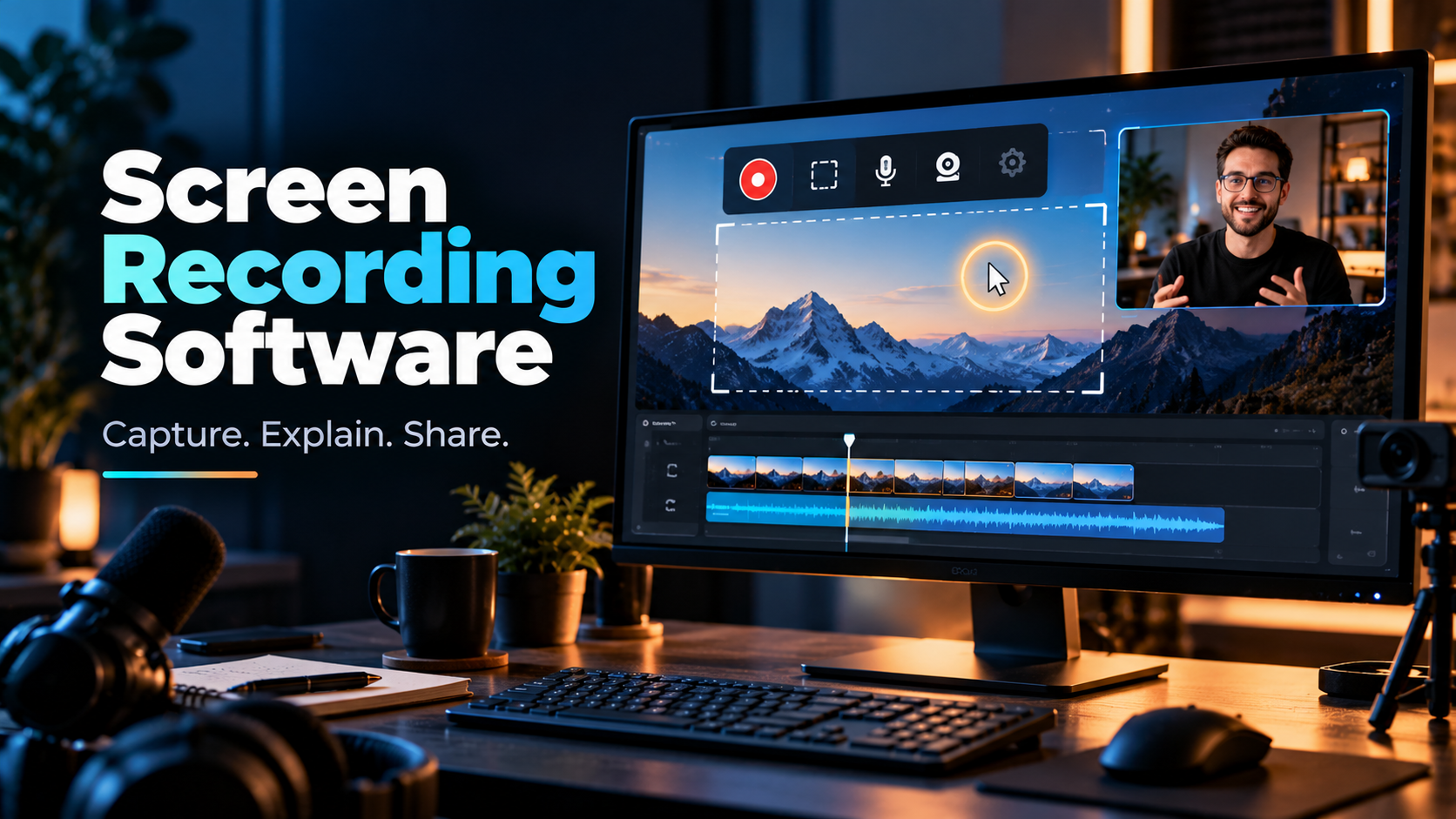
Screen recording software makes these activities possible by capturing what appears on a computer or mobile device and saving it as a video. Depending on the application, users can also record their microphone, system audio, webcam, mouse movements, and on-screen annotations.
Some tools are designed for quick recordings that can be shared through a link. Others provide advanced controls, multi-source recording, video editing, automatic captions, cursor effects, and professional production features.
Choosing the right tool depends on what happens after the recording as much as the recording itself. Someone who wants to send a two-minute explanation to a colleague has different needs from a creator producing a detailed software tutorial for thousands of viewers.
This guide explores the main types of screen recording software, compares popular tools, explains important features, and provides practical advice for producing clear, professional recordings.
2. What Is Screen Recording Software?
Screen recording software is an application that captures activity displayed on a computer, tablet, or smartphone and converts it into a video file or shareable recording.
The application may capture the entire screen, a selected region, an individual application window, or a combination of different visual sources.
Depending on the software and operating system, it may also capture:
- Microphone audio for narration.
- System audio from applications and media.
- Webcam video alongside the screen.
- Cursor movements and clicks.
- Keyboard shortcuts or other interactions.
- Multiple monitors or selected windows.
- Annotations, highlights, and drawing tools.
For example, imagine creating a tutorial that explains how to use a spreadsheet. The screen recorder captures the spreadsheet while you explain each step through a microphone. You can then trim mistakes, add captions, highlight important cells, and export the result as a video.
Screen recording versus screenshots
A screenshot is a static image of what appears on the screen at a particular moment. A screen recording captures a sequence of activity over time.
Screenshots are useful for documenting individual steps, error messages, settings, and visual references. Screen recordings are better for demonstrating workflows, explaining movement, showing interactions, and communicating processes that are difficult to describe in a single image.
Some applications combine both functions, allowing users to capture screenshots, annotate them, and create short videos within one interface.
Screen recording versus video editing
Screen recording captures the original material. Video editing modifies that material after capture.
A basic recorder may only let users start, pause, stop, and save a recording. More advanced applications include a timeline editor for trimming clips, rearranging segments, adding titles, inserting images, adjusting audio, and creating transitions.
All-in-one tools combine recording and editing, while other workflows use a dedicated recorder and a separate video editor.
3. How Screen Recording Software Works
Screen recording may appear simple, but several processes work together to produce the final video.
Step 1: Select the recording source
The user chooses what to capture: an entire display, a single application, a browser tab, or a specific region.
Capturing only the necessary area helps keep the recording focused and reduces the chance of exposing unrelated information.
Step 2: Configure audio and camera inputs
The recorder may capture microphone narration, system audio, webcam video, or a combination of these.
For example, a software tutorial might record the desktop and microphone, while a presentation video might include a small webcam window showing the presenter.
The exact options depend on the application, device permissions, and operating system.
Step 3: Capture screen activity
The software collects visual frames from the selected source. Depending on the application, it may also capture cursor movement, clicks, and other visual indicators.
Recording settings determine the output resolution and frame rate. Higher settings can preserve more detail or smoother movement, but they can also increase system load and file size.
Step 4: Encode the recording
The captured frames and audio are encoded into a format suitable for storage or playback.
Common video formats include MP4 and MOV, although some tools use other containers or intermediate recording formats. Encoding may be handled by the CPU, GPU, or supported hardware acceleration.
The available codecs and settings vary by tool and device.
Step 5: Save or upload the recording
The recording may be saved locally, uploaded to cloud storage, or processed through an integrated sharing service.
Local recordings provide direct control over the files. Cloud-based workflows can make sharing, commenting, collaboration, and centralized storage more convenient.
Step 6: Edit and publish
If editing tools are available, the user can remove mistakes, adjust audio, add captions, zoom into important areas, or insert explanatory graphics.
The final recording can then be exported for a learning management system, social media platform, company knowledge base, or video hosting service.
4. Types of Screen Recording Software
Screen recording tools can be divided into several categories based on their main purpose.
Desktop screen recorders
Desktop applications are installed directly on a computer and often provide extensive control over recording sources, audio, output settings, and local files.
They are useful for long tutorials, gaming, software demonstrations, technical documentation, and situations requiring precise recording control.
Examples include OBS Studio, Camtasia, Bandicam, ScreenFlow, and ScreenPal.
Browser-based screen recorders
Browser-based tools allow users to record through a web application or browser extension. They are particularly useful for quick demonstrations, remote communication, and collaborative work.
Many let users record a browser tab, an application window, or the desktop alongside a webcam.
Examples include Loom and browser-based recording tools offered by various collaboration platforms.
Their simplicity is useful, although recording permissions, browser compatibility, and system-audio support can vary.
Screen recorders with built-in video editing
These tools combine capture with a more comprehensive editing environment.
Users can trim clips, arrange footage, add annotations, insert zoom effects, create titles, adjust sound, and produce finished tutorials without switching applications.
Examples include Camtasia, ScreenFlow, and Descript.
They are particularly useful for online educators, instructional designers, and creators who regularly produce polished learning material.
Quick communication recorders
These applications prioritize speed and sharing over complex editing.
A user can record a short explanation, stop the recording, and share a link with colleagues. Some tools also support comments, transcripts, and collaboration features.
Loom is a prominent example.
This category is useful for asynchronous communication because the recipient can watch the explanation when convenient rather than scheduling a meeting.
Gaming and performance-focused recorders
Gaming recorders focus on capturing gameplay, full-screen applications, and sometimes webcam overlays. Depending on the tool, they may offer performance-oriented encoding, high frame rates, and configurable recording controls.
Examples include OBS Studio and Bandicam, alongside recording utilities built into graphics software and operating systems.
Users should test the impact on game performance and select settings that preserve smooth gameplay.
Built-in operating system recorders
Windows and macOS provide native recording options, and mobile devices commonly include screen recording functions.
These are convenient when the goal is simply to capture an activity without installing additional software.
However, built-in tools may provide fewer editing options, source controls, or advanced audio-routing capabilities than dedicated applications.
5. Essential Features to Look For
The best screen recorder is not necessarily the one with the longest feature list. It is the one that handles the complete workflow efficiently.
Full-screen, window, and region capture
Flexible capture options help users focus on the content that matters.
Full-screen recording works well for demonstrations that involve multiple applications. Window capture is useful for tutorials focused on one program. Region capture can be helpful when only a particular section of the interface needs to be shown.
Microphone and system audio
Audio capture is essential for tutorials, demonstrations, presentations, and gameplay.
Microphone recording captures narration or commentary. System audio captures sound produced by applications, videos, games, or other supported sources.
Some tools can record both simultaneously, while others require additional configuration. On certain operating systems, system-audio capture may require permissions or specific capture methods.
Always test the actual audio output before recording an important session.
Webcam overlay
A webcam overlay displays the presenter in a small window while the screen remains the main visual element.
This can make educational videos and product demonstrations feel more personal. Some tools allow users to reposition the camera window, change its shape, remove the background, or adjust its size.
Cursor highlighting and click effects
Cursor effects make it easier for viewers to follow interactions.
A recorder may highlight the cursor, display click indicators, smooth cursor movement, or enlarge the area around the pointer.
These features are particularly useful for software tutorials, where small buttons and menus may otherwise be difficult to follow.
Annotations and drawing tools
Annotations let users highlight information directly on the screen.
Common options include arrows, circles, text labels, freehand drawing, and spotlight effects. These can help explain a complex interface or draw attention to a specific step.
For longer tutorials, post-recording annotations may provide greater control than drawing during the live capture.
Editing and trimming
Basic editing should allow users to remove unwanted material at the beginning or end of a clip.
More advanced editors support multiple tracks, transitions, titles, zoom effects, audio adjustment, and rearranging segments.
The appropriate level of editing depends on the final output. A quick internal update may require no editing, while a public tutorial may need careful cleanup.
Automatic transcription and captions
Transcription converts spoken audio into text. Captions display spoken content as text alongside the video.
These features can make recordings easier to search, review, and understand. They are also important for accessibility.
Automatic transcription can misinterpret technical terms, names, accents, or overlapping speech. Review captions before publishing material where accuracy matters.
Video resolution and frame rate
Resolution determines the dimensions of the video, while frame rate determines how many frames are displayed per second.
A 1080p recording can be sufficient for many tutorials, meetings, and demonstrations. Higher resolutions may be useful when small interface details need to remain readable or when the output will be cropped during editing.
A frame rate of 30 frames per second is often suitable for software demonstrations. Higher frame rates may be useful for fast-moving content such as gameplay.
The best setting depends on the content, hardware, and destination rather than a universal maximum.
File formats and export controls
Check whether the software supports formats and codecs suitable for your workflow.
MP4 is widely compatible with video platforms and editing applications. MOV is also common, particularly in Apple-oriented workflows. Some applications offer additional formats or high-quality intermediate recordings.
Export controls may include resolution, frame rate, bitrate, audio settings, and compression options.
Local storage and cloud sharing
Local recording is useful when users need direct access to original files, prefer offline workflows, or want greater control over where recordings are stored.
Cloud-based tools can simplify link sharing, collaboration, transcripts, and centralized management.
Before selecting a cloud tool, consider account limits, storage policies, access permissions, and whether confidential material is appropriate for that service.
Performance and reliability
Recording uses computer resources, especially when capturing high-resolution content, multiple monitors, webcam video, or demanding games.
Look for stable capture, suitable encoder options, and clear feedback about recording status. Test the application with the same sources and settings you plan to use during the real session.
Privacy and security
Screen recordings can unintentionally expose passwords, private messages, customer records, email addresses, and other sensitive information.
Useful safeguards include selecting a limited capture area, disabling notifications, reviewing the desktop before recording, and restricting access to shared files.
For professional use, also check whether the recording tool uploads content automatically and how account permissions are managed.
6. Best Screen Recording Software in 2026
The following applications cover different needs, from free capture to professional tutorial production and collaborative video sharing. The best choice depends on the operating system, budget, and amount of editing required.
6.1 OBS Studio
OBS Studio is a free, open-source application for screen recording and live streaming. It is available for Windows, macOS, and Linux.
It allows users to create scenes containing display captures, application windows, webcams, images, text, and audio sources. Users can configure recording settings, transitions, filters, and output options.
For example, a programming instructor can record an IDE, a browser, and a webcam, then switch between layouts while explaining the code.
Best for: Users who need powerful free recording controls, gaming capture, tutorials, and flexible source management.
Advantages
- Free and open source.
- Supports multiple sources and scenes.
- Offers detailed audio and video controls.
- Useful for both local recording and live streaming.
- Extensible through plugins and scripts.
Limitations
- The interface can be challenging for beginners.
- It is primarily a recording and production tool rather than a complete tutorial editor.
- Complex configurations require testing and maintenance.
OBS Studio is an excellent option for users who want control without paying for a recording license.
6.2 Camtasia
Camtasia combines screen recording with a dedicated video editor designed for instructional and professional content.
It is useful for creating software tutorials, online courses, employee training, and product demonstrations. Its editing workflow supports elements such as annotations, callouts, captions, transitions, and visual effects.
A trainer could record a software walkthrough, remove mistakes, zoom into important controls, add explanatory labels, and export a polished lesson.
Best for: Educators, instructional designers, corporate trainers, and creators producing structured tutorials.
Advantages
- Recording and editing in one workflow.
- Features designed for instructional videos.
- Timeline-based editing.
- Useful annotation and visual explanation tools.
- Suitable for repeatable training production.
Limitations
- Paid licensing or subscription costs may apply.
- More complex than a basic capture utility.
- Advanced editing takes time to learn.
Camtasia is worth considering when the final edited video is as important as capturing the screen.
6.3 Loom
Loom is designed for recording and sharing short videos for workplace communication, demonstrations, and asynchronous collaboration.
Users can record their screen, camera, or a combination of both, then share the result through a supported link-based workflow. Depending on the plan, additional features may include editing, transcripts, comments, and integrations.
For example, a project manager could record a two-minute explanation of a design revision and share it with teammates instead of scheduling a meeting.
Best for: Remote teams, business communication, product demonstrations, and quick explanations.
Advantages
- Straightforward recording and sharing workflow.
- Screen and webcam recording options.
- Convenient for asynchronous communication.
- Collaboration-oriented features.
Limitations
- Free-plan limits may apply to recording duration, video count, or quality.
- Cloud-centered workflows require attention to access and privacy settings.
- Less suited to users who want extensive manual editing controls.
Loom is particularly useful when speed and easy sharing matter more than detailed post-production.
6.4 ScreenPal
ScreenPal provides screen recording and video creation tools for educational, professional, and personal use.
Depending on the product and plan, users may be able to capture their screen and webcam, narrate a demonstration, edit the result, and share or host recordings.
It can be useful for teachers creating instructional resources and professionals preparing software walkthroughs.
Best for: Education, training, and users seeking a practical recording-and-editing workflow.
Advantages
- Recording and editing capabilities.
- Tools suited to instructional content.
- Sharing and hosting options on supported plans.
- Available across a range of devices and platforms.
Limitations
- Feature availability depends on the current plan.
- Some advanced tools may require payment.
- Users should check export, storage, and watermark restrictions before choosing a plan.
ScreenPal is worth evaluating when users need more than basic capture but do not require a highly complex production environment.
6.5 Bandicam
Bandicam is a Windows-focused screen recording application often used for gameplay, desktop activity, and device capture through supported configurations.
It provides recording controls suited to users who want to capture screen activity without necessarily building an elaborate editing workflow.
Best for: Windows users recording gameplay, applications, and technical demonstrations.
Advantages
- Dedicated screen and gameplay recording features.
- Options for configuring capture settings.
- Useful for users who prefer a focused desktop recorder.
- Supports recording workflows beyond quick browser messages.
Limitations
- Windows-focused compatibility.
- Advanced editing may require another application.
- Some capabilities and restrictions depend on the license.
Bandicam can be a practical option when reliable desktop capture is the main requirement.
6.6 ScreenFlow
ScreenFlow is a screen recording and video editing application for macOS.
It is particularly suited to creators who need to record computer activity and turn it into polished tutorials, presentations, or demonstrations. Its workflow supports editing captured material and combining screen footage with other visual elements.
Best for: Mac-based educators, software tutorial creators, and professional video producers.
Advantages
- Recording and editing within one application.
- Useful for structured tutorial production.
- Timeline-based editing.
- Suitable for combining screen footage and additional media.
Limitations
- macOS-focused compatibility.
- Paid licensing may apply.
- Users should confirm compatibility with their Mac and the current application version.
ScreenFlow is worth considering for Mac users who regularly produce edited screen-based content.
6.7 Descript
Descript combines audio and video editing with transcription-based workflows and screen recording capabilities.
Its distinctive approach lets users work with spoken content through an associated transcript, making it useful when the recording contains narration or conversation.
For example, a creator could record a software demonstration, correct the transcript, remove unwanted spoken sections, and prepare captions alongside the video.
Best for: Narrated tutorials, training videos, interviews, and content where spoken-word editing is important.
Advantages
- Transcription-oriented editing.
- Tools for captions and spoken content.
- Useful for content repurposing.
- Combines several steps of the production workflow.
Limitations
- Some features depend on paid plans or usage limits.
- Transcription quality requires review.
- May be unnecessary for simple, silent screen captures.
Descript is a strong candidate when narration and editing are central to the final video.
6.8 Screen Studio
Screen Studio is designed for creating polished screen recordings on supported Mac systems.
It focuses on making demonstrations look professional with features such as cursor smoothing, automatic zoom effects, webcam presentation, and reusable visual settings.
For example, a software developer can record an application demonstration and use automatic zoom effects to emphasize important controls without manually editing every movement.
Best for: Mac-based creators, software developers, product demonstrations, and polished short tutorials.
Advantages
- Features designed for professional-looking screen demos.
- Cursor and zoom effects.
- Support for reusable recording styles.
- Streamlined post-production workflow.
Limitations
- Mac-focused compatibility.
- Paid features or licenses may apply.
- Less appropriate for users who need advanced live production or broad multi-camera control.
Screen Studio is particularly appealing when presentation quality and a smooth editing workflow are priorities.
6.9 Built-in screen recording tools
For occasional recordings, a dedicated paid application may not be necessary.
Windows provides built-in capture options, including Snipping Tool screen recording on supported versions and Xbox Game Bar for supported applications. macOS provides screen recording through its screenshot toolbar and QuickTime Player. Android and iOS also offer built-in screen recording on supported devices.
Best for: Quick captures, simple demonstrations, and users who want to avoid installing additional software.
Advantages
- Often available at no extra cost.
- Convenient for short recordings.
- Minimal setup.
- Useful for everyday tasks.
Limitations
- Editing tools may be limited.
- Audio capture capabilities vary.
- Advanced source control and production features may be unavailable.
Built-in tools are a sensible first choice for simple needs. If the workflow becomes more demanding, a dedicated recorder may save time.
7. Screen Recording Software Comparison
| Software | Best for | Main strength | Main consideration |
|---|---|---|---|
| OBS Studio | Advanced free recording | Customizable sources and controls | Learning curve |
| Camtasia | Tutorials and training | Integrated editing workflow | Paid licensing |
| Loom | Quick workplace videos | Easy sharing and collaboration | Plan-dependent limits |
| ScreenPal | Education and training | Recording and editing tools | Feature restrictions vary |
| Bandicam | Windows desktop and gameplay | Dedicated capture controls | Windows-focused |
| ScreenFlow | Mac tutorial production | Screen recording and timeline editing | Mac compatibility |
| Descript | Narrated content | Transcript-based editing | Transcription limits and review |
| Screen Studio | Polished Mac demos | Automatic zoom and cursor effects | Mac-focused and paid |
| Built-in recorders | Basic captures | Convenient and often free | Fewer advanced controls |
Which screen recorder should you choose?
- For a free, flexible tool: Start with OBS Studio.
- For polished tutorials and training: Consider Camtasia or ScreenFlow.
- For quick work updates: Consider Loom.
- For educational content: Evaluate ScreenPal or Camtasia.
- For narrated videos that need transcript editing: Consider Descript.
- For polished Mac product demonstrations: Consider Screen Studio.
- For simple one-time recordings: Try the built-in recorder on your device first.
Features, free-plan limits, and prices can change. Check the current plan details and system requirements before making a purchase.
8. Benefits of Screen Recording Software
Clearer communication
A recording can demonstrate a process directly rather than relying on lengthy written instructions.
Showing exactly where to click or which setting to change often makes technical explanations easier to understand.
Flexible learning
Students and employees can replay recordings at their own pace, pause at difficult steps, and revisit important sections when needed.
This is particularly useful for software training, technical subjects, and detailed procedures.
Reduced meeting time
Teams can share updates asynchronously instead of scheduling a meeting for every explanation.
A short recording can communicate a design change, demonstrate a bug, or explain a task while allowing recipients to respond when convenient.
Better documentation
Screen recordings can preserve how a process worked at a particular time.
This can be useful for onboarding, support documentation, troubleshooting, and internal training. Organizations should ensure that recordings are kept accurate and updated when software interfaces or procedures change.
Content creation opportunities
Creators can produce tutorials, demonstrations, educational videos, and product walkthroughs using a screen recorder and a microphone.
Recordings can also be repurposed into short clips, social media content, and structured learning materials.
Improved troubleshooting
Technical support teams can use recordings to understand a problem more clearly. Users can demonstrate the steps leading to an error instead of trying to describe every action.
This may help reduce misunderstandings and speed up diagnosis.
Reusable training resources
A well-produced recording can be used repeatedly for new employees, customers, students, or team members.
This reduces the need to repeat the same demonstration individually, although recordings should be reviewed and updated when the process changes.
9. Common Use Cases Across Industries
Education and online learning
Teachers can record lessons, demonstrations, presentations, and practical exercises.
For example, a programming instructor can show a code editor, execute a program, explain the output, and provide the recording to students for revision.
Clear narration, readable text, and a logical structure are particularly important in educational recordings.
Software development and technical support
Developers can record bugs, interface behavior, setup procedures, and testing workflows.
A useful bug report may include the initial application state, the exact steps taken, the unexpected behavior, and the resulting error message.
Before sharing recordings, remove access tokens, private customer data, and other sensitive information.
Digital marketing and content creation
Marketers can create software tutorials, product walkthroughs, campaign explanations, analytics demonstrations, and training material.
Screen recording can also be combined with voiceover, webcam footage, graphics, and post-production editing to create publish-ready content.
Business and remote work
Teams can use recordings for project updates, presentations, feedback, onboarding, and asynchronous explanations.
The approach is particularly helpful when colleagues work across different time zones or have schedules that make live meetings difficult.
Gaming and entertainment
Gamers record gameplay, commentary, tutorials, reviews, and highlight clips.
The best configuration depends on the game, computer performance, desired frame rate, audio requirements, and whether a webcam overlay is needed.
Product demonstrations and customer education
Businesses can record how to use a product, configure an application, or complete a task.
These videos can reduce repetitive support requests and help customers learn at their own pace.
Research and testing
Researchers, designers, and quality-assurance teams may record interface interactions, prototype behavior, or usability tests.
When recordings include participants, obtain appropriate consent and follow applicable privacy and data-handling requirements.
10. How to Choose the Right Screen Recorder
Define the recording purpose
Start by deciding what you need to produce.
Is it a short internal message, a software tutorial, a gaming video, a course, or a demonstration for customers? Each use case places different demands on recording, editing, and sharing.
Identify the required sources
Decide whether you need the screen alone, screen and microphone, system audio, webcam video, or several displays.
For example, a silent software demonstration may require only screen capture, while a narrated tutorial needs a reliable microphone and clear audio.
Consider your operating system
Check compatibility with your current operating system and hardware.
Some applications are available across Windows and macOS, while others are designed specifically for one platform. Mobile support and browser-based options also vary.
Decide how much editing you need
If you only need to record and share, a simple recorder may be enough.
If you regularly create professional tutorials, look for a timeline editor, annotations, zoom effects, captions, audio controls, and flexible export options.
Check file storage and sharing
Choose between local files, cloud hosting, or a combination of both.
If you frequently share recordings with clients or colleagues, link-based sharing and access controls may save time. If you work with confidential material, consider where files are stored and who can access them.
Evaluate system performance
High-resolution recording, multiple inputs, and complex scenes can place significant demands on the computer.
Test a short recording using the exact settings you intend to use. Review the output for stuttering, audio dropouts, synchronization issues, and file size.
Compare total cost
Consider licensing, subscriptions, export limits, storage, watermarks, and any editing tools you may need separately.
A free recorder may meet all your requirements, while a paid tool may save substantial time if you create videos regularly.
Test before committing
Record a representative sample and evaluate the entire process:
- Start the recording.
- Capture the intended sources.
- Speak or play the required audio.
- Stop and save the file.
- Edit it if necessary.
- Export and play it on another device.
- Confirm that the final quality meets your needs.
This practical test is often more useful than comparing long lists of advertised features.
11. How to Record Your Screen Step by Step
The following workflow works as a general guide for most desktop screen recorders.
Step 1: Prepare your desktop
Close unnecessary applications, organize the windows you need, and remove anything that should not appear in the recording.
Disable distracting notifications and confirm that private messages, passwords, or confidential information will not be exposed.
Step 2: Select the capture area
Choose whether to record the full screen, a specific window, or a selected region.
For software tutorials, capturing the relevant application often makes the video easier to follow.
Step 3: Configure audio
Select the correct microphone and, if needed, system audio.
Speak a short test sentence and listen to the result. Make sure the sound is clear and not distorted.
Step 4: Configure the camera
If the video includes a webcam, position the camera near eye level and ensure that the lighting is adequate.
Place the webcam overlay where it does not cover important interface elements.
Step 5: Choose recording settings
Select a suitable resolution, frame rate, and output format.
For many software tutorials, 1080p at 30 frames per second is a reasonable starting point when supported. More demanding content may benefit from different settings, while less powerful hardware may require lower settings for stability.
Step 6: Plan the explanation
Write down the main steps or create a short outline.
You do not need to memorize a full script. A simple structure helps prevent long pauses, repeated explanations, and unnecessary material.
Step 7: Record a short test
Record 20–30 seconds and play it back.
Check the image, microphone, system audio, cursor visibility, and synchronization before beginning the full recording.
Step 8: Start the main recording
Speak clearly and perform actions at a pace viewers can follow. Pause briefly before important steps and avoid moving the cursor unnecessarily.
If you make a small mistake, pause and repeat the step. It can often be removed during editing.
Step 9: Edit the recording
Trim the beginning and end, remove mistakes, and add titles or annotations when useful.
Use zoom effects to emphasize small interface elements, but avoid excessive movement that could make viewers lose track of the screen.
Step 10: Export and review
Export the video using settings appropriate for the destination.
Play the exported file from beginning to end. Confirm that the audio is clear, the content is readable, the video is synchronized, and no private information appears unexpectedly.
Step 11: Share securely
Choose the appropriate hosting or sharing method. If the video contains private or internal information, restrict access rather than publishing an unrestricted link.
12. Best Practices for Professional Screen Recordings
Use a clear structure
A good tutorial usually includes an introduction, a demonstration, and a brief summary.
Tell viewers what they will learn, explain the process in a logical order, and recap the most important steps.
Keep the cursor deliberate
Avoid moving the mouse rapidly around the screen. Move directly to the relevant control and pause briefly so viewers can identify it.
Cursor highlighting or zoom effects can help when the interface contains small buttons or complex menus.
Make interface text readable
Record at a resolution that preserves the details viewers need to see.
Avoid shrinking application windows too much. If the interface is dense, consider capturing a larger area or zooming into important sections during editing.
Improve audio before recording
Choose a quiet location, position the microphone appropriately, and reduce background noise.
Speak at a consistent distance from the microphone. If you use a noise-reduction filter, verify that it does not make the voice sound unnatural.
Keep recordings focused
Remove unrelated tasks and unnecessary explanations. If the tutorial covers several distinct topics, consider separating it into shorter chapters or recordings.
Shorter, focused videos are often easier to navigate and update.
Use annotations purposefully
Arrows, circles, labels, and highlights can make complex steps easier to understand.
Use them when they explain something that would otherwise be difficult to notice. Too many annotations can clutter the screen.
Review every export
Do not assume that a successful recording automatically produces a good final video.
Check the exported file for missing audio, blank sections, incorrect cropping, unexpected notifications, and other issues.
Protect sensitive information
Review the entire recording before sharing it. Blur or remove confidential details where necessary, and confirm that any cloud-hosted recording has the intended access permissions.
13. Common Screen Recording Problems and Solutions
Black screen during capture
A black screen can occur because of capture permissions, graphics settings, application restrictions, or compatibility issues.
Solution: Confirm that the recorder has the necessary permissions, try a different capture method, and check the application’s guidance for your operating system. Some protected content cannot be recorded through ordinary screen-capture tools.
Missing system audio
The recorder may be configured to capture only the microphone, or the operating system may restrict audio capture.
Solution: Verify the selected audio sources, system permissions, and available capture options. Record a short test before beginning the full session.
Microphone is too quiet
The wrong input device, low input gain, or an incorrect microphone position can result in weak audio.
Solution: Select the intended microphone, adjust the input level, move closer when appropriate, and check the recording with headphones.
Video stutters or drops frames
This can happen when the computer is overloaded, the selected recording settings are too demanding, or another application is consuming system resources.
Solution: Reduce the resolution or frame rate, close unnecessary applications, and test a supported hardware encoder if available.
File size is too large
High-resolution recordings, high frame rates, and high bitrates can produce large files.
Solution: Select an appropriate recording format and bitrate, trim unnecessary material, and export a compressed version for sharing. Keep a high-quality original when future editing is important.
Audio and video are out of sync
Synchronization issues can occur with multiple devices, demanding recording setups, or inconsistent capture timing.
Solution: Test the microphone and camera together, use supported recording configurations, and check whether the editor provides synchronization tools.
Recording stops unexpectedly
Possible causes include insufficient storage, application crashes, power settings, or system resource limitations.
Solution: Check available disk space, close unnecessary programs, keep the computer powered appropriately, and test the setup with a longer sample before an important recording.
The exported video looks blurry
The recording may have been captured at a low resolution, scaled incorrectly, or exported with excessive compression.
Solution: Check the capture area, project resolution, export settings, and the destination’s playback behavior. Avoid enlarging a small recording excessively during editing.
14. Future Trends in Screen Recording Software
AI-assisted editing
AI features are increasingly used for transcription, automatic captions, removal of pauses, voice cleanup, and editing assistance.
These capabilities can reduce editing time, especially for narrated tutorials and communication videos. However, generated captions and edits should be reviewed for accuracy.
Automatic zoom and cursor effects
Some tools can identify cursor activity and automatically emphasize important areas of the screen.
This can make software demonstrations easier to follow without requiring users to manually create every zoom effect.
Transcript-based workflows
Transcript-based editing allows users to work with spoken content through text. Removing a section of narration may also remove its corresponding video segment, depending on the application.
This can be especially helpful for interviews, tutorials, and presentations where the spoken explanation is central.
Cloud collaboration
Cloud-based recorders are expanding the ways teams can store, share, comment on, and manage recordings.
These features can make asynchronous communication easier, although organizations should continue to evaluate access controls, retention policies, and privacy requirements.
Accessibility improvements
Captions, searchable transcripts, keyboard accessibility, and clearer visual emphasis can make screen recordings easier for more people to use.
Creators who plan accessibility from the beginning can avoid many last-minute adjustments.
Better integration with learning and work platforms
Screen recordings are increasingly used within knowledge bases, project management systems, online courses, and customer support workflows.
Integrations can reduce the number of manual steps between capturing a process and making it available to the intended audience.
More polished output with less manual editing
Reusable styles, automatic background effects, smart layouts, and template-based editing help users create consistent videos more quickly.
These features are especially useful for teams producing large volumes of tutorials or product demonstrations.
15. Frequently Asked Questions
1. What is the best screen recording software?
The best choice depends on your needs. OBS Studio is a strong free option for flexible recording, Camtasia is useful for edited tutorials, Loom is convenient for quick sharing, and Screen Studio is designed for polished Mac demonstrations.
2. Is screen recording software free?
Yes. OBS Studio is free and open source, and many operating systems include built-in recording tools. Some commercial applications offer free versions or trials with limits on features, recording duration, or exports.
3. Can I record my screen and voice at the same time?
Yes. Many applications support simultaneous screen and microphone recording. If you also need sound from videos, games, or applications, check that system-audio capture is supported and configured correctly.
4. Can I record my screen with my face visible?
Yes. Many recorders let you capture a webcam alongside the screen, often in a movable overlay. This is useful for tutorials, presentations, product demonstrations, and gaming videos.
5. Which screen recorder is best for YouTube tutorials?
OBS Studio is a good free starting point. Camtasia and ScreenFlow are worth considering if you want integrated editing tools for annotations, zoom effects, titles, and polished instructional content.
6. Does screen recording reduce computer performance?
It can. Recording uses system resources, especially at high resolutions or frame rates and when capturing demanding applications. Reducing settings, closing unnecessary programs, and using supported hardware acceleration can help.
7. What is the best format for screen recordings?
MP4 is a common choice because it is widely compatible with editing software and video platforms. However, the best format depends on the application, editing requirements, and destination.
8. How do I record my screen on Windows?
Depending on your Windows version and needs, you can use built-in options such as Snipping Tool or Xbox Game Bar for supported workflows. Dedicated tools such as OBS Studio and Camtasia provide additional controls.
9. How do I record my screen on Mac?
macOS includes screen recording through its screenshot toolbar and QuickTime Player. Applications such as OBS Studio, ScreenFlow, and Screen Studio offer additional features for more advanced workflows.
10. Can I record a browser tab only?
Yes, if the chosen application supports tab capture. Browser-based tools may offer this option, while desktop applications may let you capture a specific window or region.
11. How can I make screen recordings smaller?
Use a suitable resolution and frame rate, adjust the export bitrate, remove unnecessary footage, and choose an efficient codec supported by your workflow. Test the result to ensure the text remains readable.
12. Is screen recording safe?
Screen recording itself is a normal productivity tool, but recordings can expose private information. Review the capture area, disable notifications, secure cloud links, and obtain consent where appropriate before recording other people or sharing sensitive material.
13. Can screen recording software automatically create captions?
Some applications offer automatic transcription and caption generation. Accuracy varies, so review the captions, especially when technical terminology, names, or important instructions are involved.
14. Should I choose a recorder with built-in editing?
Choose one if you regularly need to trim mistakes, add annotations, create zoom effects, or produce finished tutorials. For occasional captures or quick internal messages, a basic recorder may be enough.
16. Conclusion
Screen recording software has become a practical tool for explaining processes, teaching skills, documenting technical problems, communicating with remote teams, and creating digital content. It turns activity on a screen into a reusable visual explanation that people can watch at their own pace.
The best tool depends on the entire workflow. OBS Studio offers extensive recording control without a software license fee. Camtasia and ScreenFlow are useful for producing polished tutorials. Loom prioritizes quick recording and sharing, while Descript supports transcript-oriented editing. ScreenPal, Bandicam, Screen Studio, and built-in operating system tools provide alternatives for specific needs.
Before choosing an application, identify the content you want to create, the audio and video sources you need, your editing requirements, and your preferred storage method. Test the recording on your actual device and check the final exported file before sharing it.
A professional recording does not require the most expensive software. Clear narration, readable visuals, deliberate cursor movement, appropriate recording settings, and careful editing often make the biggest difference. The right software simply makes those habits easier to apply consistently.