Table of Contents
- Introduction to Whiteboard Collaboration Tools
- What Are Whiteboard Collaboration Tools?
- Why Digital Whiteboards Matter
- Essential Features of Whiteboard Collaboration Software
- Types of Whiteboard Collaboration Tools
- Popular Whiteboard Collaboration Platforms
- Comparison of the Best Whiteboard Tools
- How to Choose the Right Whiteboard Software
- How to Run an Effective Digital Whiteboard Session
- Practical Applications and Examples
- AI and Advanced Collaboration Features
- Integrations and Team Workflows
- Security, Privacy, and Accessibility
- Common Mistakes to Avoid
- Best Practices for Professional Collaboration
- The Future of Whiteboard Collaboration
- Frequently Asked Questions
- Conclusion
1. Introduction to Whiteboard Collaboration Tools
Modern teamwork often happens across different locations, devices, and time zones. Teams need ways to brainstorm ideas, organize information, plan projects, solve problems, and make decisions without requiring everyone to sit in the same room.
Traditional whiteboards are useful for face-to-face discussions, but their limitations become apparent when participants work remotely. People cannot easily contribute to the same physical board from different locations, and the information written during a meeting may be difficult to preserve, share, or update afterward.
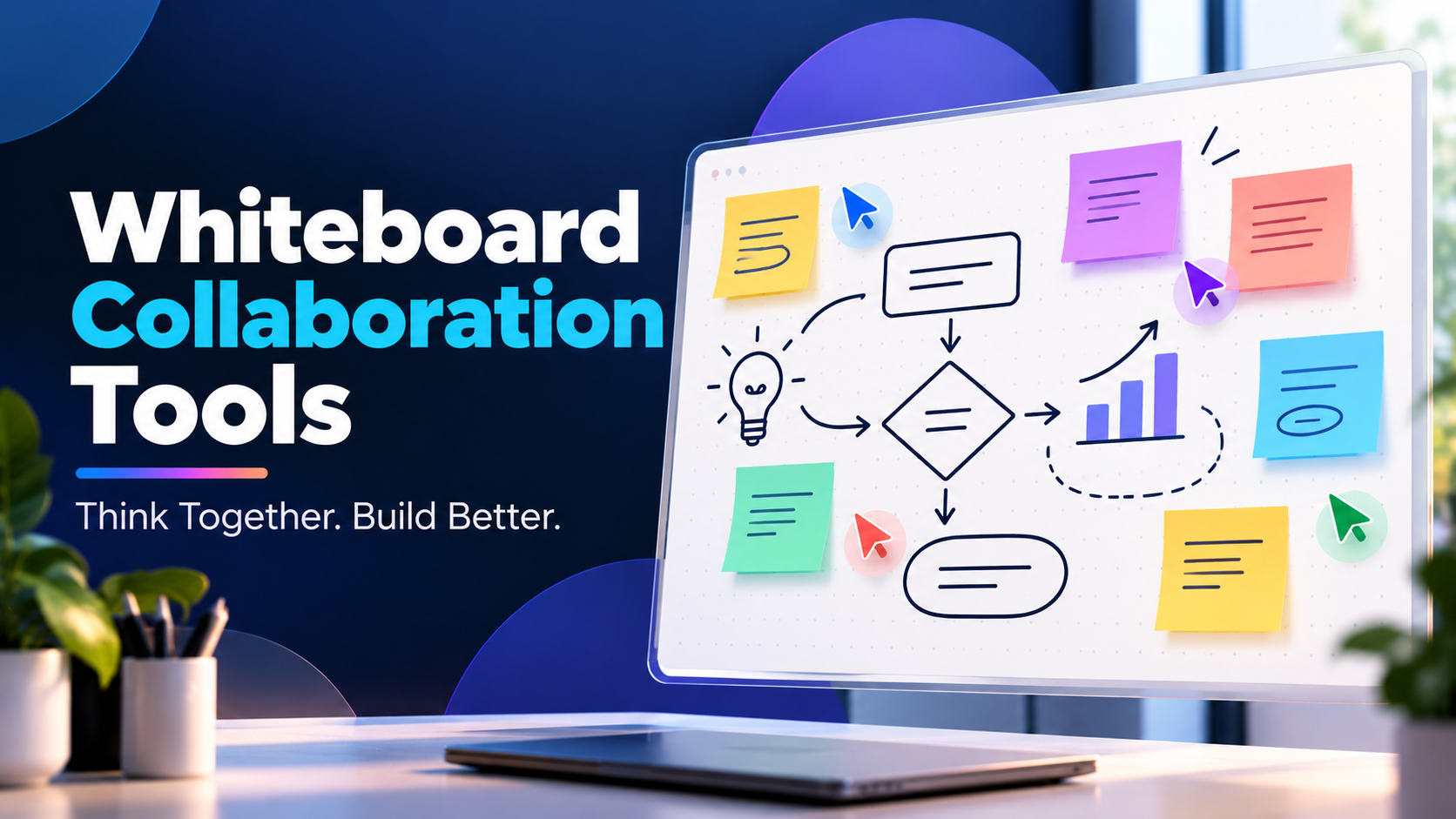
Whiteboard collaboration tools address these challenges by providing a shared digital workspace where people can work together visually. Participants can add sticky notes, draw diagrams, create mind maps, arrange images, comment on ideas, and organize information on a common canvas.
These tools are useful for business meetings, software development, education, product design, project planning, workshops, and creative brainstorming. They allow teams to capture ideas as they emerge and transform unstructured discussions into organized, actionable outcomes.
Digital whiteboards have also evolved beyond simple drawing applications. Modern platforms may include templates, voting systems, timers, collaborative cursors, integrations with productivity software, AI-assisted organization, and tools for converting ideas into tasks.
The challenge is choosing the right platform and using it effectively. A tool designed for collaborative brainstorming may not be ideal for precise technical documentation, while a lightweight whiteboard may be perfectly sufficient for a small team planning its next project.
This guide explains how whiteboard collaboration tools work, the most important features to understand, popular platforms, practical workflows, and the best practices that make digital collaboration productive.
2. What Are Whiteboard Collaboration Tools?
Whiteboard collaboration tools are digital applications that allow multiple people to create, organize, and discuss visual information in a shared workspace.
Unlike a traditional drawing application, a collaborative whiteboard is designed around the idea that several participants can contribute to the same board. Depending on the platform, they may work simultaneously or add their contributions at different times.
A digital whiteboard can contain:
- Sticky notes for capturing individual ideas.
- Text boxes for explanations, headings, and instructions.
- Shapes and connectors for illustrating relationships.
- Freehand drawings for sketches and annotations.
- Images, documents, and other embedded content.
- Frames or sections for organizing large canvases.
- Comments and reactions for discussion.
- Voting controls for prioritizing ideas.
- Templates for common activities and workflows.
How digital whiteboards work
A typical collaborative whiteboard workflow begins when someone creates a board and invites other participants.
The board owner may select a template for brainstorming, project planning, a retrospective, or another activity. Participants then contribute ideas using notes, shapes, text, and other visual elements.
As the session progresses, the facilitator can group related contributions, identify patterns, conduct voting, and summarize decisions. Afterward, the board can be shared, exported, or maintained as a reference for future work.
For example, a product team developing a mobile application could create a board with separate sections for customer problems, proposed features, design ideas, technical challenges, and next steps. Team members can contribute independently before discussing the most important items together.
Real-time versus asynchronous collaboration
Whiteboard collaboration can happen in two main ways.
Real-time collaboration occurs when participants work on the same board simultaneously. They can watch other people’s changes, move objects, add comments, and discuss ideas during a live meeting.
Asynchronous collaboration occurs when participants contribute at different times. One person might add research findings in the morning, another might review them in the afternoon, and a third might organize the ideas the following day.
Real-time collaboration is useful for workshops and rapid decision-making. Asynchronous collaboration is valuable for distributed teams, different time zones, and projects that require reflection between contributions.
Many whiteboard tools support both approaches.
3. Why Digital Whiteboards Matter
3.1 They make remote collaboration more visual
Text-based communication is effective for many tasks, but it can become difficult to understand complex relationships through messages alone.
A shared whiteboard allows people to see how ideas connect, where a process branches, which tasks depend on others, and how a proposed solution might work.
This shared visual context can reduce misunderstandings and make discussions more productive.
3.2 They encourage participation
In a conventional meeting, the discussion may be dominated by a few confident speakers. A digital whiteboard gives participants another way to contribute.
People can add sticky notes independently, submit ideas before a discussion, or use anonymous contributions where the platform and meeting design support them.
This can help quieter participants share their perspectives without needing to interrupt a conversation.
3.3 They preserve ideas and decisions
Information written on a physical whiteboard may disappear when the board is erased or the meeting room is reused.
Digital boards can preserve ideas, comments, diagrams, and decisions for later reference. Participants can revisit the board, examine previous contributions, and continue the work without starting over.
However, the board should still be organized and maintained. An enormous collection of unstructured notes is not automatically useful documentation.
3.4 They improve brainstorming
Brainstorming often begins with a large number of unfiltered ideas. A digital whiteboard makes it easy to capture contributions quickly before evaluating them.
Once the idea-generation phase is complete, the facilitator can group similar suggestions, identify recurring themes, and help the team select the most promising options.
3.5 They support structured workshops
Workshops frequently involve several stages: introducing a problem, generating ideas, discussing alternatives, prioritizing options, and agreeing on next steps.
Whiteboard tools can provide a separate section for each stage, allowing the facilitator to guide participants through the session.
Timers, voting, templates, and designated work areas can make this process easier to manage.
3.6 They connect ideas to execution
The most useful collaborative sessions do not end with a board full of ideas. They result in decisions, assigned responsibilities, and clear next steps.
Some whiteboard platforms integrate with project-management tools, allowing teams to convert selected ideas into tasks or follow-up activities.
This connection helps transform visual brainstorming into practical work.
4. Essential Features of Whiteboard Collaboration Software
Not all whiteboard applications provide the same capabilities. Understanding the main features makes it easier to compare tools and choose the right one.
4.1 Infinite canvas
An infinite canvas allows users to expand the workspace as the project grows, rather than being restricted to a single page.
This is useful for large brainstorming sessions, complex mind maps, customer journeys, and projects containing many related sections.
However, an infinite canvas also requires organization. Frames, headings, and clearly defined areas help participants understand where to work and where to find information.
4.2 Sticky notes
Sticky notes are among the most recognizable features of digital whiteboards.
Each note can represent one idea, observation, question, concern, or task. Notes can be moved, grouped, recolored, and arranged as the discussion evolves.
For example, a team planning a marketing campaign might use separate note colors for audience insights, content ideas, budget concerns, and proposed experiments.
A consistent color system makes the board easier to interpret.
4.3 Real-time collaboration
Real-time collaboration allows multiple users to interact with the same board.
Useful capabilities may include live cursors, visible edits, automatic synchronization, participant indicators, and simultaneous object manipulation.
When evaluating a tool, test whether the experience remains responsive with the expected number of participants and the size of the board.
4.4 Templates
Templates provide ready-made layouts for common activities, including:
- Brainstorming sessions.
- SWOT analysis.
- Mind mapping.
- Project planning.
- Agile retrospectives.
- Customer journey mapping.
- Design thinking workshops.
- User story mapping.
- Meeting agendas.
- Roadmap planning.
Templates reduce setup time and help facilitators structure sessions consistently.
A template should guide the activity rather than force the team to follow unnecessary steps.
4.5 Frames and sections
Frames are designated areas of a canvas that group related information.
For example, a product discovery board might contain frames for customer research, pain points, potential solutions, prototype ideas, and decisions.
Frames are particularly useful when a board becomes too large to navigate comfortably.
4.6 Shapes, connectors, and drawing tools
Although whiteboards are often associated with sticky notes, they can also support flowcharts, process maps, simple architecture diagrams, and explanatory sketches.
Shapes represent components or concepts, while connectors illustrate relationships.
For highly detailed engineering diagrams, however, a dedicated diagramming application may offer more precise notation and formatting.
4.7 Comments and reactions
Comments allow participants to discuss specific items without cluttering the main canvas. Reactions provide quick ways to acknowledge ideas or express support.
These features are especially valuable when contributions are made asynchronously.
Teams should establish whether comments are intended for questions, suggestions, approvals, or decisions to prevent discussions from becoming difficult to follow.
4.8 Voting and prioritization
Voting features help groups identify which ideas deserve further consideration.
A facilitator might give every participant three votes to select the most important customer problems from a collection of twenty suggestions.
Voting results can reveal areas of agreement, but they should not automatically determine the final decision. Cost, feasibility, risk, and business priorities may also need to be considered.
4.9 Timers and facilitation controls
Timers help workshops stay focused and prevent one activity from consuming the entire session.
For example, a facilitator might allocate five minutes for individual brainstorming, ten minutes for grouping ideas, and five minutes for prioritization.
Some platforms also provide facilitation features such as presentation modes, participant controls, and guided activities.
4.10 Multimedia support
Images, videos, documents, links, and other content can provide context for a discussion.
A design team may add screenshots of an application, while a marketing team may attach examples of advertisements or campaign concepts.
Before embedding sensitive information, consider who can access the board and whether the embedded content inherits appropriate permissions.
4.11 Sharing and access permissions
Whiteboard platforms may allow users to share boards with named collaborators, teams, guests, or anyone who has a particular link.
Permission options can include viewing, commenting, and editing.
Always verify the actual permissions associated with a shared link. A board containing internal strategy or confidential information should not be accessible to unintended recipients.
4.12 Version history and recovery
Version history can help teams review previous changes and recover earlier content when supported.
This is important when a board serves as a long-term project workspace or when multiple people can edit the same information.
For important projects, consider keeping a finalized summary or exported copy alongside the active board.
4.13 Export and documentation
A useful whiteboard tool should provide ways to preserve or share the final result.
Depending on the platform, options may include image exports, PDF files, structured data exports, or links to the original editable board.
An exported image is useful for a presentation, but it does not preserve the same interactive capabilities as the original workspace. Choose the format based on the audience and purpose.
4.14 Accessibility
Accessible collaboration should account for different visual, motor, and cognitive needs.
Useful considerations include keyboard navigation, readable text, adequate contrast, screen-reader support, and alternatives to interactions that depend exclusively on dragging or color recognition.
When organizing a session, provide clear written instructions and a concise summary of the outcomes so participants can access the essential information in a suitable format.
5. Types of Whiteboard Collaboration Tools
Digital whiteboards can be grouped by their primary purpose. Understanding these categories helps avoid choosing a platform that solves the wrong problem.
5.1 General-purpose collaboration whiteboards
These platforms provide flexible canvases for brainstorming, diagrams, workshops, planning, and team discussions.
They often offer extensive templates, sticky notes, collaboration controls, and integrations.
They are suitable for teams that need one shared workspace for many types of visual activities.
5.2 Design and product collaboration tools
These tools support design thinking, wireframing, user journeys, product discovery, and collaborative ideation.
They may integrate with interface design applications, allowing teams to move from early concepts to more detailed design work.
They are particularly useful for product managers, UX designers, researchers, and developers.
5.3 Workshop facilitation platforms
Workshop-focused tools provide features that help facilitators manage structured activities.
Examples include voting, timers, guided templates, private contribution stages, and controls for organizing participants.
These capabilities are valuable when running retrospectives, planning workshops, strategy sessions, or large group exercises.
5.4 Technical sketching and diagramming whiteboards
These tools emphasize drawing, shapes, connectors, and simple technical representations.
They are useful for explaining software architecture, brainstorming system designs, sketching user flows, and discussing engineering ideas.
If diagrams must follow formal standards or include detailed technical notation, a specialized diagramming tool may still be necessary.
5.5 Education-focused whiteboards
Education-oriented tools support interactive teaching, remote tutoring, collaborative exercises, and classroom participation.
Depending on the application, they may offer teacher-controlled activities, student workspaces, annotations, and tools for explaining concepts visually.
Educators should consider whether students need accounts, whether boards can be shared securely, and how work can be saved or reviewed after a lesson.
5.6 Lightweight and open-source whiteboards
Lightweight tools emphasize speed, simplicity, and easy sharing. Some open-source options also offer greater control over deployment and customization.
They can be appropriate for quick sketches, small teams, technical discussions, and users who do not need a large collection of enterprise features.
The trade-off may involve fewer integrations, limited administrative controls, or a less comprehensive facilitation experience.
6. Popular Whiteboard Collaboration Platforms
The following platforms illustrate different approaches to digital collaboration. Their features, licensing terms, and plan limits may change, so evaluate the current offering before adopting one for a team.
6.1 Miro
Miro is a visual collaboration platform built around a flexible shared canvas.
It supports brainstorming, workshops, process mapping, mind maps, product planning, retrospectives, and a broad range of team activities.
Its strengths include an extensive template ecosystem, collaborative features, and integrations that can connect visual work with other team tools.
Best suited for: Cross-functional teams, product organizations, consultants, distributed companies, and groups that conduct frequent workshops.
Potential limitation: The breadth of functionality can make the platform feel more complicated than necessary for a simple brainstorming session. Teams should also review board limits and paid-plan requirements.
6.2 FigJam
FigJam is a collaborative whiteboard associated with Figma’s design ecosystem.
It is commonly used for brainstorming, flowcharts, mind maps, workshops, user journeys, and product planning.
Its relationship with Figma makes it attractive to design teams that want to move between collaborative ideation and interface design.
Best suited for: UX designers, product managers, design students, and teams that already use Figma.
Potential limitation: Teams primarily focused on complex enterprise workshops or unrelated business workflows should compare its facilitation and administration features with other platforms.
6.3 Microsoft Whiteboard
Microsoft Whiteboard provides a shared digital canvas within the Microsoft collaboration ecosystem.
It can support brainstorming, handwritten annotations, sticky notes, sketches, and collaborative activities associated with meetings and team discussions.
Its integration with Microsoft Teams and other Microsoft services can make it convenient for organizations already using Microsoft 365.
Best suited for: Schools, organizations, and teams that already use Microsoft collaboration products.
Potential limitation: Its suitability depends on the organization’s licensing, account type, administrative configuration, and the exact capabilities available in its environment. Verify access and editing requirements before standardizing on it.
6.4 Mural
Mural focuses on visual collaboration and facilitated workshops.
It is designed to help teams structure activities, organize ideas, encourage participation, and turn collaborative sessions into decisions.
Its facilitation-oriented approach can be particularly helpful when a workshop has several stages or many participants.
Best suited for: Facilitators, consultants, business strategists, design-thinking teams, and organizations that run structured workshops.
Potential limitation: Smaller teams that only need occasional sketches may find a simpler tool sufficient.
6.5 Lucidspark
Lucidspark is a collaborative whiteboard platform associated with the broader Lucid visual collaboration ecosystem.
It supports brainstorming, idea organization, group discussions, and early-stage planning. Its connection with Lucidchart can be useful when an informal discussion needs to become a more structured diagram.
Best suited for: Business analysts, process designers, project managers, and teams that use formal diagrams after brainstorming.
Potential limitation: Teams should compare the available collaboration features and plan restrictions with their existing diagramming workflow.
6.6 Excalidraw
Excalidraw provides a sketch-like canvas for creating diagrams and visual explanations.
Its hand-drawn aesthetic makes technical concepts feel approachable and is particularly useful for quick architecture sketches, explanatory drawings, and collaborative discussions.
It is also known for its open-source core.
Best suited for: Developers, educators, technical writers, students, and people who need lightweight visual collaboration.
Potential limitation: Teams requiring extensive enterprise administration, formal workshop facilitation, or complex project workflows may need a more comprehensive platform.
6.7 Whimsical
Whimsical combines visual tools for flowcharts, mind maps, wireframes, and related planning activities.
Its emphasis on simple, clean visuals can make it easy to move from an idea to a presentable diagram.
Best suited for: Startup teams, product managers, designers, and people who value quick, organized visual communication.
Potential limitation: Advanced technical modeling and specialized enterprise workflows may require another application.
6.8 Canva Whiteboards
Canva Whiteboards bring collaborative visual planning into a design-oriented environment.
They can be useful for creative brainstorming, campaign planning, visual mood boards, educational activities, and early-stage content development.
Their appeal is especially strong for teams that already use Canva for presentations and visual communication.
Best suited for: Marketing teams, educators, content creators, small businesses, and creative groups.
Potential limitation: A design-oriented whiteboard is not automatically the best choice for complex technical modeling or detailed engineering diagrams.
6.9 tldraw
tldraw provides a lightweight canvas experience and an ecosystem for building interactive visual applications.
Its core canvas is useful for sketching and experimentation, while its developer-oriented capabilities make it interesting for people building custom collaboration experiences.
Best suited for: Developers, technical teams, educators, and users who value flexible canvas interactions.
Potential limitation: Building a custom application with a canvas development kit requires more technical effort than simply using a ready-made collaboration platform.
6.10 OpenBoard
OpenBoard is an open-source interactive whiteboard application associated particularly with teaching and presentations.
It supports drawing and annotation workflows that can be useful in educational environments.
Best suited for: Teachers, trainers, and organizations that prefer desktop-based or open-source whiteboarding workflows.
Potential limitation: Its approach differs from cloud-first collaboration platforms, so teams should verify whether its sharing and simultaneous editing capabilities meet their requirements.
Choosing among these platforms
A practical shortlist depends on your intended use:
- For broad, cross-functional visual collaboration, evaluate Miro.
- For design and product teams already using Figma, evaluate FigJam.
- For organizations centered on Microsoft 365, evaluate Microsoft Whiteboard.
- For structured workshops and facilitated activities, evaluate Mural.
- For brainstorming that often becomes a formal diagram, consider Lucidspark.
- For lightweight technical sketches, consider Excalidraw.
- For quick, clean visual planning, consider Whimsical.
- For creative teams that already use Canva, consider Canva Whiteboards.
- For developer experimentation and custom canvas applications, explore tldraw.
- For teaching-oriented desktop whiteboarding, evaluate OpenBoard.
These are practical starting points rather than a universal ranking. The best option is the one that fits the way your team works.
7. Comparison of the Best Whiteboard Tools
| Tool | Main strength | Typical use case | Best fit |
|---|---|---|---|
| Miro | Broad visual collaboration | Workshops and cross-functional planning | Distributed teams |
| FigJam | Design collaboration | Product discovery and user journeys | Figma-centered teams |
| Microsoft Whiteboard | Microsoft ecosystem integration | Meeting brainstorming | Microsoft 365 organizations |
| Mural | Workshop facilitation | Structured group activities | Facilitators and consultants |
| Lucidspark | Visual ideation and diagram workflows | Process and business planning | Business analysts |
| Excalidraw | Lightweight sketching | Technical explanations | Developers and educators |
| Whimsical | Clean, quick visual planning | Flowcharts and mind maps | Product teams |
| Canva Whiteboards | Creative visual collaboration | Campaign and content planning | Marketing and creative teams |
| tldraw | Flexible canvas and developer ecosystem | Sketching and custom canvas experiences | Developers |
| OpenBoard | Interactive whiteboarding | Teaching and presentations | Educators |
What matters more than a feature list?
A comparison table can help narrow the options, but the practical experience is more important.
Consider how the board behaves during a real session. Can participants join without unnecessary friction? Can the facilitator explain the activity easily? Can ideas be grouped quickly? Can the outcome be shared with people who did not attend?
Also examine the free plan’s limitations, collaboration permissions, export options, mobile usability, and security controls.
For many small teams, the most economical choice is to begin with a platform they already have access to. A paid subscription becomes worthwhile when specific limitations affect the quality or efficiency of the work.
8. How to Choose the Right Whiteboard Software
Step 1: Define the main purpose
Identify the activities your team performs most frequently.
If you run brainstorming sessions, prioritize sticky notes, templates, and flexible organization. If you conduct formal workshops, prioritize facilitation tools and voting. If you sketch software architecture, focus on shapes, connectors, readability, and technical diagram support.
Step 2: Identify your collaboration style
Determine whether the work is mostly real-time, asynchronous, or a mixture of both.
Live workshops need responsive editing and clear participation controls. Asynchronous projects benefit from comments, notifications, persistent boards, and understandable organization.
Step 3: Consider team size
A board used by three people has different requirements from one used by fifty participants.
For larger sessions, consider whether participants can navigate the board easily, whether facilitators can control the activity, and whether simultaneous editing remains responsive.
Step 4: Review account requirements
Check whether collaborators need accounts, whether external guests can edit, and whether the platform allows public or restricted sharing.
Account requirements can significantly affect participation during workshops involving clients, students, contractors, or community members.
Step 5: Evaluate the existing software ecosystem
A whiteboard that integrates with your team’s meeting, design, documentation, or project-management tools may reduce friction.
However, integration should be useful rather than merely available. Identify which information must move between applications and how frequently that happens.
Step 6: Check pricing and usage limits
Compare free and paid plans based on the number of editable boards, users, guests, collaboration features, storage, exports, and administrative controls.
A low-cost plan may become restrictive if the team needs many persistent boards or extensive external collaboration.
Step 7: Review privacy and security
Identify whether the board will contain confidential strategy, customer information, internal processes, or technical architecture.
Check access permissions, organization-wide controls, data handling, and the ability to remove access when a project ends.
Step 8: Run a pilot
Choose one real task and test the shortlisted tools with a small group.
Measure how easily participants join, how quickly ideas can be captured, whether the board remains organized, and how much effort is needed to summarize the outcome.
The tool that helps the team complete its work with the least friction is usually a stronger choice than the tool with the longest feature list.
9. How to Run an Effective Digital Whiteboard Session
A good whiteboard session requires more than opening a canvas and asking everyone to add sticky notes. The facilitator needs a clear objective, an appropriate activity, and a plan for turning contributions into decisions.
Step 1: Define the outcome
Before the session, write down what the group should accomplish.
For example, a product team might aim to identify the five most important user problems for its next release.
This is more useful than a vague objective such as “Discuss product ideas.”
Step 2: Prepare the board
Create the sections participants will need and add concise instructions.
For a brainstorming session, the board might include:
- Problem statement.
- Individual idea generation.
- Grouping and discussion.
- Prioritization.
- Decisions and next steps.
A prepared board helps participants focus on the task rather than figuring out where to contribute.
Step 3: Explain the rules
At the start of the session, explain how participants should use the board.
For example, one sticky note could represent one idea, each contribution should be concise, and comments should be used for questions rather than long discussions.
Clear rules reduce clutter and help the group work consistently.
Step 4: Begin with individual contributions
Give participants a short period to add ideas independently before opening the discussion.
This can reduce the influence of the first few suggestions and encourage people to contribute their own perspectives.
If the platform supports anonymous contributions, consider using them when the topic involves sensitive feedback or organizational challenges.
Step 5: Group similar ideas
Once the initial ideas are collected, arrange related notes into clusters.
The team can label each cluster with a theme, such as usability, cost, technical feasibility, or customer support.
Clustering helps convert a large collection of individual suggestions into a manageable set of topics.
Step 6: Discuss and prioritize
Invite the group to examine the main themes and identify which ones matter most.
Voting can help narrow the options, but the facilitator should also consider feasibility, impact, constraints, and risks.
Step 7: Record the decisions
Create a dedicated section for decisions and unresolved questions.
Do not assume that a popular idea is automatically approved. Clearly distinguish between suggestions, options under consideration, and agreed decisions.
Step 8: Assign next steps
Every important action should have an owner and a target date where appropriate.
For example, “Research customer feedback” is more actionable when assigned to a named role with a defined deadline and expected deliverable.
Step 9: Share a concise summary
After the session, share the key outcomes, decisions, and follow-up actions.
The complete board can remain available for context, but participants should not need to inspect hundreds of notes to understand what was decided.
Step 10: Maintain the board
If the board is part of a continuing project, periodically remove obsolete material, update the status of decisions, and preserve important records.
A maintained board becomes a useful workspace. An unmaintained board eventually becomes a confusing archive.
10. Practical Applications and Examples
10.1 Brainstorming a marketing campaign
A marketing team needs to promote a new product to college students.
The team creates a whiteboard with sections for audience interests, campaign themes, content formats, distribution channels, and success metrics.
Each participant adds ideas independently. The team groups similar suggestions, discusses feasibility, and votes on the strongest options.
The final section identifies selected campaign concepts, the person responsible for developing each concept, and the next review date.
Main benefit: The team can explore many ideas without losing track of how they were evaluated or what happens next.
10.2 Planning a software application
A software team is planning a new application feature.
The board contains sections for user problems, expected behavior, interface sketches, system dependencies, technical risks, and open questions.
Product managers contribute user needs, designers add interface ideas, and developers identify implementation constraints.
The team can use the board to align on the proposed behavior before producing more formal technical documentation.
Main benefit: Different specialists can contribute their knowledge in a shared visual environment.
10.3 Conducting an agile retrospective
A development team wants to review the previous sprint.
The board includes three areas: what went well, what could improve, and actions for the next sprint.
Team members add observations independently. The facilitator groups related points, discusses recurring problems, and helps the team select a small number of practical improvements.
Main benefit: The retrospective becomes structured and action-oriented rather than an informal conversation with no follow-up.
10.4 Creating a customer journey map
A product team wants to understand the experience of customers using an online service.
The board contains stages such as discovering the service, signing up, completing onboarding, using the main feature, and requesting support.
For each stage, participants identify customer actions, expectations, frustrations, and possible improvements.
Main benefit: The team can see where the experience becomes confusing or unnecessarily difficult.
10.5 Organizing a college event
A student committee is organizing a technical event.
The whiteboard contains work areas for sponsorship, publicity, registrations, venue preparation, technical arrangements, and event-day coordination.
Committee members add tasks, identify dependencies, and discuss potential risks. Responsibilities can then be transferred into a project tracker or calendar.
Main benefit: The committee can see the whole event plan and identify missing responsibilities before the event date approaches.
10.6 Teaching a technical concept
An instructor is explaining a basic control system.
The whiteboard shows a reference input, controller, plant, output, and feedback path. Students can add questions, annotate the diagram, and suggest what might happen when one component changes.
The instructor can preserve the board for revision after the lesson.
Main benefit: Learners can engage with the explanation rather than passively watching a presentation.
10.7 Planning a content calendar
A content creator wants to organize a month’s worth of posts.
The board includes content pillars, topic ideas, production stages, publishing dates, and performance observations.
Ideas can be grouped by format, such as short videos, tutorials, product reviews, or behind-the-scenes content. Selected ideas can then be moved into a calendar or content-management system.
Main benefit: Content planning becomes a visible workflow rather than a scattered collection of notes.
11. AI and Advanced Collaboration Features
AI is expanding the capabilities of digital whiteboards, but its usefulness depends on how the team applies it.
11.1 AI-assisted brainstorming
AI features can help generate initial ideas, alternative approaches, discussion prompts, or possible categories.
For example, a team planning an educational application might ask an AI feature to suggest potential user problems or onboarding improvements.
These suggestions can broaden the discussion, but they should be treated as hypotheses rather than verified customer insights.
11.2 Clustering similar ideas
Some tools can help organize large collections of sticky notes by identifying related concepts.
This is especially useful when a workshop generates many contributions and manual sorting would take considerable time.
The facilitator should still review the clusters because similar wording does not always mean that two ideas have the same underlying meaning.
11.3 Summarizing a board
AI may help create a concise summary of a large board, highlighting major themes, repeated concerns, or potential action items.
A useful summary should distinguish between ideas discussed, decisions actually made, and actions that have been assigned.
Review generated summaries before sharing them as official meeting records.
11.4 Converting ideas into tasks
Some collaboration workflows can connect selected board items to task-management systems.
This can reduce the effort required to transfer decisions into project execution.
Before relying on automation, verify that task titles, owners, deadlines, and dependencies are transferred correctly.
11.5 Generating diagrams from descriptions
Certain tools can help convert written descriptions into simple diagrams or structured visual layouts.
This can accelerate early-stage planning, especially when a team needs to explore a process before creating a more formal diagram.
For complex technical or safety-critical subjects, verify every relationship and assumption rather than trusting the generated visual.
11.6 AI limitations and responsible use
AI-assisted collaboration can introduce errors, duplicate suggestions, unclear summaries, or unsupported conclusions.
It may also process sensitive board content depending on the tool’s configuration and policies.
Teams should review the platform’s data-handling terms, avoid exposing confidential information unnecessarily, and ensure that humans remain responsible for important decisions.
AI should reduce repetitive work while leaving judgment, verification, and accountability with the people involved.
12. Integrations and Team Workflows
A digital whiteboard becomes more useful when it fits into the team’s broader workflow.
Video conferencing
Integration with meeting software can help participants open a board during a live discussion. The facilitator can share the canvas, guide activities, and capture ideas without switching repeatedly between unrelated tools.
Project management
Selected ideas can be converted into tasks in a project-management application.
For example, a retrospective action might become a task with an owner, deadline, and completion status.
This helps prevent decisions from remaining trapped inside the whiteboard.
Documentation systems
Teams can connect a whiteboard to project documentation, knowledge bases, or meeting notes.
A board might contain the initial brainstorming process, while a separate document records the final requirements and approved decisions.
Keeping these roles clear avoids treating a brainstorming canvas as the only source of formal documentation.
Design applications
Design-oriented whiteboards can support the transition from early ideas to wireframes, prototypes, and interface designs.
This allows product teams to preserve context as a concept becomes a more detailed design.
Development workflows
Technical teams may connect whiteboard activities to issue trackers, code repositories, or architecture documentation.
A useful workflow might begin with a system sketch, continue with a reviewed technical design, and end with implementation tasks in the team’s tracking system.
Automations
Some integrations can automatically create notifications, tasks, or documentation updates when a defined event occurs.
Automation is most valuable when the process is predictable and the resulting action is clearly defined. Test automated workflows before relying on them for important project commitments.
13. Security, Privacy, and Accessibility
Collaborative whiteboards can contain sensitive business information, so security should be part of the selection process rather than an afterthought.
Access control
Use appropriate permissions for each audience.
Internal employees may need editing access, external clients may need commenting access, and some stakeholders may only need to view the final result.
Review shared links periodically and revoke access when it is no longer necessary.
Confidential information
Avoid placing passwords, access tokens, personal records, or unnecessary confidential details on a shared canvas.
For diagrams that reveal network architecture, security processes, or internal business strategy, limit access to authorized participants.
Data storage and retention
Review how the platform stores boards, how deleted content is handled, and whether the organization can control retention.
Businesses may also need to consider contractual obligations, regulatory requirements, and internal security policies.
Account management
For organizational use, check whether the platform supports centralized account administration, user provisioning, and removal of access when employees leave.
These features can be particularly important when boards contain long-lived project information.
Accessibility
Provide readable text, meaningful headings, sufficient contrast, and clear instructions.
Do not use color as the only indicator of priority or status. Combine colors with labels, symbols, or other cues.
Offer alternatives when an activity relies heavily on dragging, handwriting, or visual interpretation.
Responsible AI use
When AI features are available, determine what board information may be processed and under what conditions.
Use approved tools for sensitive projects, verify generated outputs, and ensure that automated summaries do not expose information to people who should not receive it.
14. Common Mistakes to Avoid
14.1 Starting without an objective
An open canvas and a vague request to brainstorm can produce many notes without a useful outcome.
Define the question the team needs to answer and explain what success looks like.
14.2 Adding too much content to one board
An oversized board with no structure becomes difficult to navigate.
Divide information into clear sections, use frames, and create separate boards when activities have different purposes.
14.3 Confusing brainstorming with decision-making
Ideas generated during a session are not automatically approved decisions.
Label suggestions, shortlisted options, and final decisions separately.
14.4 Allowing a few people to dominate
If only the fastest or most vocal participants contribute, the board may not represent the whole team.
Use individual contribution periods, structured rounds, or anonymous input where appropriate.
14.5 Treating voting as the entire decision process
Popular ideas may not be feasible, affordable, or aligned with the objective.
Use voting to prioritize discussion, then evaluate the strongest options against relevant criteria.
14.6 Failing to assign follow-up actions
A board can look productive while leaving every responsibility unclear.
For each agreed action, record who owns it and what the next step should be.
14.7 Ignoring permissions
A shareable link can make collaboration easy, but it can also expose information to unintended viewers.
Check permissions before sharing the board outside the organization.
14.8 Choosing software based on popularity alone
The most popular tool may not fit a small team, a classroom, or a specialized engineering workflow.
Evaluate the actual requirements and test the platform with a realistic task.
14.9 Using AI output without reviewing it
AI may group unrelated ideas, miss important context, or generate a misleading summary.
Review generated content before turning it into decisions or formal documentation.
14.10 Leaving boards permanently unfinished
A workspace filled with old drafts and abandoned notes becomes harder to use.
Archive completed activities, remove obsolete content when appropriate, and maintain a clear record of current decisions.
15. Best Practices for Professional Collaboration
Establish a board structure
Use consistent sections for objectives, contributions, discussion, decisions, and next steps.
A familiar structure helps participants navigate the board without needing new instructions for every session.
Make instructions visible
Place concise directions at the top of each activity area.
For example, “Add one customer problem per note” is more actionable than “Share your thoughts.”
Use consistent visual conventions
Assign colors or shapes to meaningful categories and explain the system.
Avoid changing the meaning of a color from one section to another unless the distinction is clearly communicated.
Keep contributions concise
A sticky note should normally contain one clear idea. Longer explanations can be added in comments or supporting documents.
This makes it easier to group, compare, and prioritize contributions.
Balance individual and group work
Allow people to contribute independently before the discussion, then collaborate on grouping and evaluation.
This combination can improve participation while preserving the benefits of group reasoning.
Document decisions explicitly
Create a dedicated decision area and record unresolved questions separately.
This helps prevent confusion about whether a proposal was accepted, rejected, or left open.
Make boards accessible to the intended audience
Use clear titles, logical groupings, and readable text. Provide a short written summary for people who may not be able to navigate the complete canvas comfortably.
Protect sensitive information
Set appropriate access controls, review external sharing, and follow organizational data-handling policies.
Review the outcome
After an important workshop, ask whether the objective was achieved, whether participants understood the process, and whether the follow-up actions were completed.
Improving the facilitation process over time can be just as valuable as changing software.
16. The Future of Whiteboard Collaboration
Digital whiteboards are becoming more closely connected to project execution, documentation, and AI-assisted work.
More intelligent organization
AI may increasingly help teams cluster information, identify recurring themes, and surface relationships that are difficult to notice manually.
Human review will remain important because context, priorities, and business implications cannot always be inferred from the text on a board.
Stronger links between ideas and action
Whiteboards are moving beyond capturing thoughts toward supporting follow-through.
More integrated workflows can help transform selected ideas into tasks, project plans, documentation, and measurable outcomes.
Better support for asynchronous teamwork
As organizations work across locations and time zones, boards will continue to serve as persistent collaboration spaces.
Clear activity summaries, comments, notifications, and structured sections can help people contribute without attending every meeting.
Greater customization
Flexible canvas technologies and developer-oriented platforms may enable organizations to build custom collaborative experiences around specific workflows.
This could support specialized use cases in education, product development, technical planning, and business operations.
Continued emphasis on security and governance
As boards hold more organizational knowledge, access control, retention, auditability, and responsible AI use will become increasingly important.
The best platforms will need to balance ease of collaboration with the protection and long-term management of information.
Collaboration as a complete workflow
The future of whiteboarding is not simply about creating a more realistic digital version of a physical board. It is about connecting visual thinking to communication, decisions, documentation, and execution.
17. Frequently Asked Questions
What are whiteboard collaboration tools?
Whiteboard collaboration tools are digital applications that let people brainstorm, draw, organize ideas, create diagrams, and work together on a shared canvas. They support both live collaboration and contributions made at different times.
Which whiteboard collaboration tool is best?
There is no single best tool for every situation. Miro is worth evaluating for broad team collaboration, FigJam for design-centered teams, Mural for facilitated workshops, Microsoft Whiteboard for Microsoft-oriented organizations, and Excalidraw for lightweight sketches.
Are digital whiteboards free?
Some tools offer free plans or free core functionality, while others reserve advanced collaboration, administration, or facilitation features for paid plans. Check current limits on boards, participants, storage, exports, and editing before choosing.
What is the difference between a digital whiteboard and a diagramming tool?
A digital whiteboard prioritizes flexible collaboration, brainstorming, and visual organization. A diagramming tool typically emphasizes structured shapes, precise connectors, and standardized representations. Some platforms support both approaches.
Can remote teams use whiteboard collaboration tools?
Yes. Many platforms allow participants to work on a shared canvas from different locations. Teams can use them for brainstorming, workshops, project planning, design reviews, and asynchronous discussions.
Can I use a whiteboard for project management?
Yes, especially for early-stage planning, brainstorming, workflow mapping, and collaborative prioritization. For detailed task assignments, deadlines, dependencies, and progress tracking, a dedicated project-management application may be more suitable.
Are whiteboard collaboration tools useful for students?
Yes. Students can use them for group assignments, mind maps, research planning, technical diagrams, presentations, and revision. Teachers can use them for interactive lessons and collaborative exercises.
What is an infinite canvas?
An infinite canvas is a workspace that can expand as users add more content. It allows teams to arrange related ideas across a large area without being limited to a single fixed page.
Can AI help with digital whiteboarding?
Some tools offer AI features that generate ideas, cluster sticky notes, summarize discussions, or create initial diagrams. The results should be checked for accuracy and reviewed before they are treated as official decisions.
How do I make a whiteboard session productive?
Start with a clear objective, prepare a structured board, explain the activity, encourage individual contributions, group related ideas, prioritize options, record decisions, and assign follow-up actions.
Are digital whiteboards secure?
Security depends on the platform, configuration, and sharing settings. Review permissions, organizational controls, storage policies, and data handling before using a board for confidential information.
Can whiteboards replace meetings?
They can reduce the need for some meetings by supporting asynchronous collaboration and written feedback. However, conversations are still valuable when a team needs to resolve disagreement, interpret complex information, or make decisions requiring discussion.
How can I choose a whiteboard for my organization?
Start by identifying your main use cases, team size, collaboration style, required integrations, security requirements, and budget. Test a shortlist with a real project before making a long-term commitment.
18. Conclusion
Whiteboard collaboration tools have become valuable resources for teams that need to think visually, share ideas, solve problems, and plan work together. They help remote and in-person participants contribute to a shared workspace while preserving the information generated during discussions.
Different platforms serve different purposes. Some provide broad visual collaboration, others focus on design workflows or facilitated workshops, and lightweight alternatives support quick sketches and technical explanations. Selecting the right tool requires more than comparing feature lists; it requires understanding how the team will actually use the workspace.
To get the best results, define a clear objective, prepare the board, establish simple collaboration rules, organize contributions, record decisions, and assign follow-up actions. Combine these practices with appropriate access controls and a thoughtful approach to AI-assisted features.
Most importantly, remember that a digital whiteboard is a means of collaboration, not the final outcome. Its value comes from helping people understand one another, make better decisions, and turn shared ideas into meaningful action.